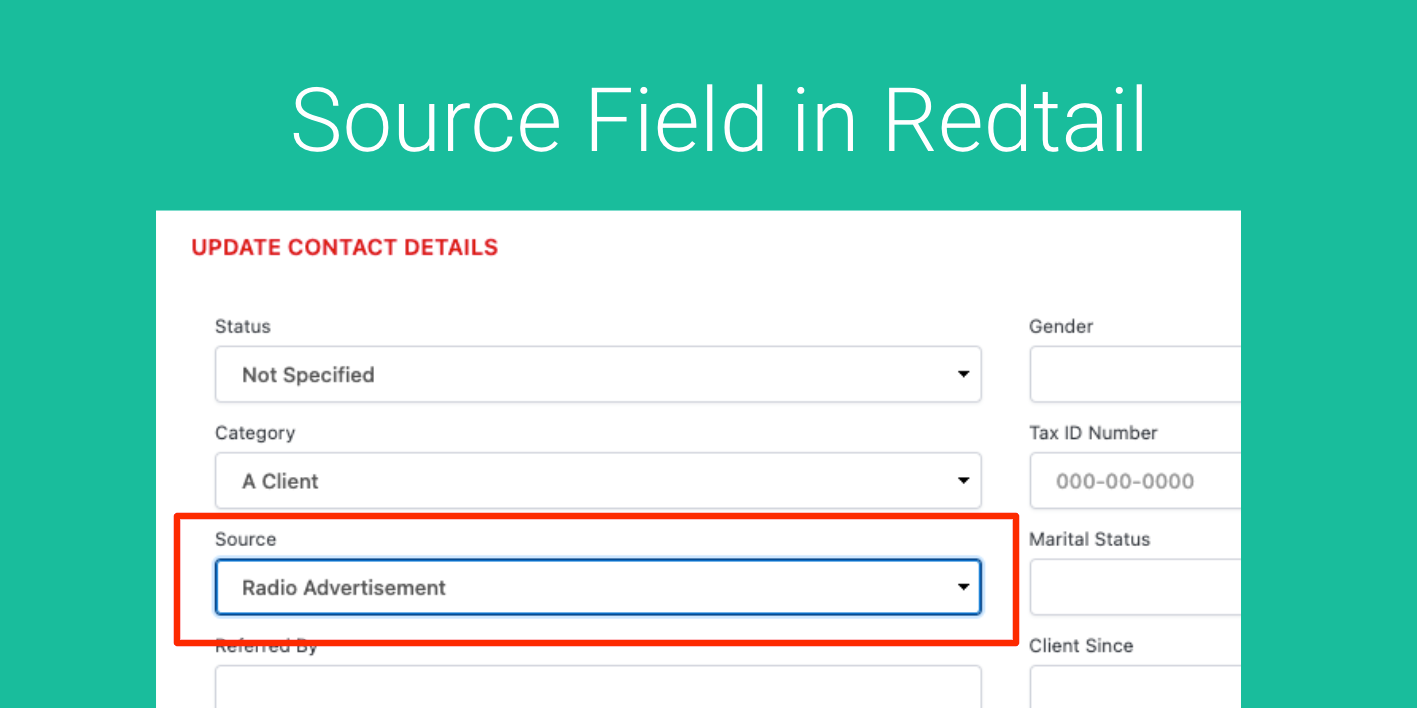
So you want to track Contact “Sources” in Redtail.
Marketing Attribution is a complicated topic and there are many ways to achieve tracking.
UTM field tracking is one way, popular for the Google Analytics Folks. Using other tracking codes via Google Analytics, Hubspot or Marketing Automation tools works well too.
But if you are a Redtail user and like the “Source” field that sits on your Contact Record, this article will take you through how you can pass this data from a booking/scheduling form all the way into your Redtail CRM.
Step 1. Create “Source” as a custom field in GReminders. Under Setup, select Custom Fields, then click Create New.
Be sure to Select Dropdown or Radio Buttons as your Data Type:
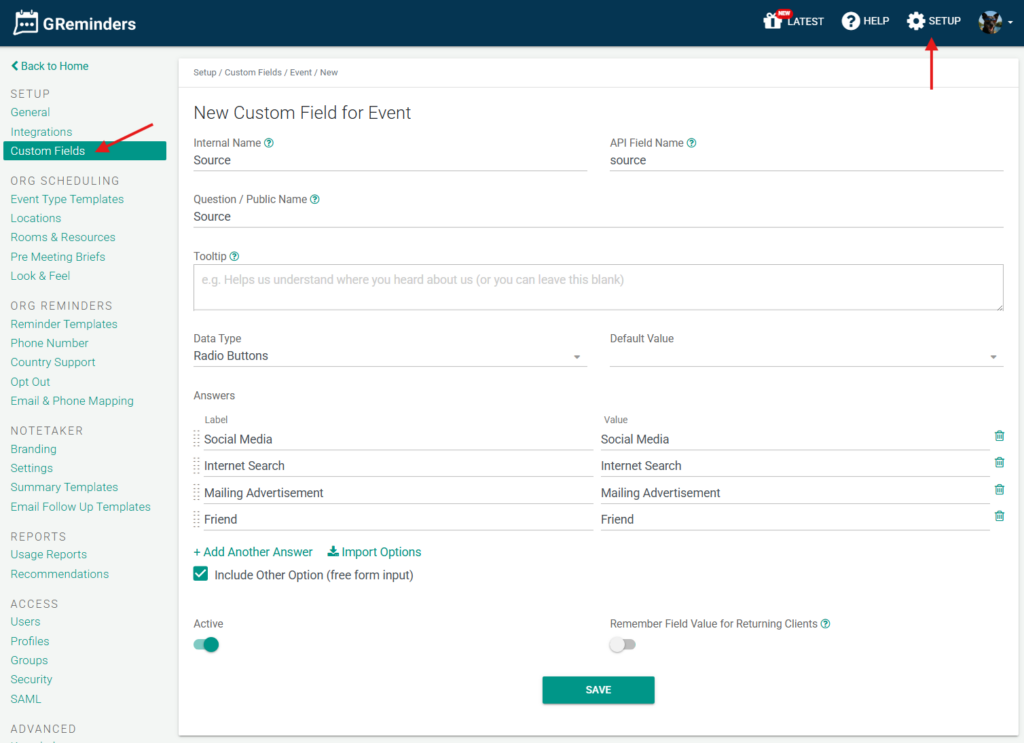
Select Import Options:

Step 2. In Redtail, open up a contact record and click “Contact Details > Edit”. Then right click the Source field and select “Inspect”:

Expand the relevant data:

You will know you’ve found the relevant data when you see the Source field highlighted on the left of the screen.
Expand the section to get labels and values:

Step 3. Copy/paste the labels and values into the Import Answers box in GReminders:

Use the “|” pipe character as delimiter. Click “Import”, the scroll down and click “Save” to create.
Step 4: Go to GReminders Org Settings > Integrations > Redtail. Scroll to the bottom and map your Source field to your Redtail Source Field:

Once you have your question mapped, you have a few options:
- Add this custom field to your Event Type and let your customer/client choose how they heard about you:

- OR if you are controlling how your customer gets your booking link, you can add it to the booking URL (so YOU control what value is being selected), see Step 5.
Step 5: Attach the API Field name (in this example “c_source”) and value of source (here, =1) to the end of the Event Type URL after “?”, like so:
https://app.greminders.com/c/metro/annualreviewwkim?c_source=1
Be sure to also include the Source question in your Event Type, but mark it as a “hidden” question:

Now when someone books through the URL with the API field name and value, the source label will be written into the Source field in your Redtail contact record:

That’s it! Any questions? Please email [email protected]
Happy Scheduling!
FAQs
How do I create and import the 'Source' custom field in GReminders to match Redtail's Source field?
In GReminders, go to Setup > Custom Fields and create a new field with Data Type as Dropdown or Radio Buttons. Then, in Redtail, inspect the Source field on a contact record to find the labels and values. Copy and paste these labels and values into the Import Answers box in GReminders using the '|' pipe character as a delimiter. Click Import and then Save to create the field.
How can I map the custom Source field in GReminders to the Source field in Redtail?
Navigate to GReminders Org Settings > Integrations > Redtail, scroll to the bottom, and map your custom Source field to the Redtail Source Field. This allows the data collected in GReminders to be passed correctly into Redtail.
How do I automatically pass the Source value from a booking URL into Redtail?
Add the API field name and value (e.g., c_source=1) to the end of your Event Type booking URL after a '?'. Include the Source question in your Event Type but mark it as a hidden question. When someone books through this URL, the source label will be written into the Source field in the Redtail contact record.