
GReminders allows you to map the answers your clients submit during scheduling to User Defined Fields (UDF) in Redtail. UDFs are just one of the options you have to map your Custom Questions to but they are very commonly used. (Click here to learn more about this process)
GReminders can also sync with your Redtail Contacts, which gives you the power to search highly targeted lists based on Redtail contacts. This is essential in our Automation feature for things like automatic Birthday and Anniversary messages, automating your Client Review invite process, and more. (Click here to learn more about this process)
This article will help prepare your Redtail contact for these types of GReminders automation. To learn more about how to organize your data within Redtail, Click Here.
Managing UDFs:
UDFs (User Defined Fields) in Redtail are a powerful way to track Review Dates for your contacts. By setting up a UDF for review meetings, GReminders can automatically access this information to send timely invitations to your clients for their upcoming reviews.
First, ensure you have a Review Date UDF created within your Redtail Database Lists.
After creating the UDF in your Redtail account, the next step is to identify the appropriate contacts to assign it to. This process may vary depending on how your data is organized within Redtail CRM.
The first option is via the Redtail Advanced Search. The advanced search allows you to filter through many different items on your contacts’ records.
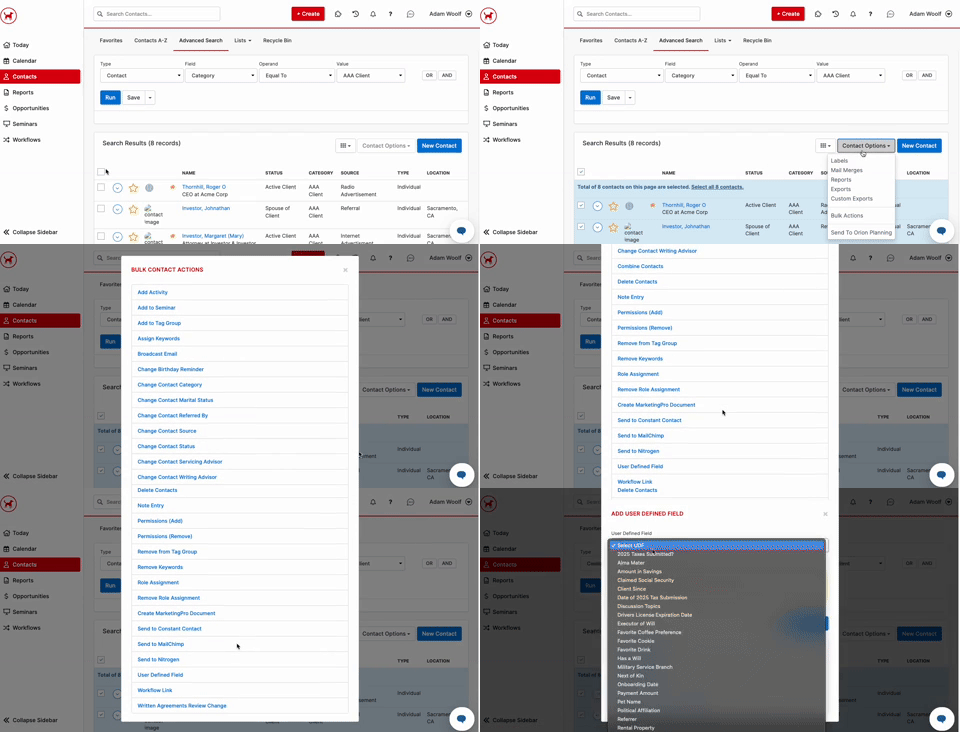
You can see an example of this search below, where we are filtering for a Redtail Contact Category. There are many other ways to advance search for your contacts in Redtail as well.

Another common example is searching for Redtail’s ‘Know Your Client’ Next Review Month. You can search for those in the same review month, then add a UDF in bulk.
Ex: Search for contacts with a next review month of January, and bulk add a UDF date of 01/01/2026.

After the search is complete, you can select ALL of your contacts, followed by the ‘Contact Options’ drop-down on the right-hand side. There, you will see an option for ‘Bulk Actions’ followed by ‘Add Contact User Defined Field‘.
Managing Tag Groups:
Tag Groups can be great for use cases such as Tags for ‘Annual Review’, ‘Bi-Annual Review’, and ‘Quarterly Review’. If you are not already tracking that information in another Redtail field, Tag Groups is a great option for this organization.
Redtail Bulk Actions can easily add the contacts you need to a Tag Group. There are a couple of ways to do this from within Redtail.
The first is via the Redtail Advanced Search. The advanced search allows you to filter through many different items on your contacts’ records. You can see an example of this search below, where we are filtering for a Redtail Keyword. There are many other ways to advance search for your contacts in Redtail as well.
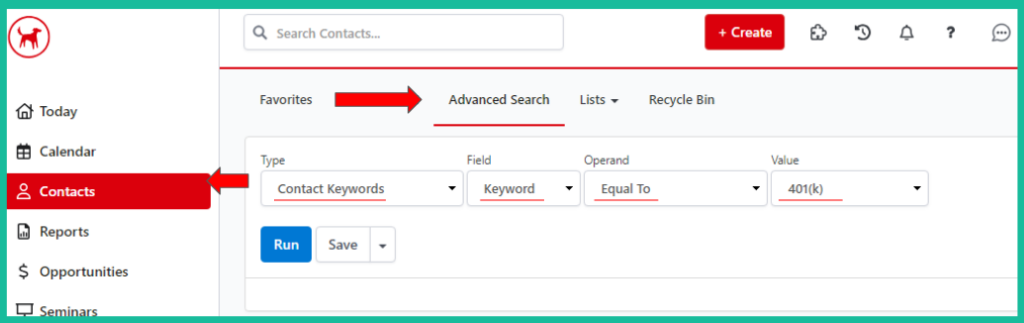
After the search is complete, you can Select ALL of your contacts, followed by the ‘Contact Options’ drop-down on the right-hand side. There, you will see an option for ‘Bulk Actions’ where you can add these selected contacts to a Tag Group.
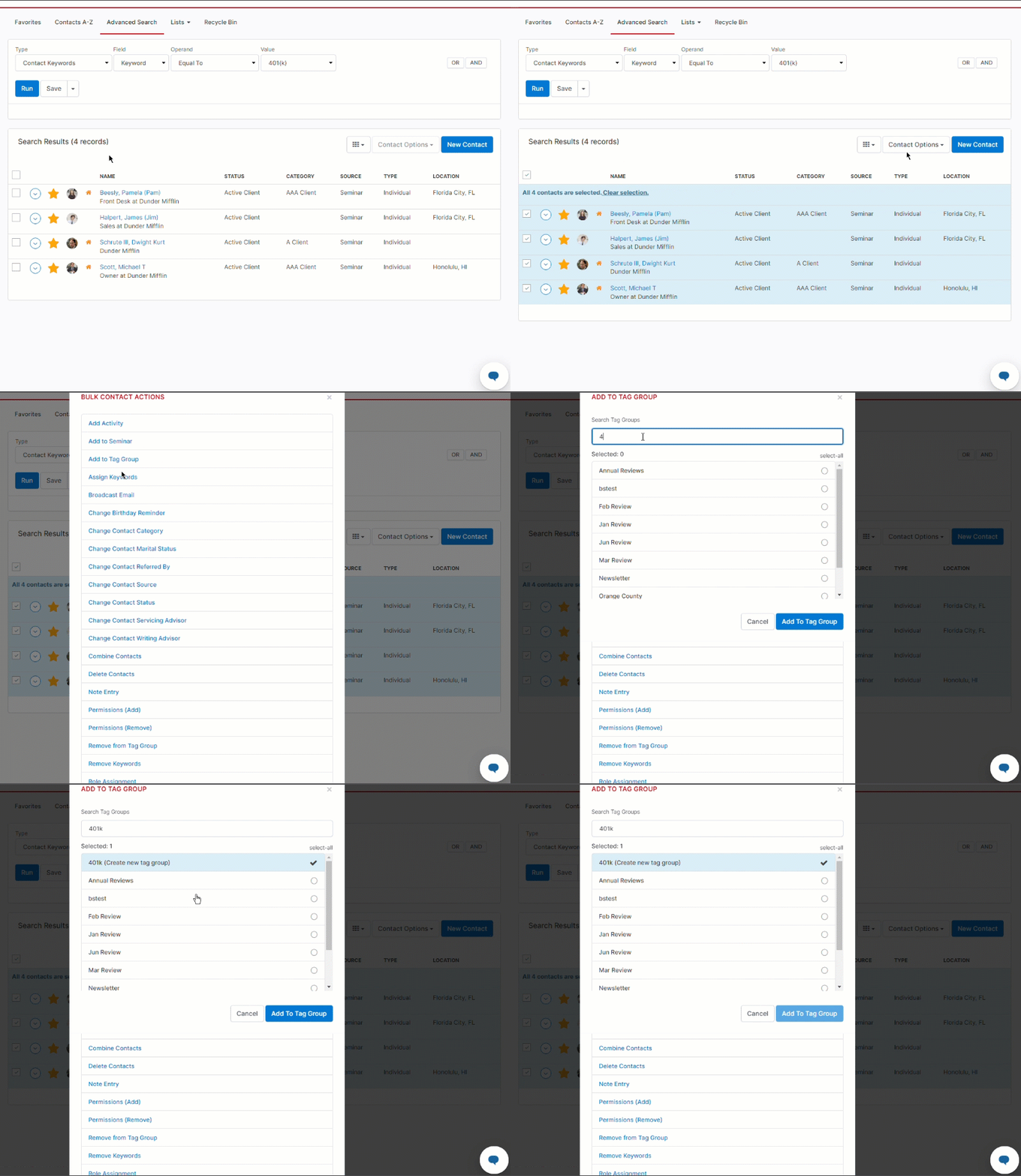
To view Redtail’s documentation on adding contacts to a Tag Group in bulk, Please Click Here.
What if I cannot use the Redtail Advanced Search?
There will be times when you cannot use the Redtail Advanced Search to find what you need. In those situations, you can use the ‘Reports‘ option within Redtail.
A good example of this is the Contact User Defined Field Report, which cannot be Advanced Searched.
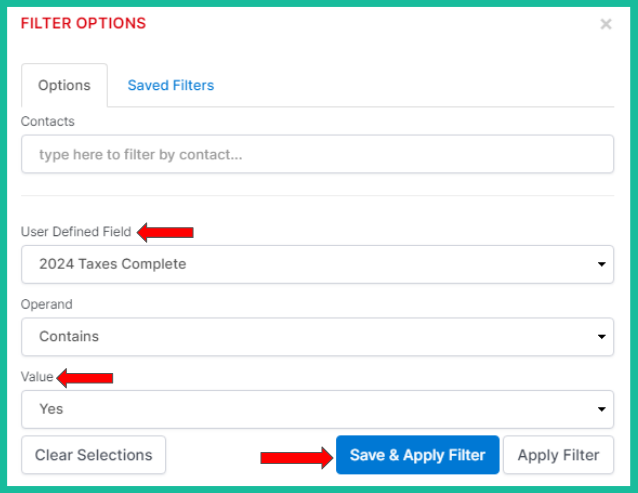
To complete this, first select ‘Reports’ on the left-hand side of Redtail. Scroll down to the ‘UDF Reports’ and select ‘Contact User Defined Fields’. You will see a ‘Filter’ button at the top right of the report, as shown below. Again, this is just one example of Redtail reports. You can also report on Account information, calendar information, and more within Redtail’s ‘Reports’ section.
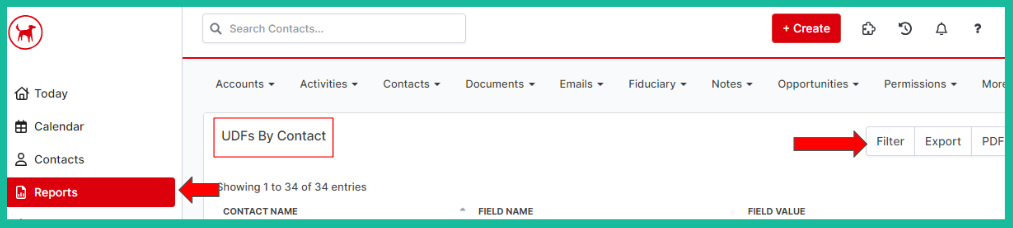
Please filter for the UDF, and if needed, the value for the UDF as well. You can see the example below where we are filtering for the UDF “Taxes Complete”.
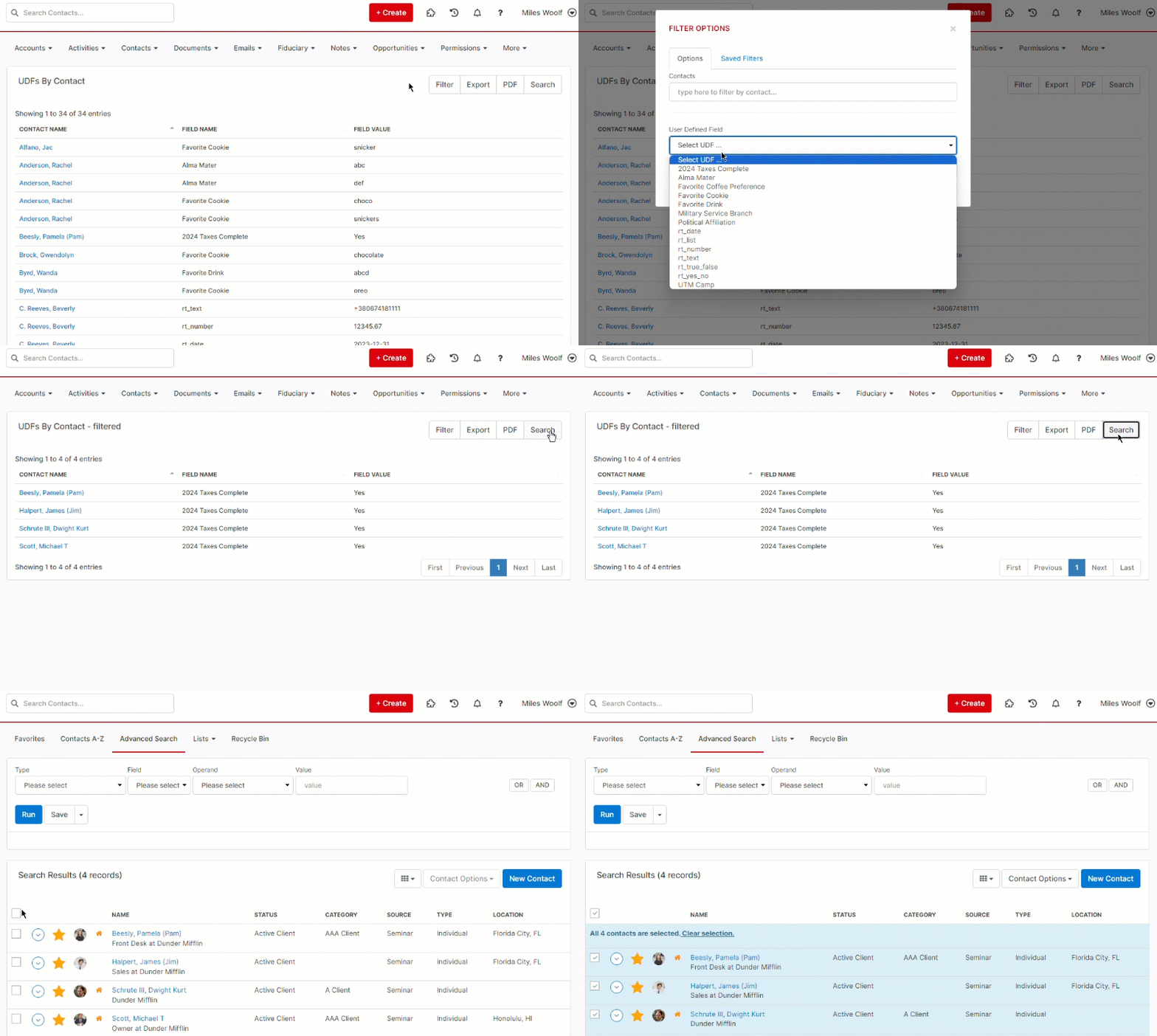
Once your filter is complete and applied to the report, you will see a ‘Search’ button at the top right of the report. This is key!
The ‘Search’ button will send your filtered list of contacts from the Report to the Redtail Search page. You can now Select ALL contacts and use the Redtail Bulk Action as needed.
To view Redtail’s documentation on how to best use the Contact User Defined Field Report, Please Click Here.
That’s it!
You can now filter for these groups in the GReminders Automations.
To learn more about how to classify your data within Redtail, Click Here.
If you have additional questions, please contact: [email protected]
Happy Scheduling!
FAQs
How can I map client answers to User Defined Fields (UDF) in Redtail using GReminders?
GReminders allows you to map the answers your clients submit during scheduling to User Defined Fields (UDF) in Redtail. After creating the UDF in your Redtail account, you can assign it to contacts using Redtail's Advanced Search or Reports, enabling automation features like sending timely review invitations.
What should I do if I cannot use Redtail Advanced Search to find contacts?
If Redtail Advanced Search cannot be used, you can utilize the 'Reports' option within Redtail. For example, use the Contact User Defined Field Report, apply filters for the UDF and its values, then click the 'Search' button to send the filtered list to the Redtail Search page. From there, you can select all contacts and perform bulk actions.
How can Tag Groups be used in Redtail for organizing contacts?
Tag Groups in Redtail can be used to organize contacts based on categories such as 'Annual Review', 'Bi-Annual Review', and 'Quarterly Review'. You can add contacts to Tag Groups in bulk using Redtail's Advanced Search to filter contacts, then selecting all and using the 'Bulk Actions' option under 'Contact Options' to add them to the desired Tag Group.