
Embedding a Scheduling or Routing form into your website is easy. For General instructions on how to embed Scheduling pages into your website see our general documentation.
If you are a Squarespace user here are basic instructions:
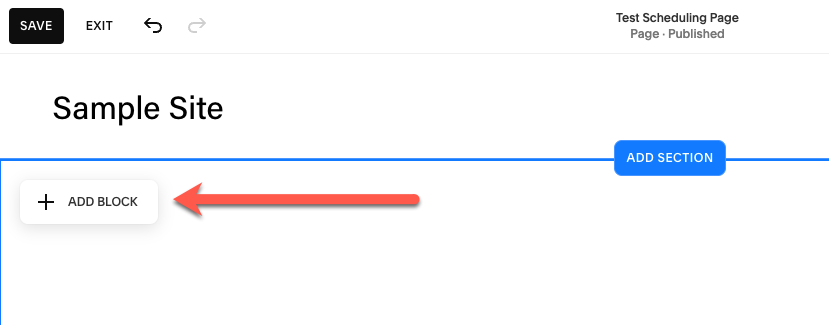
First edit a Squarespace page and add a “Block”:
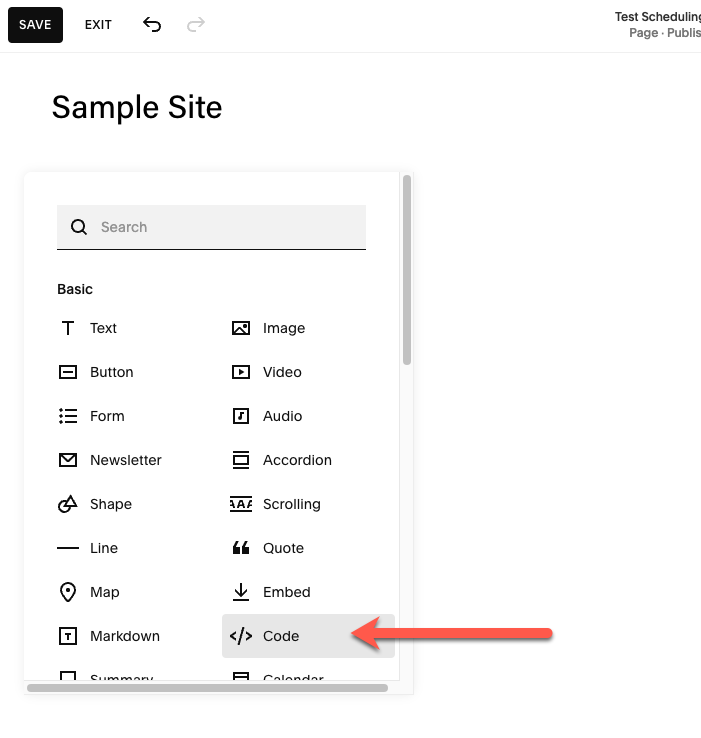
Next select the CODE block
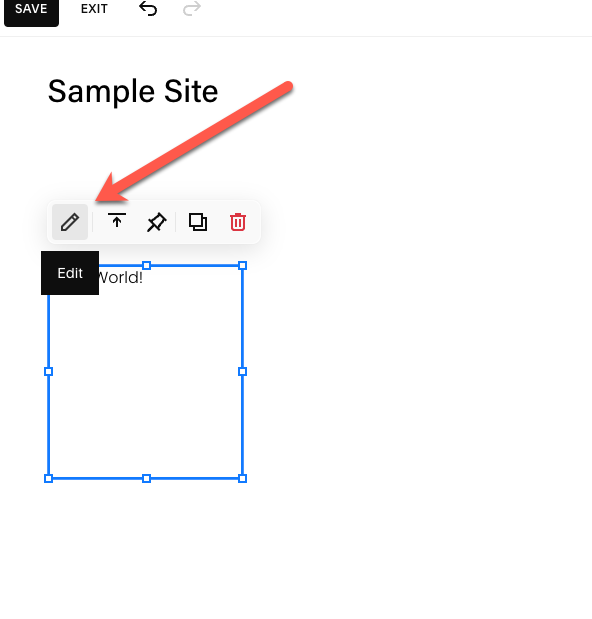
Edit the Block
Then copy and paste the HTML IFRAME code:
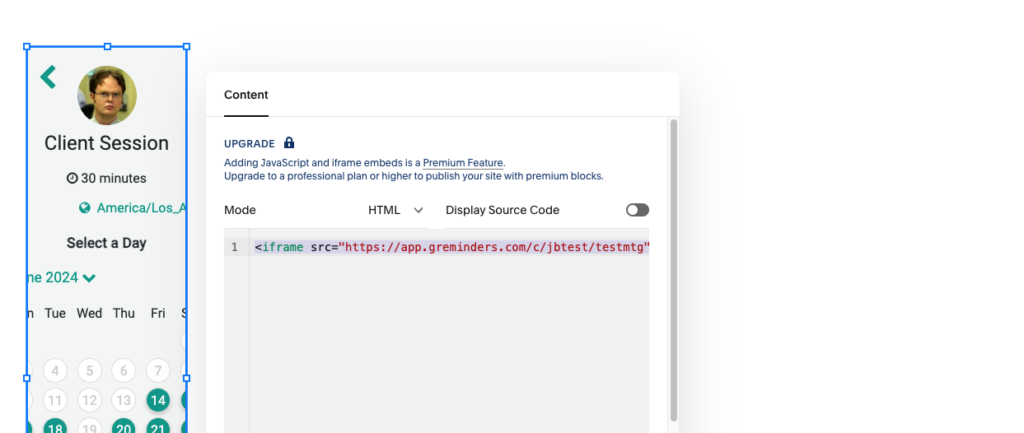
The Iframe code looks like this:
<iframe src="XXXXXXX" style="border: none; width: 100%; height: 800px; overflow: scroll;" allowfullscreen></iframe>Where XXXXXX is your Booking Link, Event Type Link or Routing Form URL.
Last Expand that Block in Squarespace to make it full width:
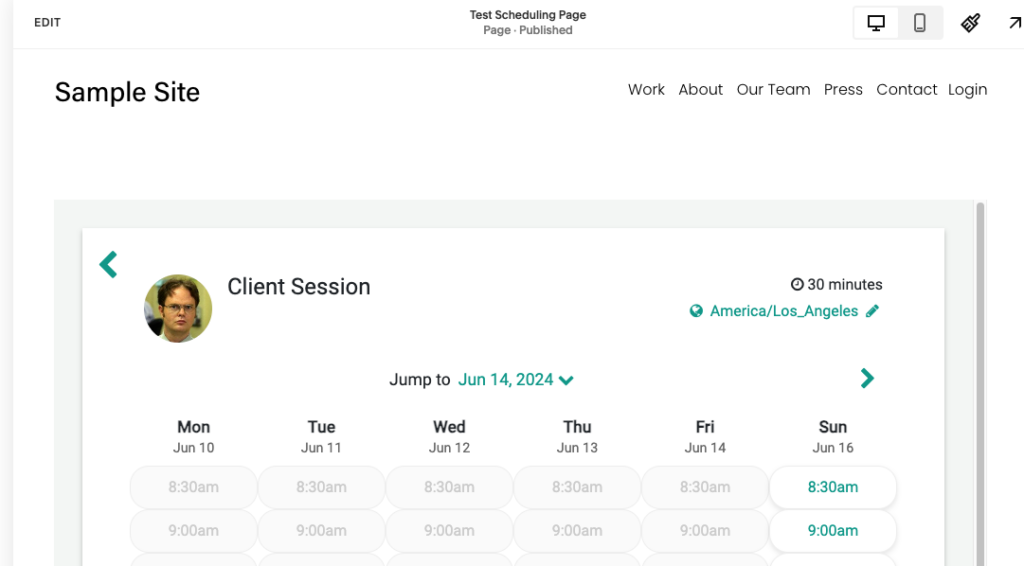
Thats It.
Save your Page and Publish it.
Any questions? Email to [email protected]
Happy Scheduling
FAQs
How do I embed a Scheduling or Routing form into my Squarespace website?
Edit a Squarespace page and add a 'Block'. Select the CODE block, edit it, then copy and paste the HTML IFRAME code with your Booking Link, Event Type Link, or Routing Form URL. Expand the block to full width, save your page, and publish it.
What does the IFRAME code look like for embedding the Scheduling form?
The IFRAME code looks like this: , where 'XXXXXXX' is your Booking Link, Event Type Link, or Routing Form URL.
Who can I contact if I have questions about embedding the Scheduling form?
You can email [email protected] for any questions regarding embedding the Scheduling or Routing form.