If you are syncing your CRM Contacts back to GReminders, you can automatically book a meeting on behalf of your clients very easily with all the data automatically pre-populated for you.
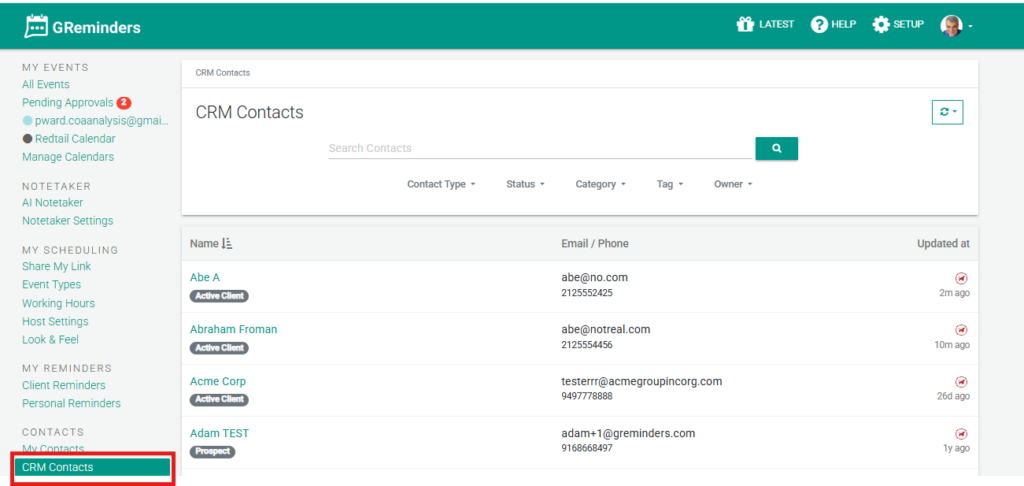
Navigate to the Contact Record. Go to Contacts > CRM Contacts and do a simple Search:
Click on the Client or Household:
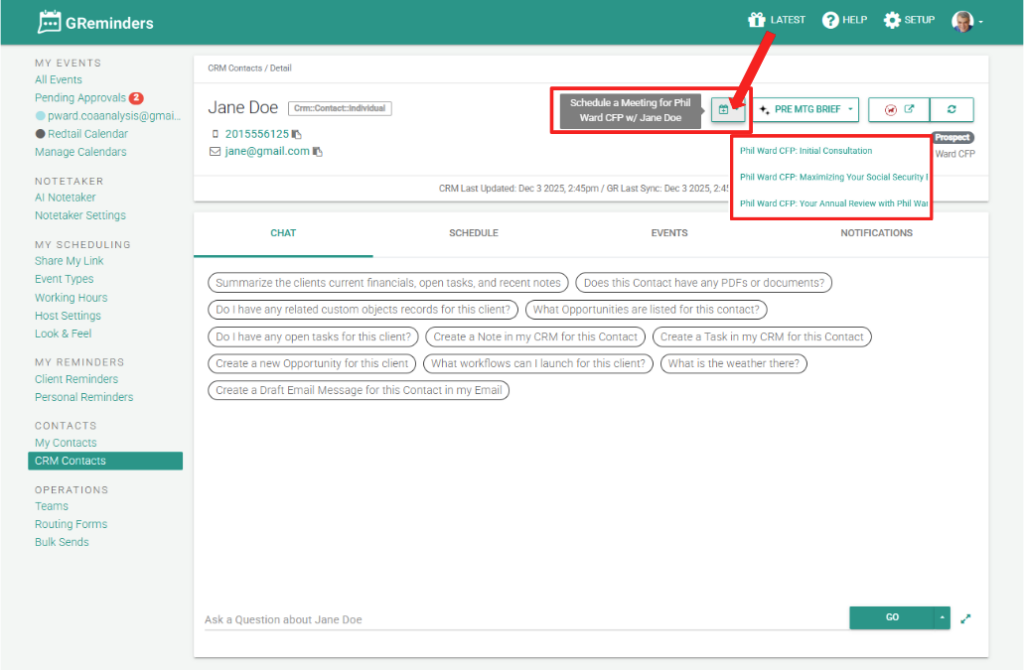
Assuming the Contact has an Owner, you should see the Calendar Icon Button. Click it and you will see all the Event Types available for the Owner.
Note: The Owner of the record must also be a GReminders User.
When you click on one of the Event Types, it should open up a new window with date/times available:
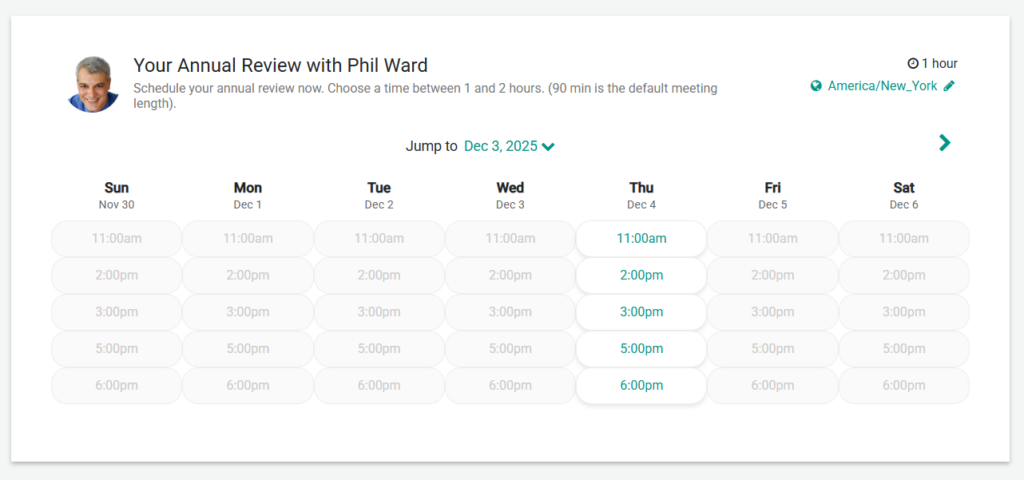
Select the date/time they wish to meet.
Now notice that all of the fields are automatically filled for you.
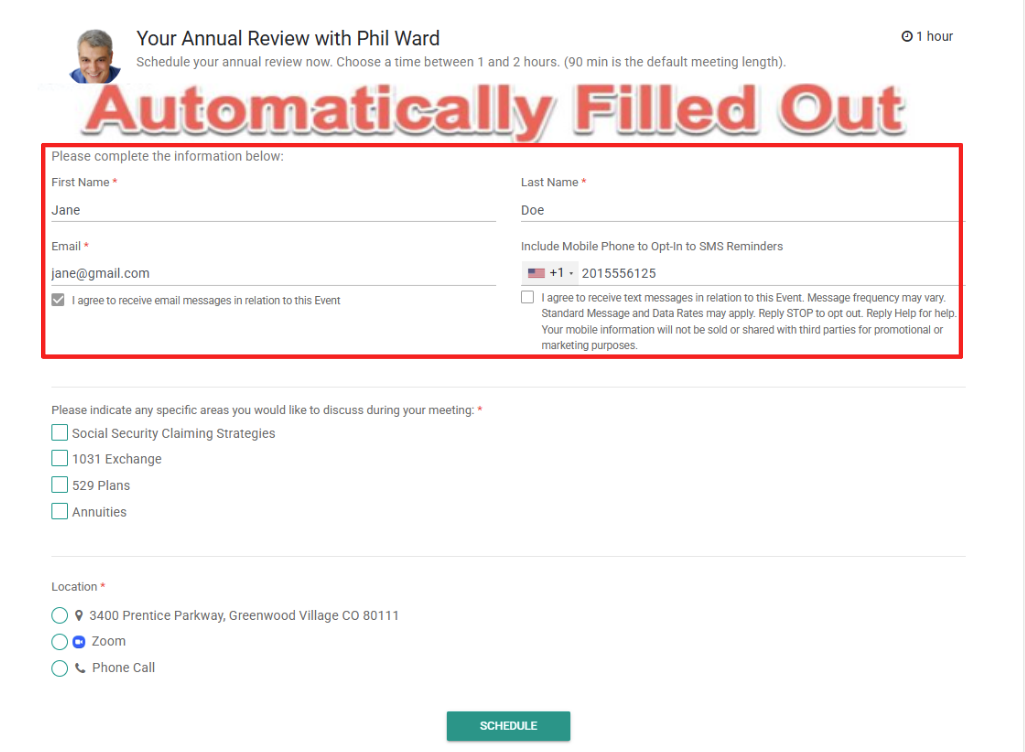
Click Schedule and you are done!
Assigning Contact Ownership
To ensure you are using the proper Contact Owner an administrator will need to navigate to Setup > Integrations and select the CRM you are integrated with. Select the right Field for Contact/Household Ownership here:
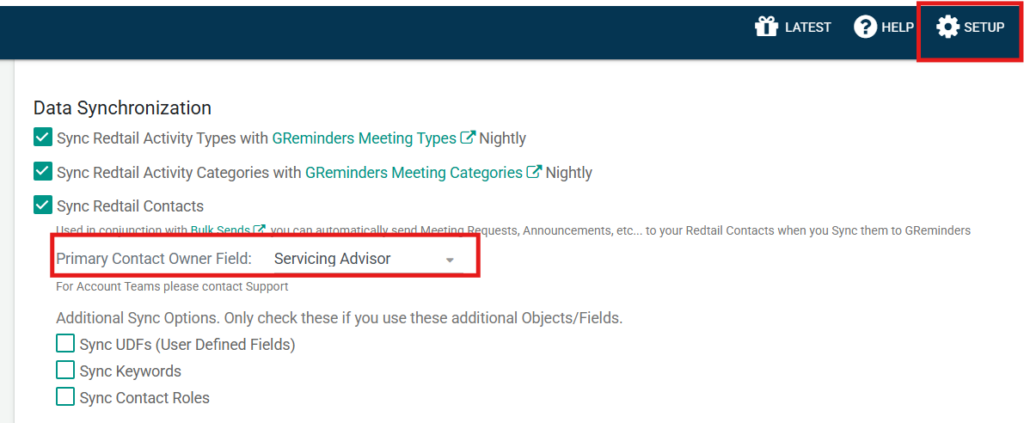
This will Ensure you have the right owner assigned to the contact.
Any questions? Email to [email protected]
Happy Scheduling
FAQs
How do I book a meeting on behalf of my clients using synced CRM Contacts in GReminders?
Navigate to Contacts > CRM Contacts and search for the client or household. Click on the contact, then click the Calendar Icon Button if the contact has an Owner who is also a GReminders user. Select an Event Type, choose an available date/time, and all fields will be automatically pre-populated. Finally, click Schedule to book the meeting.
What is required for the Calendar Icon Button to appear on a contact record?
The contact must have an Owner assigned, and the Owner must also be a GReminders user for the Calendar Icon Button to appear.
How do I assign the proper Contact Owner in GReminders?
An administrator should go to Setup > Integrations, select the integrated CRM, and choose the correct field for Contact/Household Ownership. This ensures the right owner is assigned to the contact.