Follow the instructions in this article to quickly integrate GReminders with SmartOffice.
Setting up User Rights in SmartOffice for GReminders
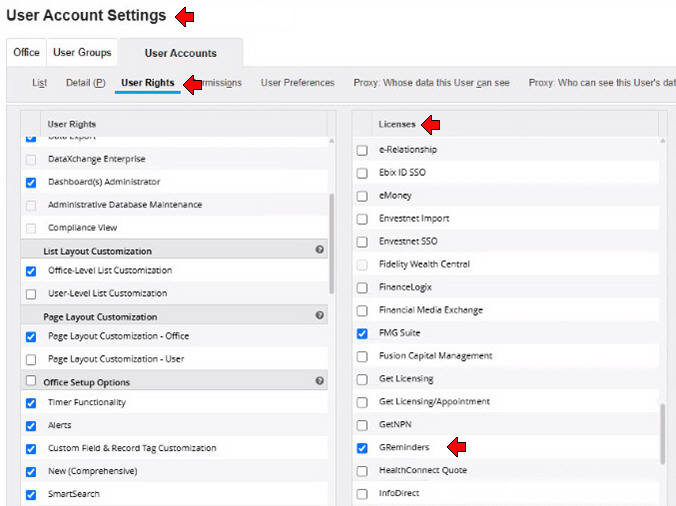
In SmartOffice, go to Setup > User Accounts > User Rights
Under the Licenses Section, scroll down to Integrations and select GReminders.
Next, you’ll need to gather additional information that you’ll use in GReminders to connect to SmartOffice. Look up each value up by following the instructions below and make a note of them so they’ll be available to use in GReminders.
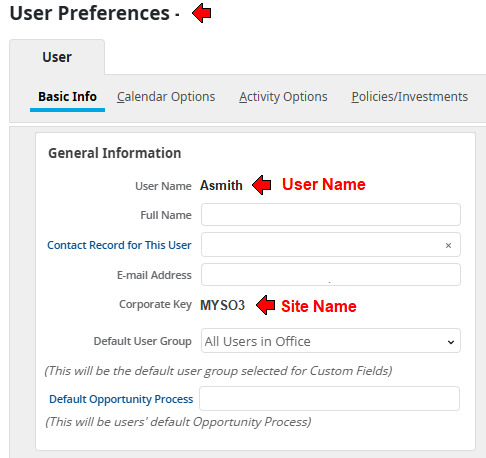
Site Name (also called Corporate Key) & User Name
In SmartOffice, go to Setup > User Preferences
Look under General Information for Corporate Key & User Name as shown below:
Office Name
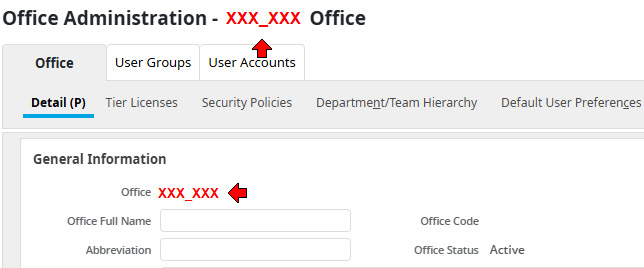
Finally, you’ll need to look up your Office Name.
In SmartOffice, go to Setup > Office Settings
Your Office Name should be at the top of the page:
Now you’re ready to open GReminders and finish the integration.
Connecting GReminders to SmartOffice
Now open GReminders and on the menu on the left, select Integrations under Org Settings.
Scroll down until you see SmartOffice. Click Setup > Setup Now.
Now input the values you saved from SmartOffice and save.
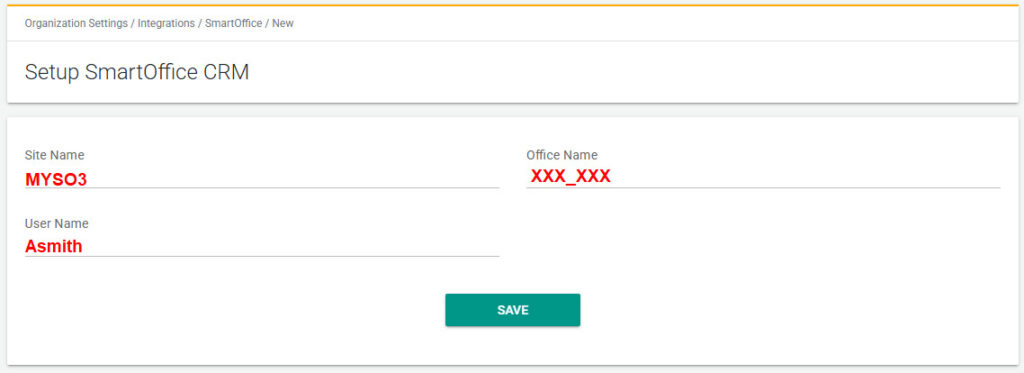
Once you’re connected, you’ll have a few setup options to choose from:
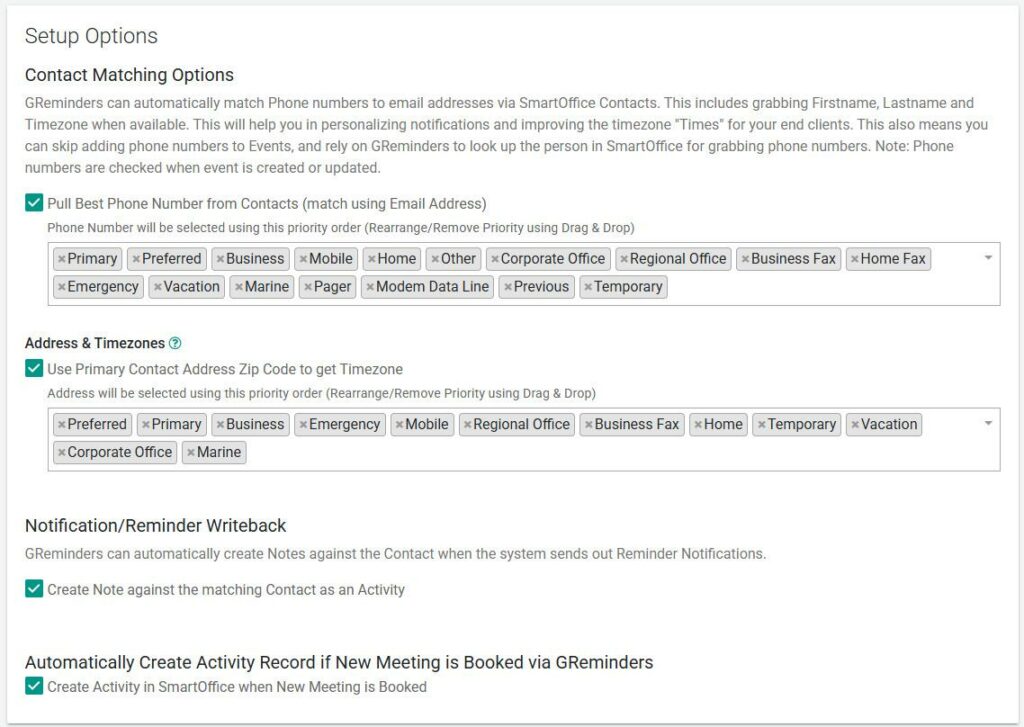
Read the description by each option and make any necessary changes based on how you’ve setup your SmartOffice CRM.
For more information on what you can do when you integrate GReminders to SmartOffice, Click Here.
Contact Us if you have any questions.
FAQs
How do I set up user rights in SmartOffice for GReminders integration?
In SmartOffice, navigate to Setup > User Accounts > User Rights. Under the Licenses Section, scroll down to Integrations and select GReminders.
What information do I need to gather from SmartOffice to connect it with GReminders?
You need to gather the Site Name (also called Corporate Key), User Name, and Office Name. These can be found in SmartOffice under Setup > User Preferences for Corporate Key and User Name, and Setup > Office Settings for Office Name.
How do I complete the integration of GReminders with SmartOffice?
Open GReminders, go to Integrations under Org Settings, scroll to SmartOffice, and click Setup > Setup Now. Input the values saved from SmartOffice (Corporate Key, User Name, Office Name) and save. Then configure any setup options as needed.