This article will contain various troubleshooting tips if you are having any issues with Notetaker joining or taking notes.
For In Person Recordings we recommend download the GReminders Mobile App
General
If you are using waiting rooms make sure the host allows the Notetaker into the meeting.
Zoom
If AI Notetaker is in your call it should be recording. You can use the waiting room if you want to manually let the Notetaker into your Zoom Meeting. Note that only Hosts can admit people from the waiting room.
If Notetaker is not recording please check your Recording Settings in Zoom.
For Company/Org Admins do this at the Admin Level. Go to Admin > Account Settings > Recording & Transcript. Enable Record to Computer Files and enabled Hosts can give Internal and External meeting participants permission to record to their computer like so:
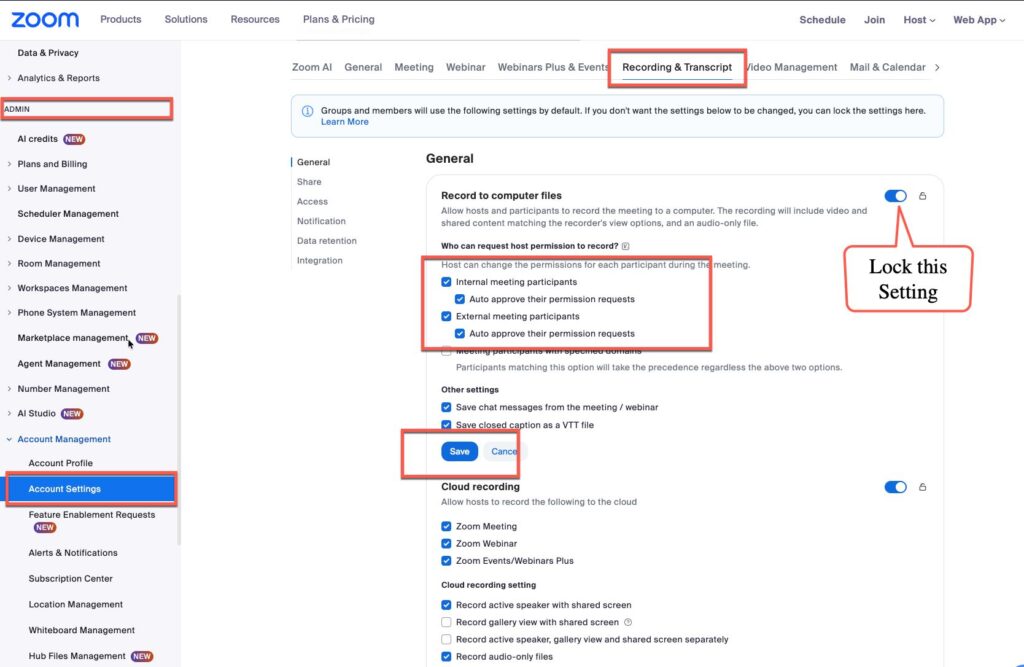
Click SAVE and we also suggest you LOCK this setting so all your users inherit these permissions.
For Personal Zoom Accounts go to Settings > Recording Tab. Enable Record to Computer Files and enabled Hosts can give Internal and External meeting participants permission to record to their computer like so:
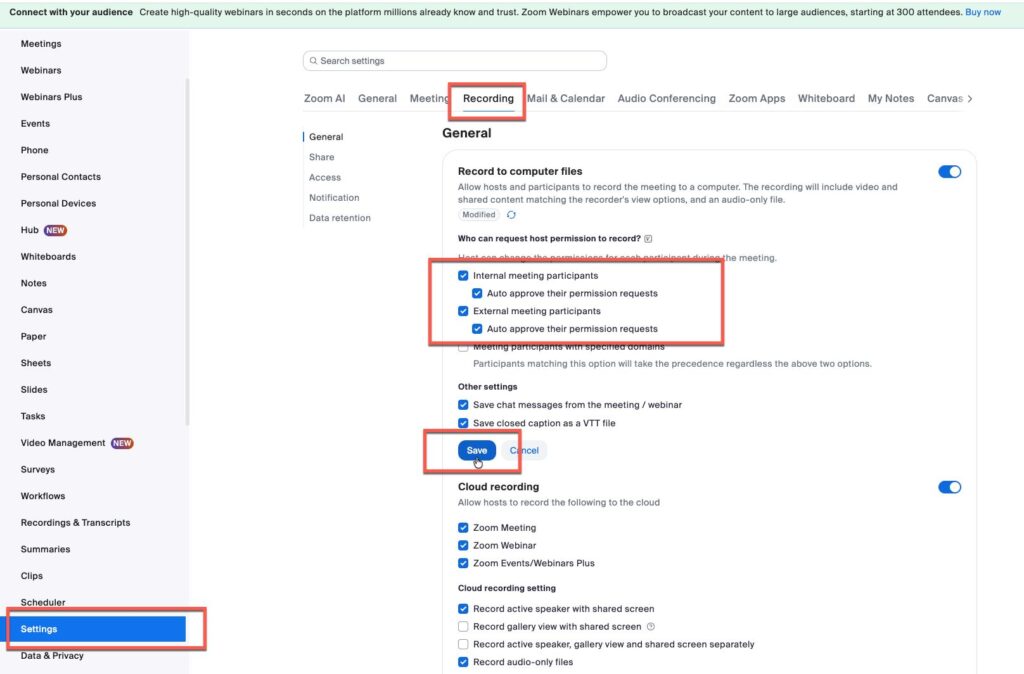
Click Save.
Enable Meeting Captions in Zoom (Enabled by Default)
Make sure Meeting Captions are enabled on Zoom. This is enabled by default, so unless you changed this no action is required.
- Sign in to the Zoom web portal as an admin with the privilege to edit account settings.
- In the navigation menu, click Account Management then Account Settings.
- Click the Meeting tab.
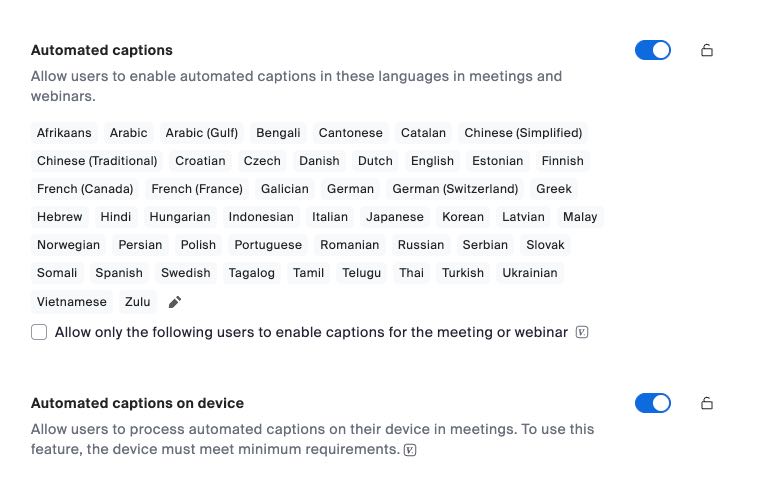
- Make sure Automated Captions and Automated Captions on Device is ENABLED like so:
To ensure your AI Notetaker automatically joins and transcribes your Zoom meetings, turn on Automatic Recording in your Zoom account.
How to Enable Auto-Recording in Zoom
- Log in to the Zoom Web Portal.
- Go to Settings in the left sidebar, then select the Recording tab.
- Scroll down to Automatic recording and toggle it ON.
- Select Record in the cloud (recommended for AI Notetakers) and click Save.
Microsoft Teams
If your AI Notetaker is failing to join your Microsoft Teams meeting, the Notetaker might be blocked by Teams’ security gates before it can reach the lobby. For users on paid Microsoft 365 commercial accounts (Teams for Work or School), there are two settings that need to be adjusted to fix this: one by the meeting organizer, and one by your IT Administrator.
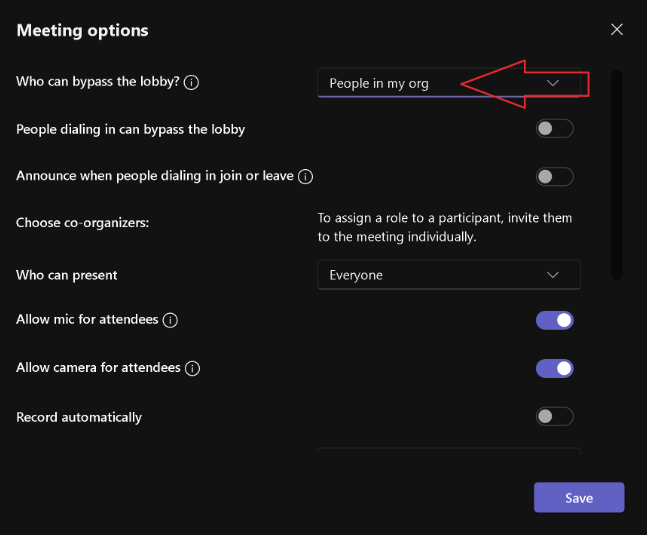
1. Organizer Setting: Update Lobby Bypass Options When a meeting is set so that only invited people can bypass the lobby, Teams enforces a strict identity check and immediately rejects the anonymous bot.
- Open your Microsoft Teams Meeting Options.
- Change the “Who can bypass the lobby?” setting to “People in my organization”.
- Why this works: This allows internal staff to bypass the lobby automatically while sending all external guests (and the AI Notetaker) into the waiting room, where you can manually admit them.
2. IT Admin Setting: Allow Anonymous Users
If the AI Notetaker is still blocked, your organization’s backend security policies are preventing anonymous users from joining meetings at all. Your IT Administrator must enable this in the Teams Admin Center.
Provide your IT Admin with these exact steps:
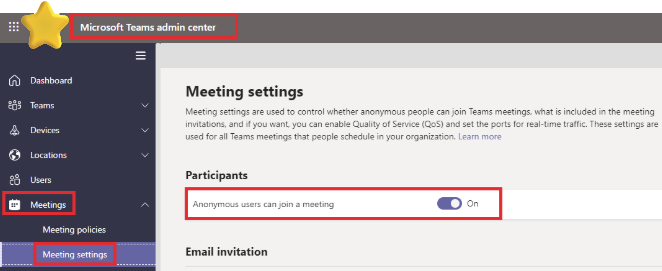
- Step 1: Open the Global Gate
Navigate to Meetings > Meeting settings. Under the Participants section, ensure Anonymous users can join a meeting is toggled ON. (This master switch must be on for the next step to work).
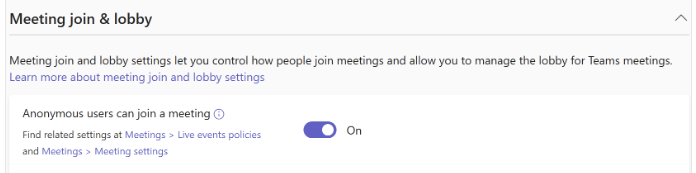
- Step 2: Update the User Policy
Navigate to Meetings > Meeting policies and select the policy assigned to the user. Under the Meeting join & lobby section, ensure Anonymous users can join a meeting is toggled ON.
- Admin Note: If your organization uses Teams Premium or strict security defaults, ensure “Anonymous users can join a meeting unverified” is also permitted so the bot does not get stuck behind a CAPTCHA or email code prompt.
Once these two settings are updated, the Notetaker will successfully appear in your meeting lobby waiting to be admitted.
How to Enable Auto-Recording in Microsoft Teams
- Open Microsoft Teams and go to your Calendar.
- Open the scheduled meeting you want to update and click Meeting Options.
- Locate Record and transcribe automatically and toggle it ON.
- Click Save.
Missing Notetaker Recordings (in Browser)
If you are having Notetaker join an In Person Meeting, Phone Call or Virtual Meeting here are some things you can look for if you “cannot find” the Notetaker Meeting Notes/Recording.
First determine how the call/meeting was Recorded.
In General if you are using your Mobile device we recommend our iOS or Android Mobile App.
If In Person on your Device In the Browser
If you recorded the call using your Phone/Tablet or Computer in your Web Browser make sure you go back to the In Person Recording Page here: https://app.greminders.com/recordings/record
And see if you see any Unsaved Recordings. All Recordings will be stored locally on your device UNTIL they are successfully uploaded to our Cloud
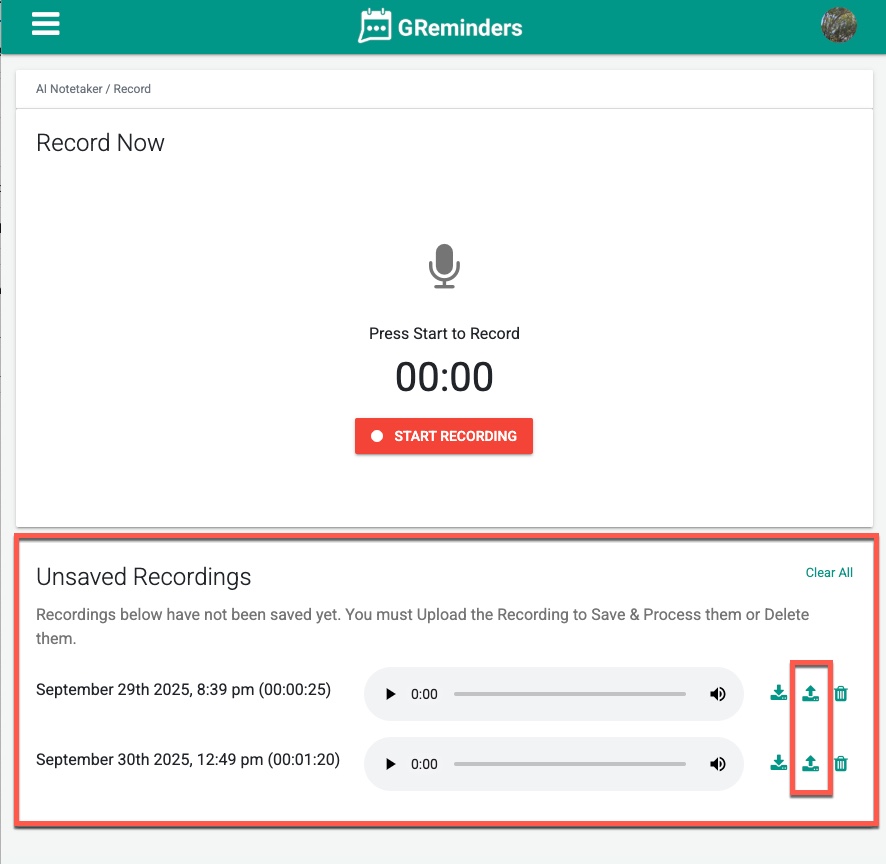
You MUST do this from the Device this was recorded on, it will not be on another device. It must be on the device this meeting was recorded on.
If you see this section you can upload the recording from here directly. Simply hit the Upload icon and the meeting should process normally.
You can also download the recording from here should you need it for more permanent purposes.
Note any recordings kept here will auto expire after 7 days.
Still cannot find it?
If you do not see this Unsaved Section this means the recording was uploaded successfully. If you do not see your Meeting Summary under AI Notetaker within the Application please contact [email protected].
When doing so please submit the following information:
- Date/Time of the Meeting (rough Start/End Times & Date)
- How Notetaker Joined (In Person meeting from your Phone Browser, Merged Call, etc…)
- Device Used (iPhone, iPad, Android, Laptop, etc…)
We need this information to help troubleshoot the issue.
Missing Notetaker Recordings (Mobile App)
If you are missing Recordings from your Mobile App, all recordings are kept in the Archive or Trashcan for up to 30 days. Click on your profile image on the mobile app, then click Archive or Trash. You should see your recordings here.
From here you can Restore then and the reupload them.
Missing Notetaker Recordings (Dial Out)
If you called AI Notetaker FROM your Office or Mobile phone (Dial Out), we use the Caller ID to determine who we should associate this recording to. This means if you have multiple users within your organization that have the same phone number it will select one of those users to associate the recording with.
Each user should have a unique Phone Number in their profile. If you everyone uses the same Office Line you should have the Notetaker call you instead of using the Dial Out feature.
Android Recording Troubleshooting
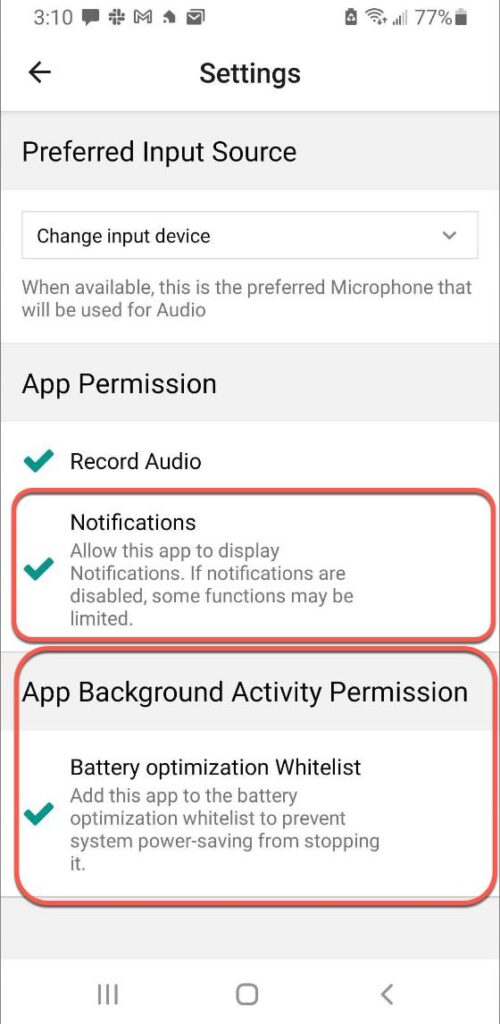
If Recording is being disabled once the phone goes to sleep make sure you have BOTH
- Battery Optimization Whitelist Enabled
- Allow Notifications Enabled
for the GReminders App.
Go into the Settings of the application and enable BOTH Battery Optimization Whitelist AND Notifications as you see below:
If you continue to have issues please email to [email protected]
FAQs
Why does Notetaker drop off after 10 minutes in my Zoom call?
Notetaker drops off after 10 minutes most likely because the host has ignored or denied the request to allow recording. Only the host or alternate hosts can approve recording. The host must enable recording permissions in their Zoom settings for Notetaker to function properly.
How can I fix Notetaker failing to join Microsoft Teams meetings?
To fix Notetaker failing to join Microsoft Teams meetings, the meeting organizer must change the 'Who can bypass the lobby?' setting to 'People in my organization'. Additionally, the IT administrator must enable 'Anonymous users can join a meeting' in the Teams Admin Center under Meetings > Meeting settings and Meeting policies. If Teams Premium or strict security defaults are used, 'Anonymous users can join a meeting unverified' must also be allowed.
Where can I find missing Notetaker recordings from in-person or virtual meetings?
If recordings are missing, check the In Person Recording Page on the device used for recording to see if there are any unsaved recordings that need to be uploaded. Recordings are stored locally until uploaded to the cloud and expire after 7 days if not uploaded. For mobile app recordings, check the Archive or Trashcan within the app profile, where recordings are kept for up to 30 days and can be restored and reuploaded.