Never Ask “Wait, Who Said That?” Again.
Knowing who is speaking on a Zoom or Microsoft Teams call is “easy”, usually everyone joins from their own device with a neat name tag attached them and the transcript or audio stream is neatly tied to that.
In-person meetings or Phone Calls are a completely different story.
When you take a call or set your phone or laptop on the conference table to record a coffee chat, client strategy session, or team sync, traditional AI note-takers run into a massive bottleneck: speaker diarization vs. speaker identification.
- Without Voice Fingerprinting: The AI knows different people are talking, leaving you with transcripts filled with “Speaker A,” “Speaker B,” and “Speaker C”. You still have to spend time untangling who promised to send the proposal and who approved the budget.
- With Voice Fingerprinting: The AI recognizes exactly who is speaking by matching vocal characteristics to a persistent profile. “Speaker A” instantly becomes “Sarah,” and “Speaker B” becomes “Michael”. Speaker Attribution Done.
We are excited to announce that Voice Fingerprinting is officially live in GReminders!
Why Voice Fingerprinting Changes Calls or In-Person Recordings
The power of an AI note-taker isn’t just generating text – it’s delivering actionable intelligence.
1. Improved Action Item Attribution
Instead of a generic summary stating “Follow up on contract details,” Greminders automatically attributes action items to the specific individual. You get clear, unambiguous tasks like “Sarah to send revised pricing by Friday” straight out of your live conversation.
2. Seamless Integration with Your CRM & Reminders
Because Greminders accurately identifies who made which commitments during a face-to-face meeting, those notes can flow directly into your existing tools, follow-up emails, and calendar reminders with zero manual editing.
3. Total Presence in the Room
No typing, no shorthand, and no post-meeting clean-up. Stay 100% engaged, maintain eye contact with clients or teammates, and let GReminders handle the documentation in the background.
How to Set It Up
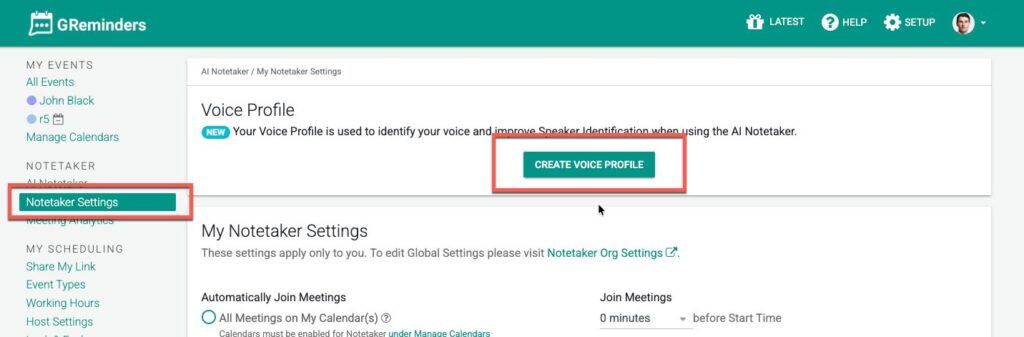
Go to Notetaker Settings and click Create Voice Profile
Click Start Recording and SAY the text on the screen into your microphone:
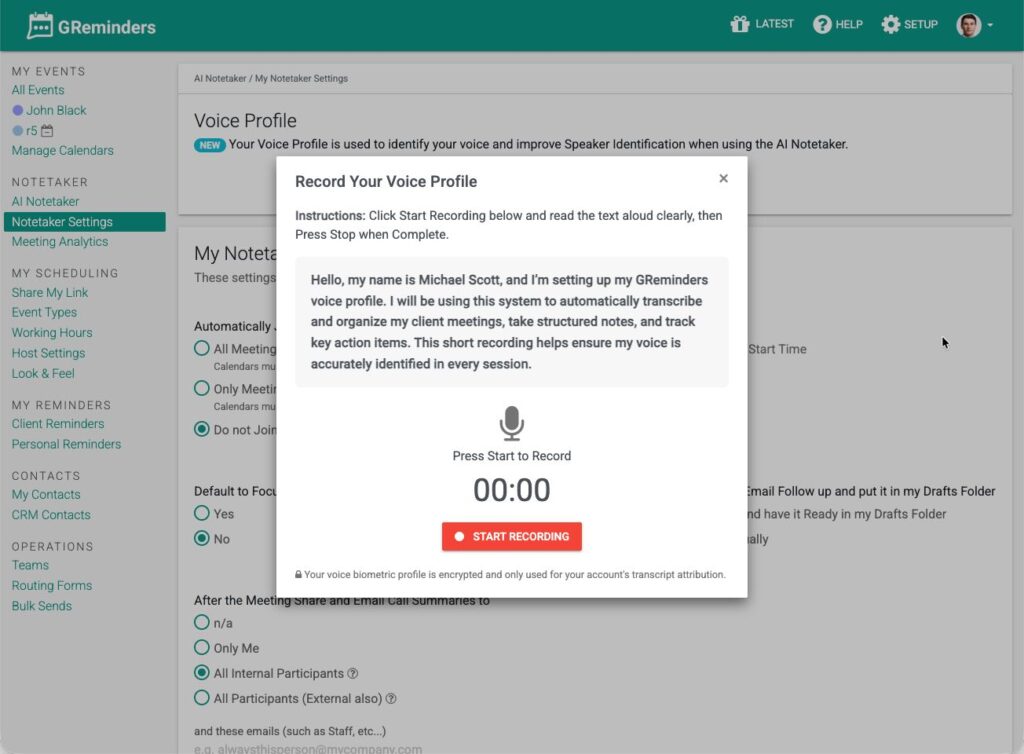
Click Save. After a few minutes your Voice Print is active.
Your voice biometric profile is fully encrypted and only used for your account’s transcript attribution.
Next, do some in person recordings.
Once the Transcript is done processing it should do a much better job of determining your voice from others.
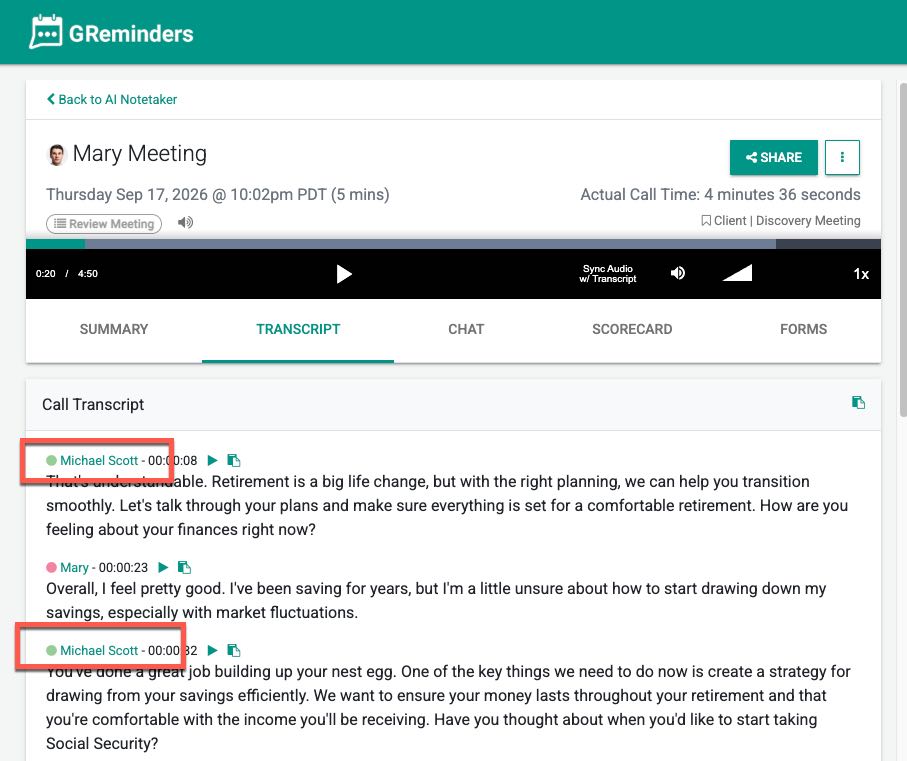
Give it a go.
Please note this is a new feature (Sept 2026) and some additional fine tuning on our part may be required.
We very much look forward to your feedback.
Any questions? Please email to [email protected]
FAQs
What is Voice Fingerprinting?
Voice Fingerprinting is a feature that allows AI note-takers to recognize who is speaking by matching vocal characteristics to a persistent profile, enabling clear speaker attribution.
How does Voice Fingerprinting improve action item attribution?
It automatically attributes action items to specific individuals, providing clear tasks like 'Sarah to send revised pricing by Friday' instead of generic summaries.
How do I set up Voice Fingerprinting?
Go to Notetaker Settings, click Create Voice Profile, start recording by saying the text on the screen, and then save your voice print.