Document systems like Box, SharePoint, and similar platforms give advisors a secure, centralized place to store, organize, and share client information. They likely contain Financial Statements, Tax Returns, Trusts/Wills, and various other Notes.
Documents can be very useful for enhancing Pre Meeting Briefs or getting information about a client via Ask Anything AI Assistant.
GReminders now has integrations into various Document Systems including:
- Box
- Sharepoint
- One Drive
- Google Drive
- One Note
- Redtail Documents (not Redtail Imaging)
- more are on their way
If you are looking other platform integrations please contact [email protected]
Note for Redtail Users: Documents must be uploaded directly to the Documents section on the contact record. Files attached to a Note or an Account will not be readable by GReminders, even if Redtail displays them in the overall Documents view.
How It Works
To benefit from these you need some organization. At MINIMUM you need a top level folder that contains most/all of your Clients. We will use Box as an example. Something like this:

When you go into one of these folders you can either have files directly or have another set of Folders like so:
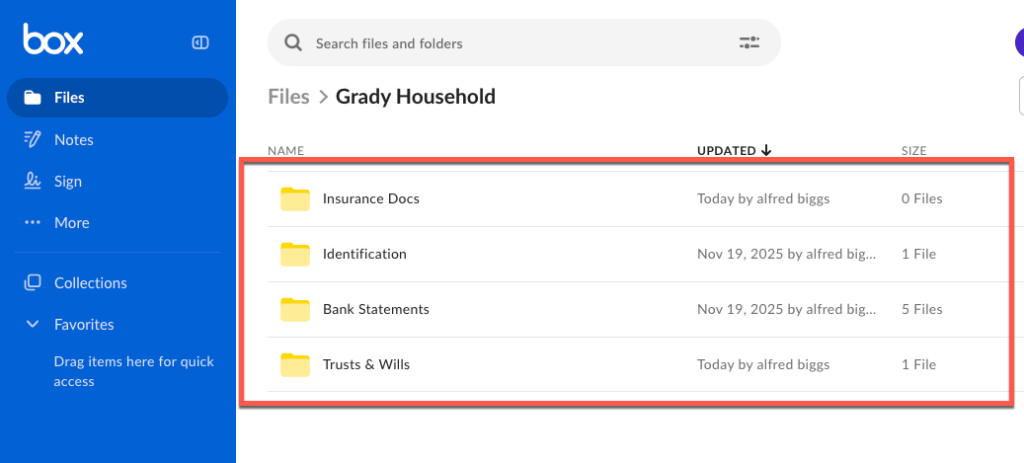
Naming Files and Folders what things are is really important for the AI to work its magic. Putting Bank Statements or Tax Statements into a specific folder and calling it “Tax Return 2025.pdf” is VERY helpful. This gives information to the AI to understand what the file is and why it should read it.
From here you should have a bunch of files in those folders.
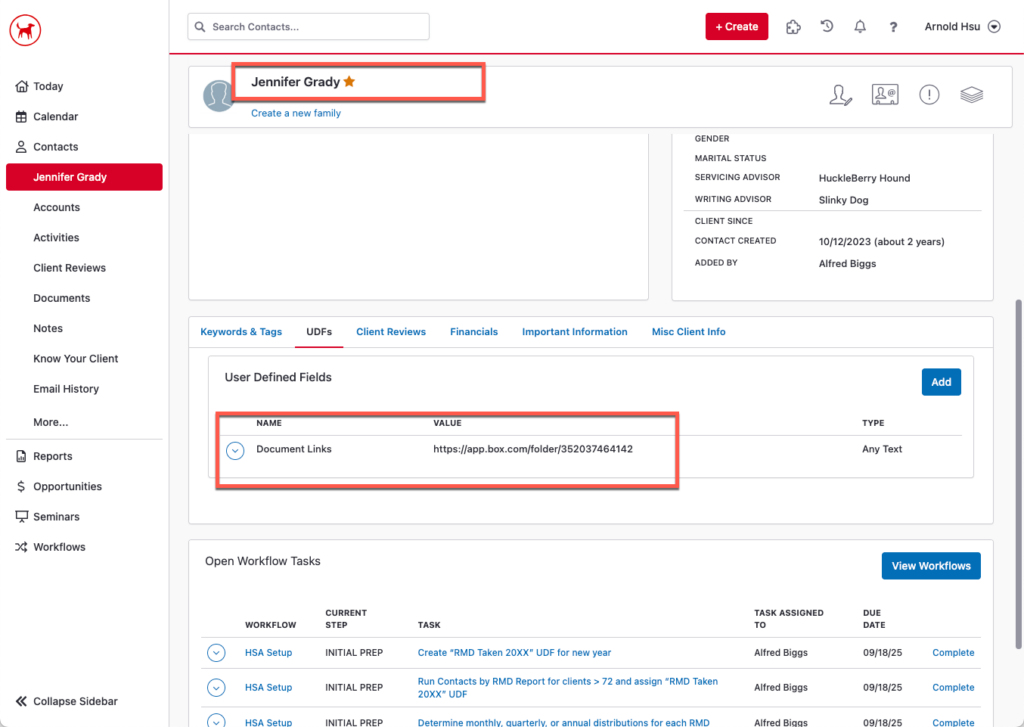
Next, you need to connect the Household or Client “Top Level Folder” to your CRM. Lets use Redtail as an Example store it as a UDF (Make sure you have UDF sync enabled under Integrations > Redtail)
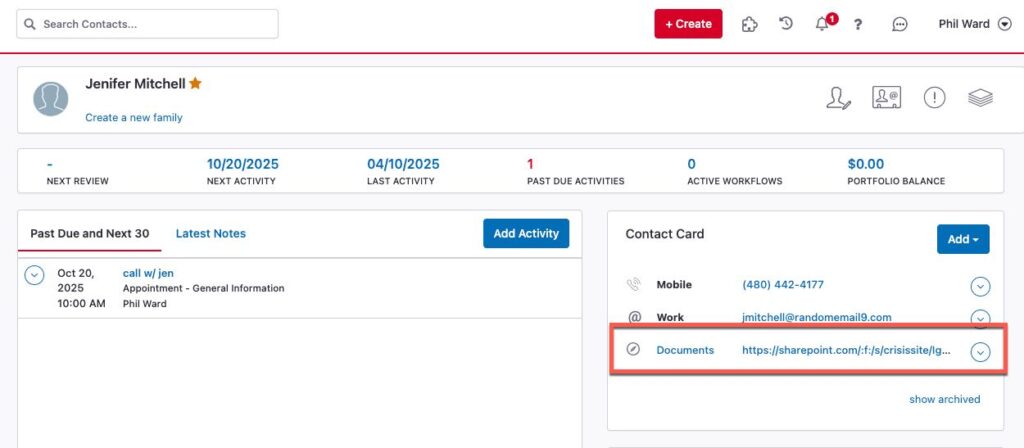
You can also store them as URLs under URLs Website area (also make sure you had UDF/URL sync enabled in the CRM Integration area)
In Wealthbox for example you could create a Custom Field for “Folder Link” and paste in the Sharepoint or Box URL like so:

In your CRM you MUST put the LINK to the Box, Sharepoint, etc… folder. This tells the system what top level folder is connected to the Contact/Household Record.
From here GReminders can read the files/folders in Document Repository.
Using Documents in the AI Assistant
Now that the top level folder is connected to the Client Record, we can navigate to the CRM Contact within GReminders. Go to CRM Contact > Search for the contact record and start asking questions
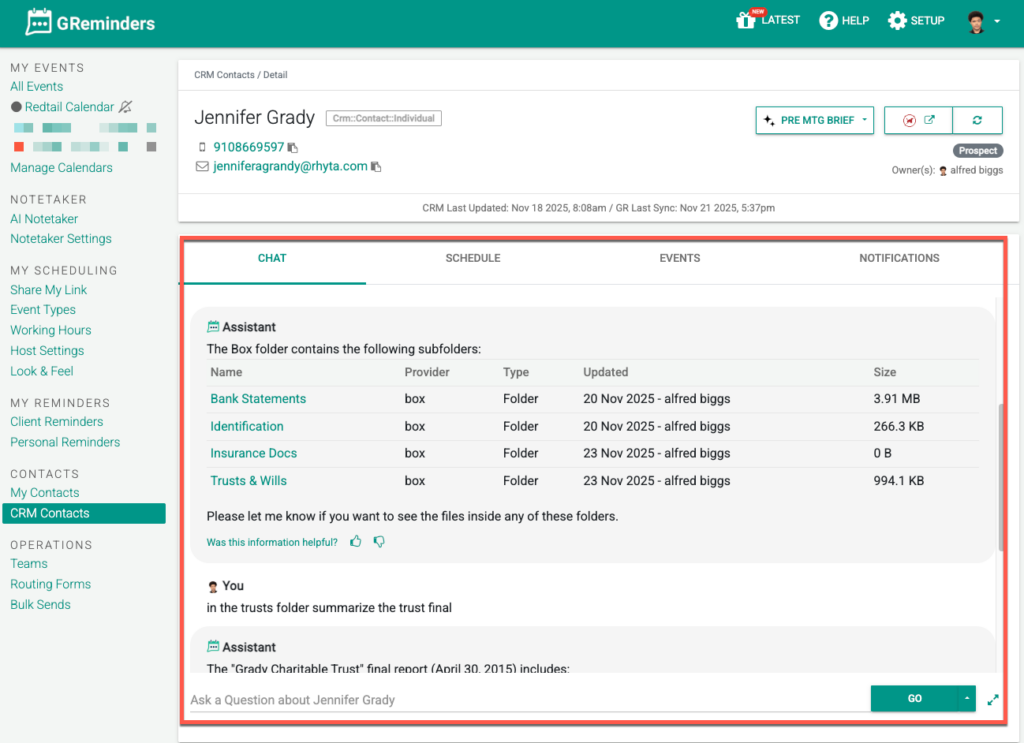
You can ask a variety of questions, some examples below:
- Summarize portfolio statements uploaded in the last 3 months
- Is there Banking on File?
- Who are the beneficiaries on the Schwab Account?
- What was their AGI on their last 2024 tax return
- Do they have a Trust on file? Summarize it
- etc….
The system will try to interpret this information and go find the data from the files. Please note, sometimes you will need to tell it where to get the information from.
Pre Meeting Briefs
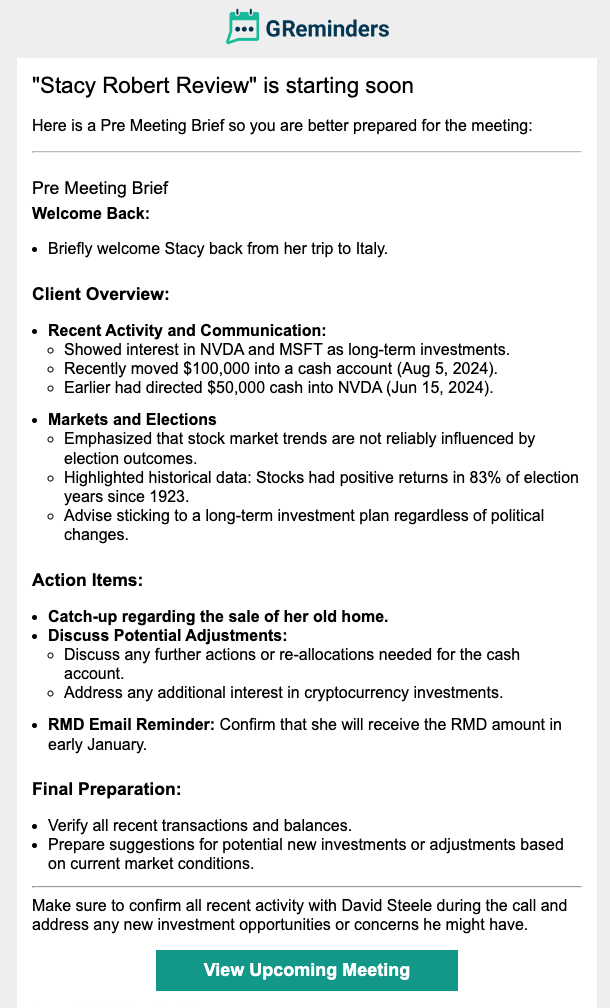
Another area that is useful for Document information is in Pre Meeting Briefs.
Here you can ask it to pull in document data, summarize information so you are better prepared for the meeting.
Best Practices for Document / Folder Structure
Clear Sub Folder Naming. i.e. Tax Documents, Trusts, Financial Plans, etc…
File Names should be clear what the File is. We suggest a standard naming convention for files. i.e.
Smith Household Tax Return 2024.pdf
John Smith 401k Rollover 2025-02-15.pdf
Smith Trust 2025 Feb.pdf
The cleaner and clearer your files and folders are named, the better AI can consume and read them.
Just like a new employee, if you clearly label things it will be easier for that person or AI to find.
Support
AI and AI Prompting can be involved and complicated in some cases. Please reach out to us at [email protected] and we can help you with custom prompts, use cases, etc…
Keyword: Document, AI documents, Box, Sharepoint
FAQs
Which document systems does GReminders integrate with?
GReminders integrates with various document systems including Box, SharePoint, One Drive, Google Drive, One Note, and Redtail Documents, with more integrations on the way.
How do I connect client folders in document systems to my CRM for use with GReminders?
You need to have a top-level folder containing client folders in your document system. Then, connect this folder to your CRM by storing the folder link as a User Defined Field (UDF) or URL in your CRM contact or household record. Make sure UDF sync or URL sync is enabled in the CRM integration settings.
How can I use documents with the AI Assistant in GReminders?
Once the top-level folder is connected to the client record in your CRM, you can access the contact within GReminders and ask the AI Assistant questions about the documents, such as summarizing portfolio statements, checking for banking on file, or details about trusts. Clear and consistent file and folder naming improves the AI's ability to interpret the data.