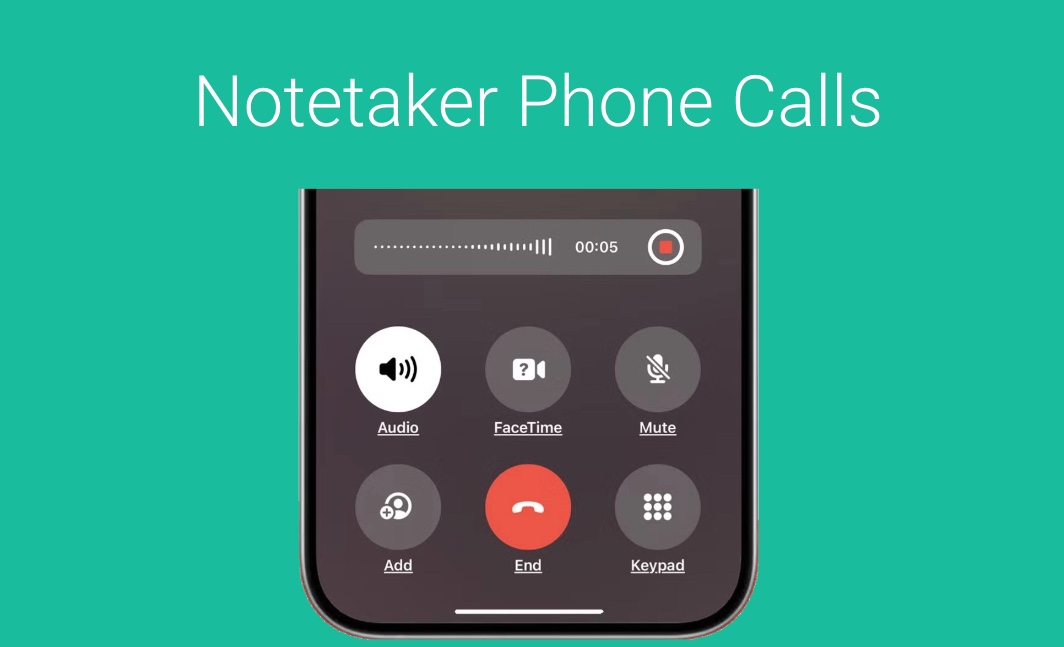
AI Notetaker has several VOIP integrations. If you are using one of the VOIP systems we recommend using these integrations:
If you are making phone calls from your Mobile Phone or from an Office Phone that allows “3 way calling” to your clients, this is how you allow AI Notetaker to join your “Native Phone Calls”. This works on iPhone/iOS, Android, Cisco, Polycom, Google Voice, 8×8, and many other Phone Systems.
You have 3 options:
- Call the Client, then merge in AI Notetaker (or good for when you are already on the call)
- Have AI Notetaker call you and then you call the client to make a “3 way call”
- You call in to the AI Notetaker and then merge that call with your client.
Option 1: Call the Client, then merge in AI Notetaker
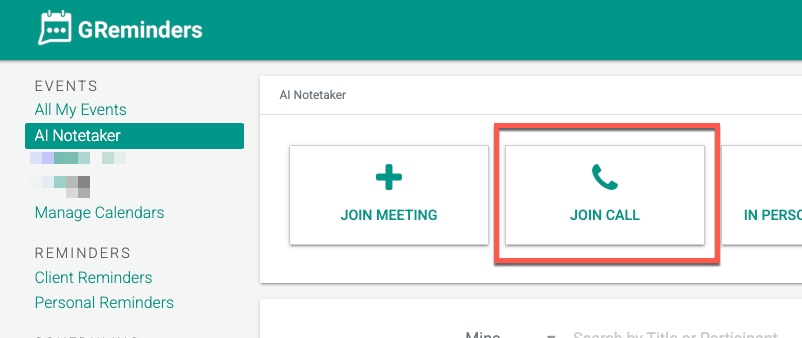
First call the client, then go to AI Notetaker within the GReminders application, click Join Call, and select the Phone/”Call Me” tab.
On the Phone tab, your mobile number should be prepopulated, OR if you are calling an Office Line, it can dial your extension also.
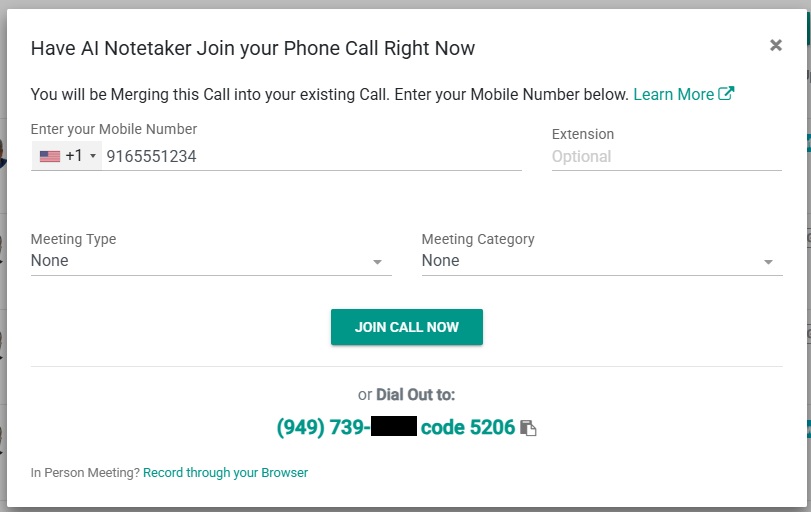
Select Meeting Type / Category (useful for generating the right Summary Template) OR if you are not using Types/Categories you will be prompted to select an AI Notetaker Template (optional)
Click Join Call Now
This will Call YOUR Mobile Number. From here, you place the client ON HOLD and MERGE the call in.
On iPhone it looks something like this:
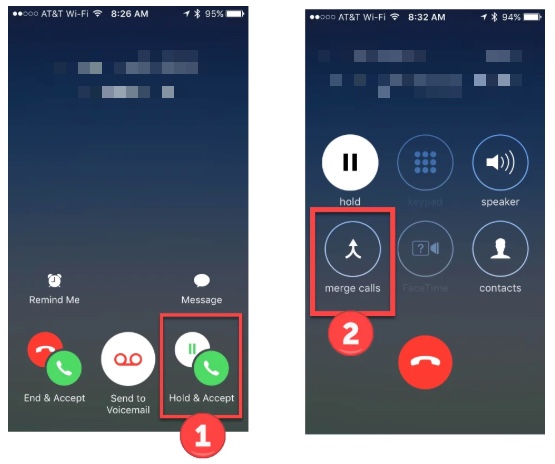
When the Notetaker call comes in from your phone, click HOLD & ACCEPT then click MERGE CALLS.
If you are on an Office Phone, the mechanism to Merge calls may be a bit different.
Notetaker will pull the full transcript and process it through the AI Notetaker pipeline.
Option 2: Have AI Notetaker call you and then Call the Client
Do the same steps as above, where you have AI Notetaker call your Mobile Number. Answer the call like normal, then “Add the Client” to the call.
Click ADD CALL
Select the Client from your Contact List or enter the phone number to call, and Place the Call. Once you get them on the phone MERGE THE CALLS together.
On iPhone, it looks something like this:
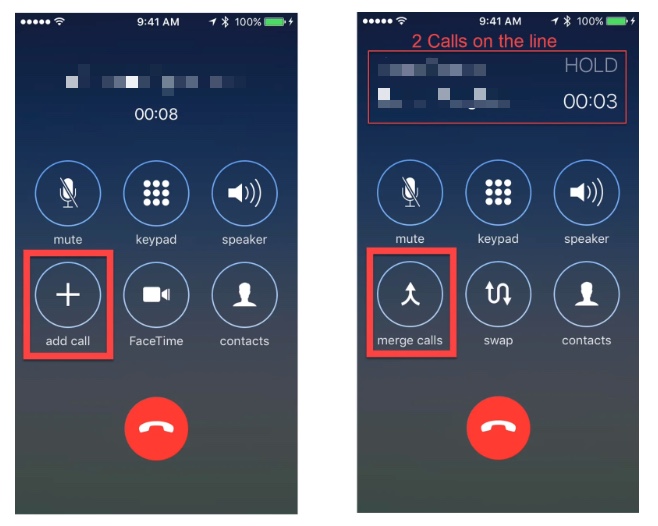
After you are done, simply Hang Up and Notetaker will take care of the rest just like any other Meeting or Call.
Option 3: You call AI Notetaker, then Merge that Call
When you click Join Call, you can also select the Dial In tab to call AI Notetaker yourself.
For example if you are on an existing call and want to make an outbound call to merge the notetaker into your existing call OR before you call the client you call Notetaker and then merge this call into your client call you can do that.
Click Join Call, open the Dial In tab, and call the number shown. Enter the 4-digit code when prompted. Please note you MUST call FROM the phone number in your profile, so we know who to attribute the call to.
Note: Your phone number in your profile should be unique to you. If you have the same phone number across all your users the system will not know who to attribute the call to.
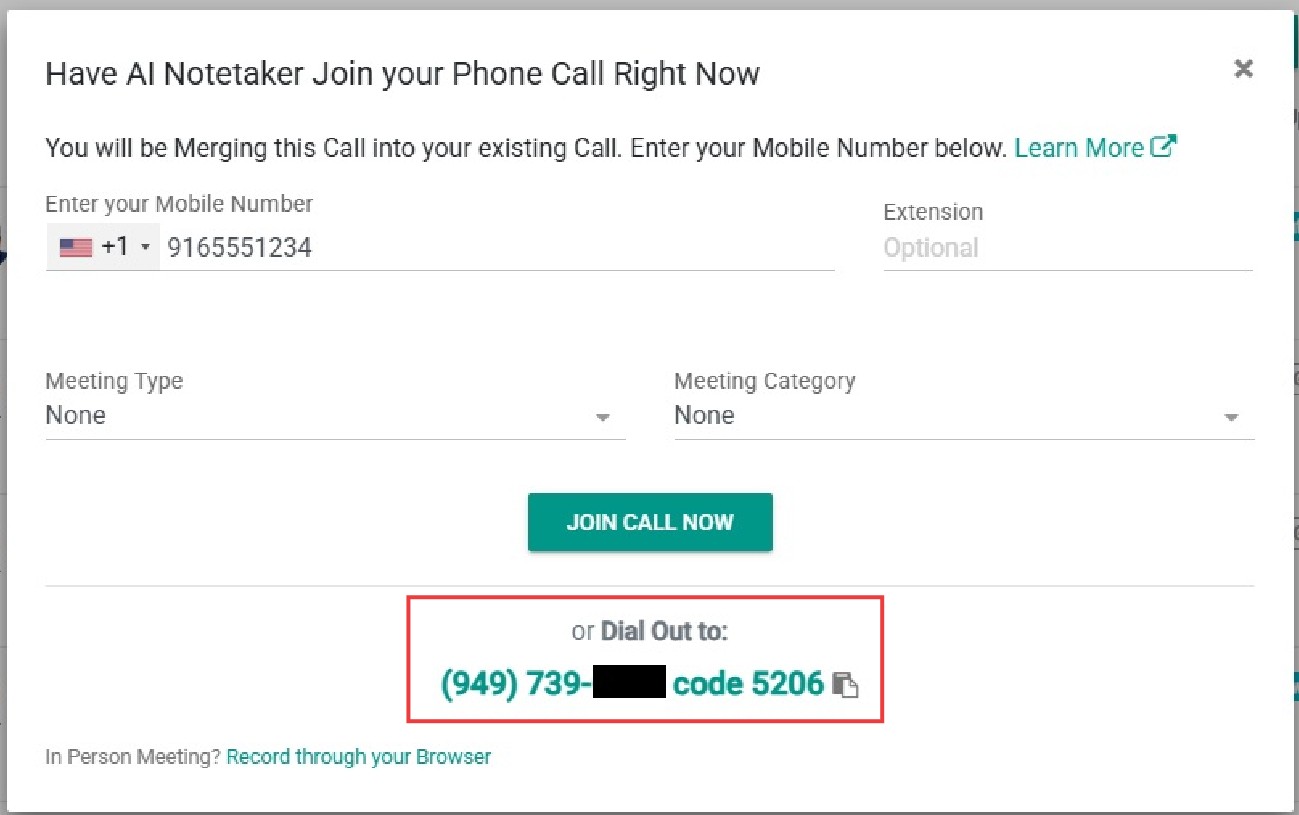
Quick Notes:
-Currently Notetaker calls are limited to 2 hours, if you need more time please let us know.
– The 4-digit code on the Dial In tab changes periodically, so always check the pop-up for the current code.
That’s It.
Any questions? Email to [email protected]
FAQs
Which VOIP systems does AI Notetaker integrate with?
AI Notetaker integrates with several VOIP systems including Zoom Phone, GoTo Connect, Intulse, Ring Central, and Microsoft Team VOIP.
How can I use AI Notetaker with native phone calls on my mobile or office phone?
You have three options: 1) Call the client first, then merge AI Notetaker into the call; 2) Have AI Notetaker call you first, then you call the client and merge the calls; 3) Call AI Notetaker first and then merge that call into your client call. These methods work on iPhone/iOS, Android, Cisco, Polycom, Google Voice, 8x8, and many other phone systems.
Is there a time limit for AI Notetaker calls?
Yes, AI Notetaker calls are currently limited to 2 hours. If you need more time, you can contact [email protected].