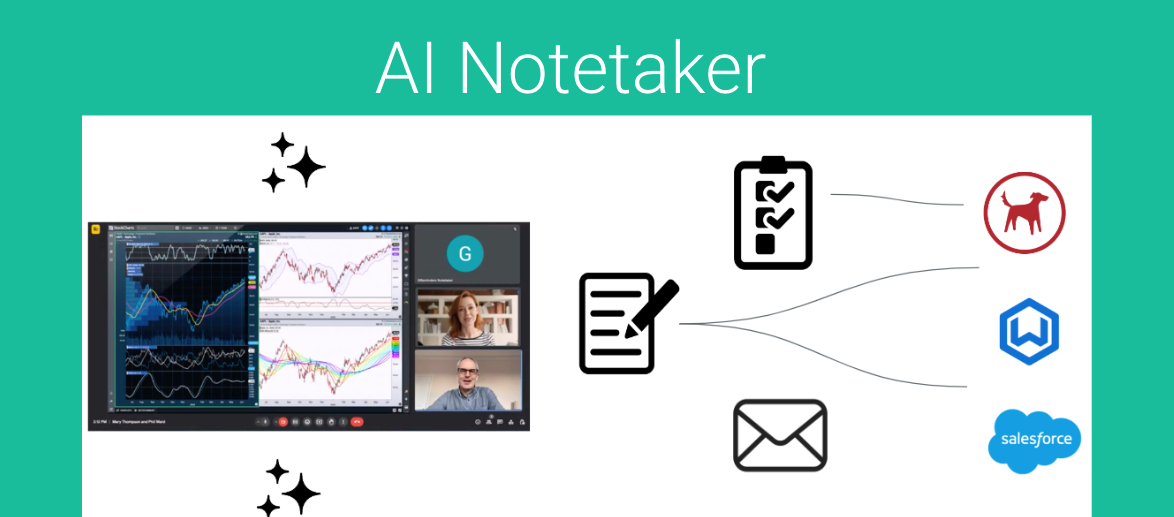
Managing meetings efficiently is crucial for maintaining productivity and effective client communication in today’s fast-paced world. GReminders’ AI Notetaker is an artificially intelligent virtual meeting assistant designed to simplify this process by seamlessly joining your virtual or in-person meetings on platforms such as Zoom, Google Meet, Microsoft Teams, Skype, GoTo Meeting, and Webex; generating comprehensive summaries, transcripts and pulling actionable items from your call.
This article will guide you through the steps to utilize this powerful tool, ensuring you get the most out of your meetings and enhance your workflow.
Understanding Notetaker’s Setup
Org Settings
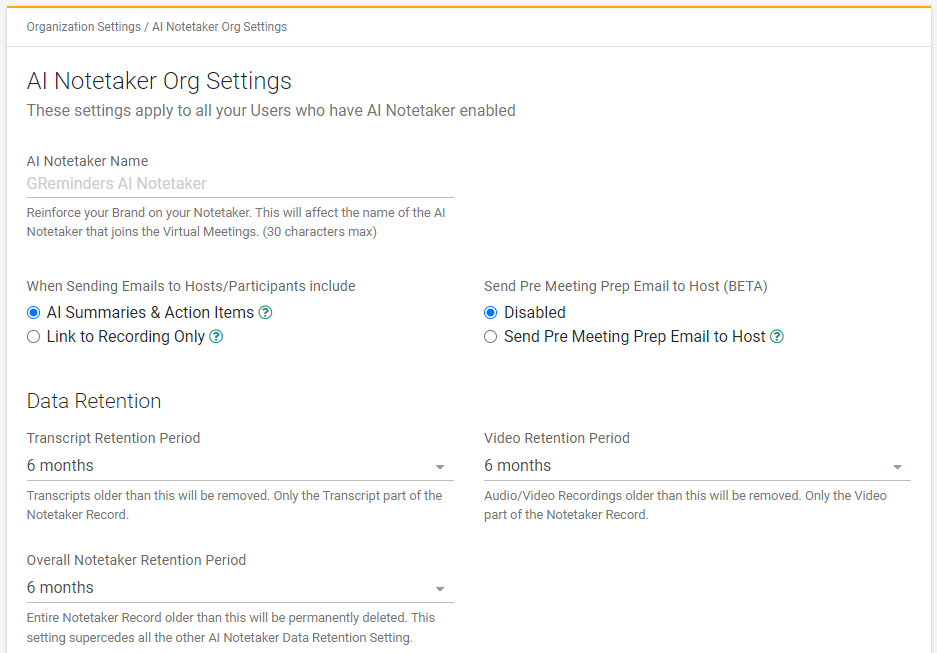
When setting up your notetaker, consider how you want it to interact with your system and meetings.
Go to Setup > Notetaker Settings (Under AI Agent Section). These settings will affect everyone on your GReminders platform who utilizes the Notetaker.
In the BRANDING section, you can brand your notetaker with a company name, set retention times for meeting transcripts and video recordings, and establish an override retention period. For example, if you retain transcripts for 6 months and video recordings for 3 months, you can override all settings by specifying that everything should be erased no later than 8 months. This provides an additional layer of protection to comply with your business’s retention rules and security posture.
In the NOTETAKER SETTINGS section, you’ll have the ability to decide what content should be included in the post-meeting email to internal participants of the meeting as well as elect to have a pre-meeting email sent to you based on the most recent meeting you had with that contact
User Settings
Individual user settings will allow you to elect who receives post-meeting follow-up emails as well as define how you want Notetaker to join your meetings (Automatically or Manually)
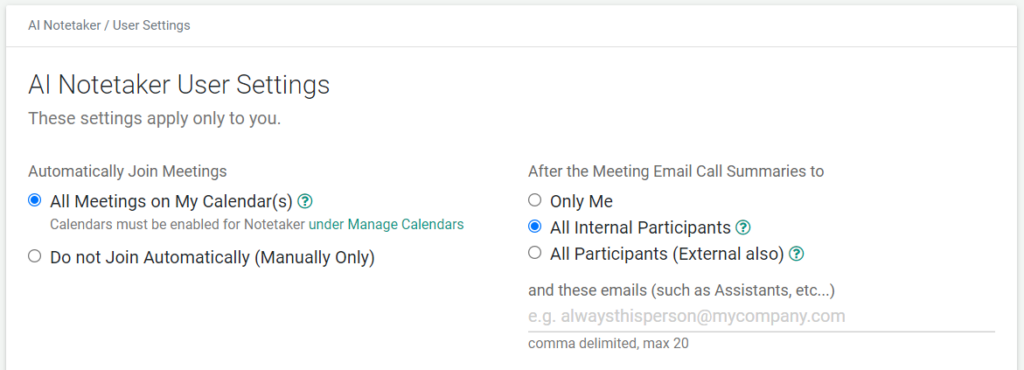
Please note, if you do have Notetaker join calls Automatically, or if you have multiple calendars connected, you can specify which calendar(s) Notetaker should join automatically under Manage Calendars.
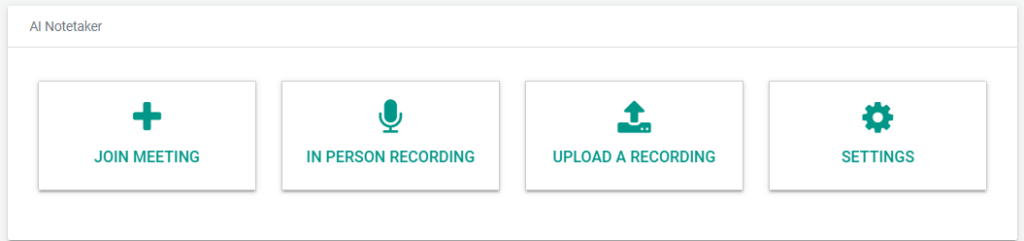
You can quickly access key features of the AI Notetaker in your user settings as well. You will use these buttons to join calls manually, upload recordings of previous meetings, record in-person meetings directly, and access your user settings from this page
Applying Notetaker to Your Meeting Processes
The GReminders AI Notetaker seamlessly integrates with your virtual meeting platforms, automatically joining your online sessions to capture every detail. You can easily record the discussions for in-person meetings, ensuring you have a reliable assistant to generate comprehensive summaries and actionable items. This flexibility allows you to maintain accurate records and enhance productivity, regardless of the meeting format.
Meetings Summaries
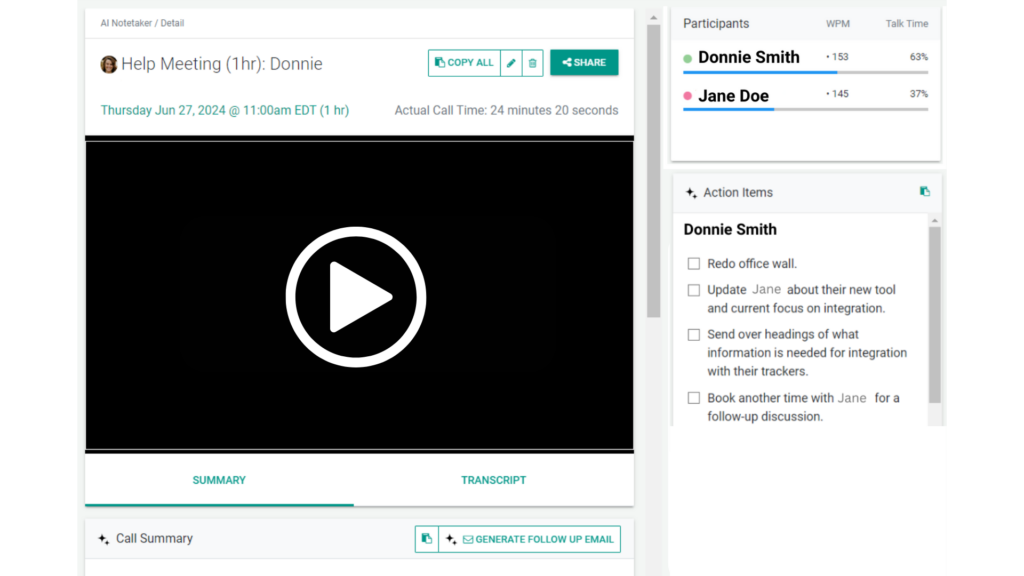
With GReminders AI Notetaker, you can effortlessly generate detailed meeting summaries for both in-person and virtual meetings. The AI Notetaker captures key points, decisions, and action items, providing a comprehensive summary. This ensures that all important information is documented and accessible, enhancing your productivity and client communication.
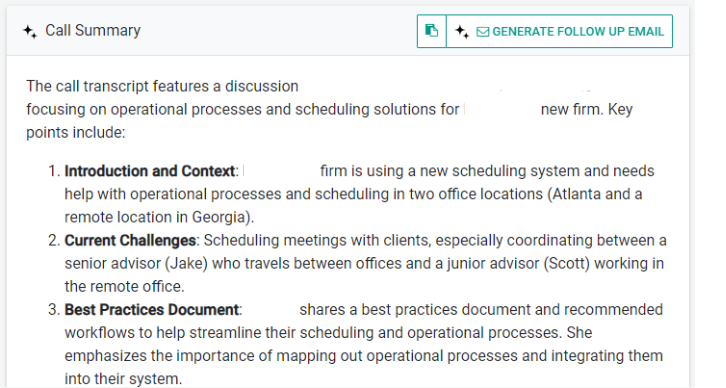
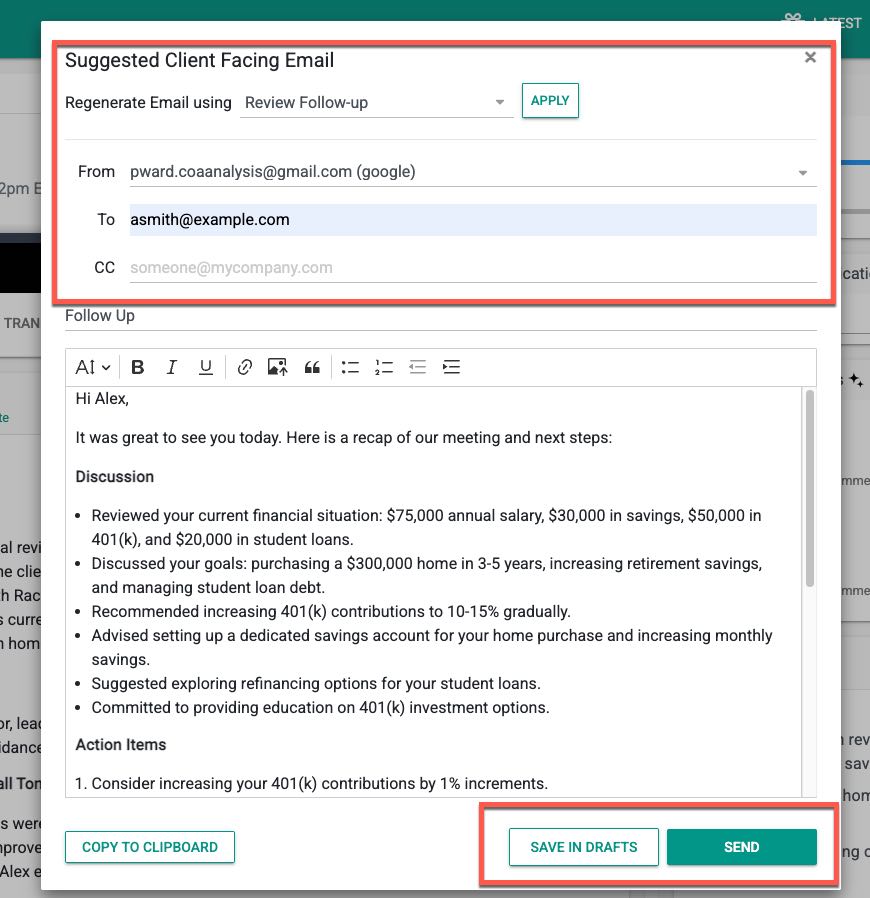
From your Meeting Summary page, you will also be able to generate a client-facing follow-up email right from the content of your meeting. You can do this by selecting “Generate Follow-Up Email”
Meeting Transcripts
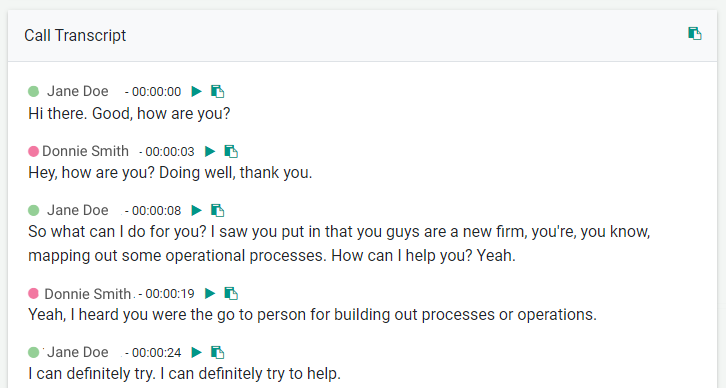
Meeting transcripts generated by GReminders AI Notetaker provide a detailed, word-for-word record of your discussions, whether in-person or virtual. These transcripts capture every spoken word, ensuring that no important detail is missed. You can easily review the transcripts to recall specific points, share them with team members, or use them to create accurate meeting summaries and action items. This feature enhances transparency and ensures that all critical information is documented and accessible.
Easily jump to segments of your video when in the transcript by selecting the play icon OR copy pieces of the transcript by selecting the copy icon next to the portion you’d like to reference.
Action Items
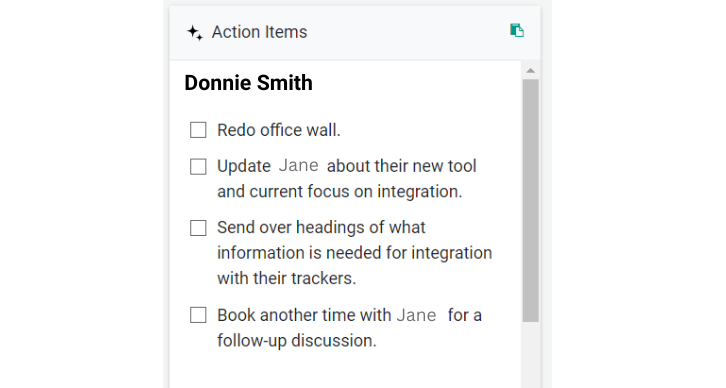
Action items generated by GReminders AI Notetaker ensure that all tasks and responsibilities discussed during your meetings are documented and assigned. Whether it’s a virtual or in-person meeting, the AI Notetaker identifies and extracts actionable tasks. Copy these and include them in your follow-up email to meeting participants to stay on top of your post-meeting todo’s
Participant Speaking Stats
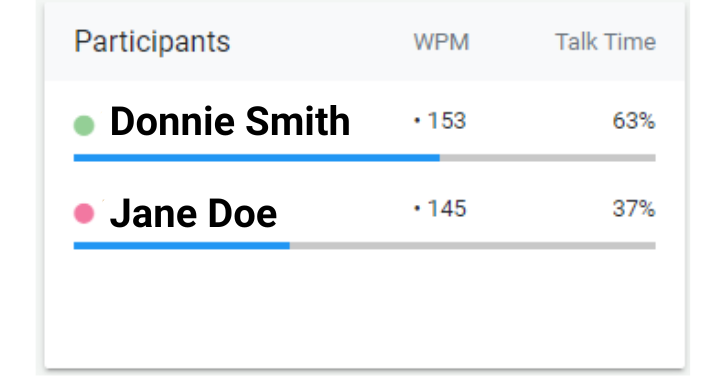
GReminders AI Notetaker provides detailed participant speaking statistics for both in-person and virtual meetings. The tool tracks and analyzes various metrics, including words per minute, total speaking time, and individual participation. This data helps you understand the dynamics of your meetings, identify key contributors, and ensure balanced participation.
Post-Meeting Follow-Up Actions
You have the flexibility to share your meetings manually with all participants or restrict access to internal participants only. You can choose how this information is accessed, either through a password-protected link or an open link, allowing anyone with the URL to view the recording.
You can easily copy the entire summary and transcript by selecting “COPY ALL,” making it convenient for sharing post-meeting.
Permissions & Sharing
Licensing
When adding users make sure you assign a AI Notetaker License to the users you want to be able to host Notetakers. You can do this under Setup > Users. Edit the user or apply the licenses in bulk on this page.
Permissions
Make sure your users also have Permissions to Access the AI Notetaker Pages. Do this under Setup > Profiles and check the boxes for AI Notetaker for the respective Profiles. Read more about Profiles here.
Sharing Notetaker Records
By default your Notetaker Records are only visible to you and Global Administrators. You can set default sharing options under Notetaker Settings. Read more about Notetaker Sharing here.
Automatically Recording Meetings
Zoom
To ensure Zoom meetings record automatically for both internal and external participants:
- Sign in to the Zoom Web Portal.
- In the navigation menu, click Settings.
- Select the Recording tab at the top.
- Under the ‘Host can change the permissions for each participant during the meeting’ enable these two settings:
- Auto-approve internal participant permission
- Auto-approve external participant permission
- Select Auto approve their permission requests
- Click Save.
Note for Individual Scheduled Meetings: When scheduling a specific meeting, scroll down to Meeting Options, click Show, and check Automatically record meeting > In the cloud.
Go here for more Troubleshooting
Microsoft Teams
To set up automatic recording for Microsoft Teams meetings:
- Open Microsoft Teams and schedule a new meeting or open an existing calendar event.
- Select Meeting Options (or click More options (…) > Recording & transcription).
- Enable the Record and transcribe automatically toggle.
- Set the spoken language (default is English) and click Save.
For admins looking to manage organization-wide recording policies, review Microsoft’s Teams Meeting Recording Policies.
Go here for more Troubleshooting
GoTo Meeting & Other Platforms
- GoTo Meeting: Go to your Account Settings or Meeting Settings on the web portal, navigate to the Recording section, and enable Cloud Recording / Auto-Record Meetings. You can also manage auto-transcriptions via the Smart Meeting Assistant settings on GoTo Support.
- Google Meet & Webex: Ensure your organization’s admin policy permits cloud recording for external participants. Hosts can start recordings upon joining or set auto-record rules via their calendar/admin consoles.
Begin Utilizing AI Notetaking with GReminders
GReminders’ AI Notetaker is a powerful tool that enhances your meeting management by providing comprehensive summaries, actionable items, detailed transcripts, and participant-speaking statistics. Whether you’re conducting virtual meetings or holding in-person sessions, the AI Notetaker ensures that all critical information is accurately documented and easily accessible. By integrating this tool into your workflow, you can boost productivity, improve client communication, and streamline your post-meeting processes. Embrace the future of meeting management with GReminders’ AI Notetaker and experience the difference it can make in your professional life.
For questions on gaining access or setting up this tool, email [email protected]
Happy Meetings!
FAQs
Which meeting platforms does GReminders AI Notetaker support?
GReminders AI Notetaker supports virtual and in-person meetings on platforms such as Zoom, Google Meet, Microsoft Teams, Skype, GoTo Meeting, and Webex.
How can I customize the retention period for meeting transcripts and recordings?
In the ORG SETTINGS under the BRANDING section, you can set retention times for meeting transcripts and video recordings, and establish an override retention period to ensure all data is erased by a specified time, complying with your business’s retention rules and security policies.
What features does the AI Notetaker provide after meetings?
The AI Notetaker generates comprehensive meeting summaries, detailed transcripts, actionable items, participant speaking statistics, and allows you to share meeting information securely with participants. It also enables generating client-facing follow-up emails directly from the meeting summary content.