After you meet with a Client there are usual follow up activities, such as:
- Logging the Call Notes back to your CRM or System of Record
- Assigning Tasks to Staff members for various To Dos
- Sending the Client a Follow Up Email recapping the discussion and asking them to complete any outstanding items
- Launching certain Workflows
- Creating Opportunities that should be tracked for Revenue or other purposes
If you are using AI Notetaker you can now better track which Meetings have had all their respective follow ups completed or which ones still need attention.
On the AI Notetaker Page you will now see meetings where Follow Ups have been sent AND if a meeting had their Notes Written Back
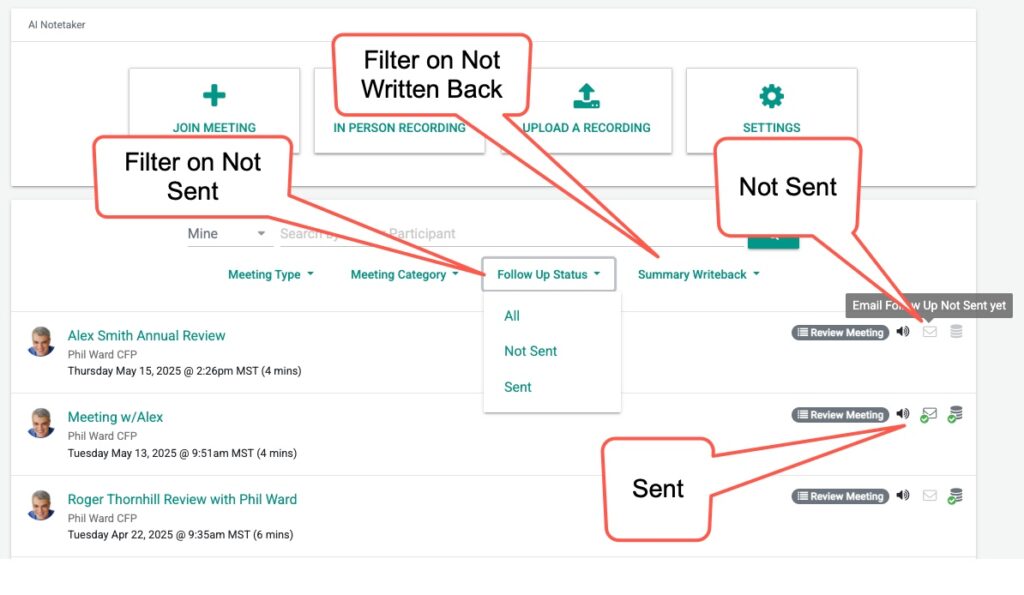
You can also Filter meetings that have or have not been followed up on OR if a Meeting’s Summary was written back to the CRM/System of Record. This way you can focus on the meetings that “still need work” or to be followed up on.
Remember, you can also fully automate this process by automatically saving drafts in your email AND automatically write the Summaries back to your CRM.
Taking these actions will automatically flag these meeting as Sent/Written Back.
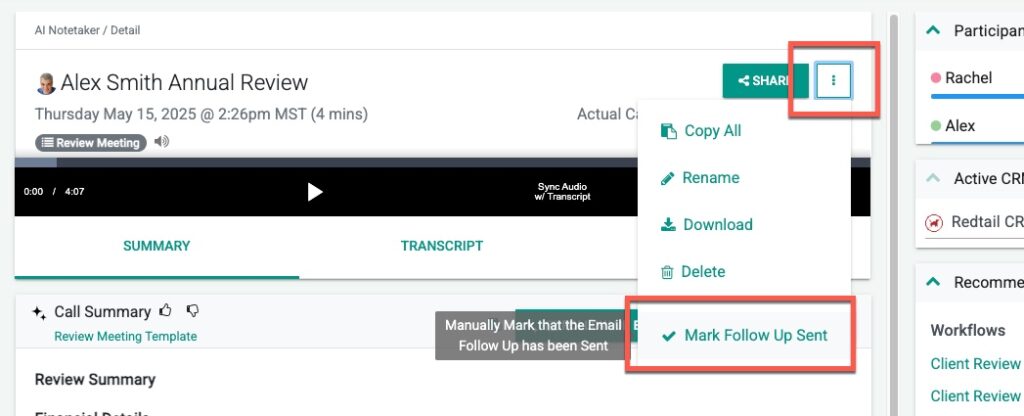
You can always also mark Follow Up complete on a meeting when you go into the detail view and click “Mark Follow Up Sent” like so:
That’s It!
Any Questions? Email to [email protected]
FAQs
What follow up activities should be done after meeting with a client?
After meeting with a client, usual follow up activities include logging call notes back to your CRM or system of record, assigning tasks to staff members, sending the client a follow up email recapping the discussion and requesting completion of outstanding items, launching certain workflows, and creating opportunities to track revenue or other purposes.
How does AI Notetaker help in managing meeting follow ups?
AI Notetaker helps by tracking which meetings have had all their respective follow ups completed and which still need attention. It shows meetings where follow ups have been sent and if notes were written back to the CRM or system of record. You can also filter meetings based on follow up status or if summaries were written back, allowing you to focus on meetings that still need work.
Can the follow up process be automated using AI Notetaker?
Yes, the follow up process can be fully automated by automatically saving drafts in your email and automatically writing summaries back to your CRM. These actions will flag the meeting as Sent or Written Back. Additionally, you can manually mark a follow up as complete by clicking 'Mark Follow Up Sent' in the meeting detail view.