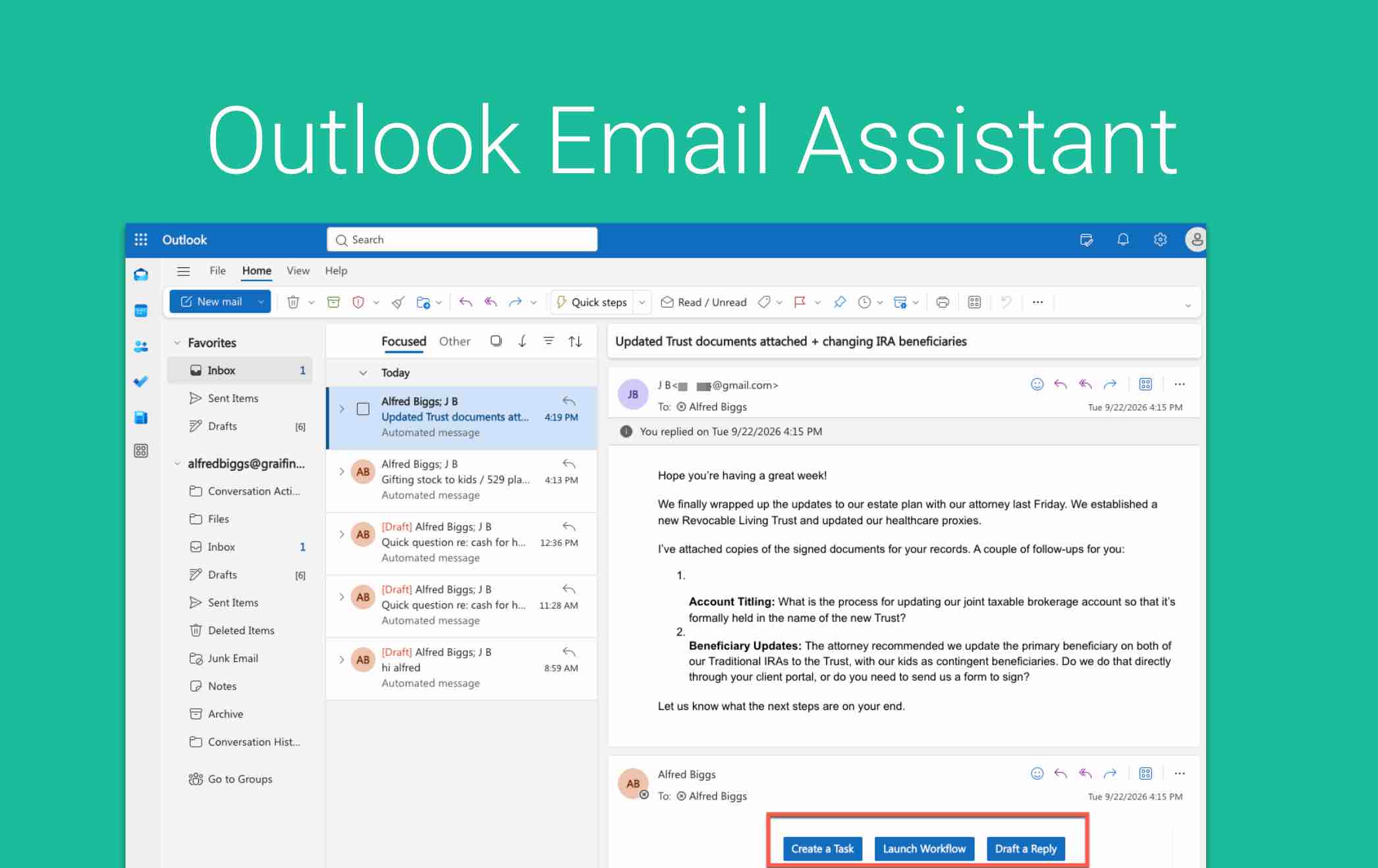
Managing everyday inbox traffic can consume valuable time in your practice. GReminders AI Assistant acts as a virtual chief of staff for advisors and firms, turning everyday inbox traffic into automated, compliant action items or follow-up draft recommendations.
The assistant offers automatic client and context matching, which instantly identifies senders against existing CRM data to draft relevant replies. It also provides next-best-action intelligence that detects actions and tasks needing to be assigned to staff members for action, or recommends workflows that should be launched against the client record.
Supported Actions
- Email Draft Replies (with FULL context of the client)
- Suggests Task Assignments to Team Members
- Recommended Workflows for certain Actions
The Email Assistant works is native to Outlook and works for Office 365 Users across Windows and Mac Desktop, Outlook Web and iOS and Android Mobile versions of Outlook.
Note: this does not work with Hosted Microsoft Exchange environments. Your email must be hosted on Microsoft Office 365 Cloud.
Once you receive an email from a client you will have a few options:
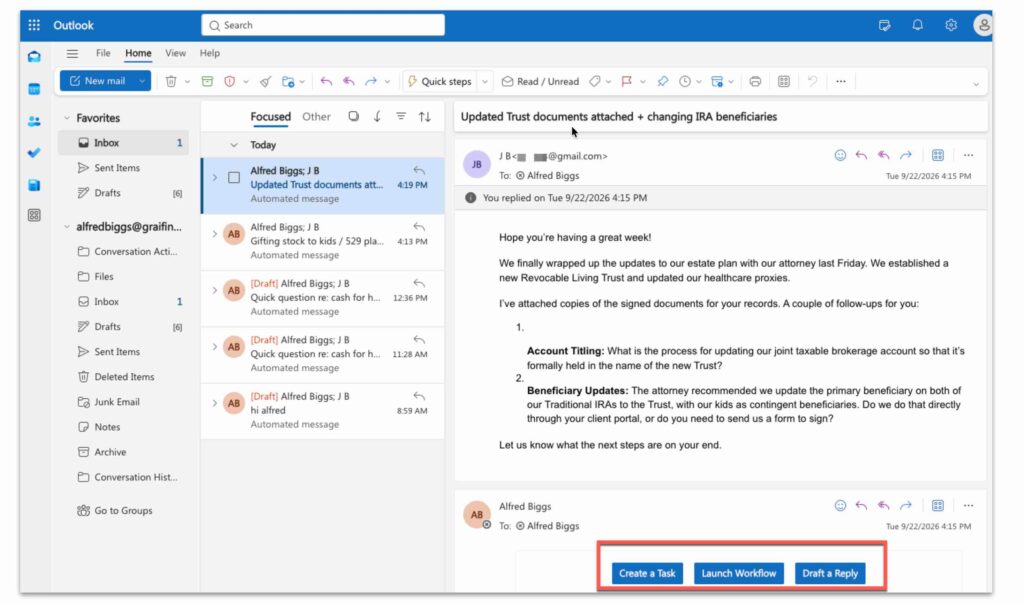
Based on the context of the email they system will present you with options such as Draft a Reply, Create a Task, Launch a Workflow, etc…
If you click draft reply:
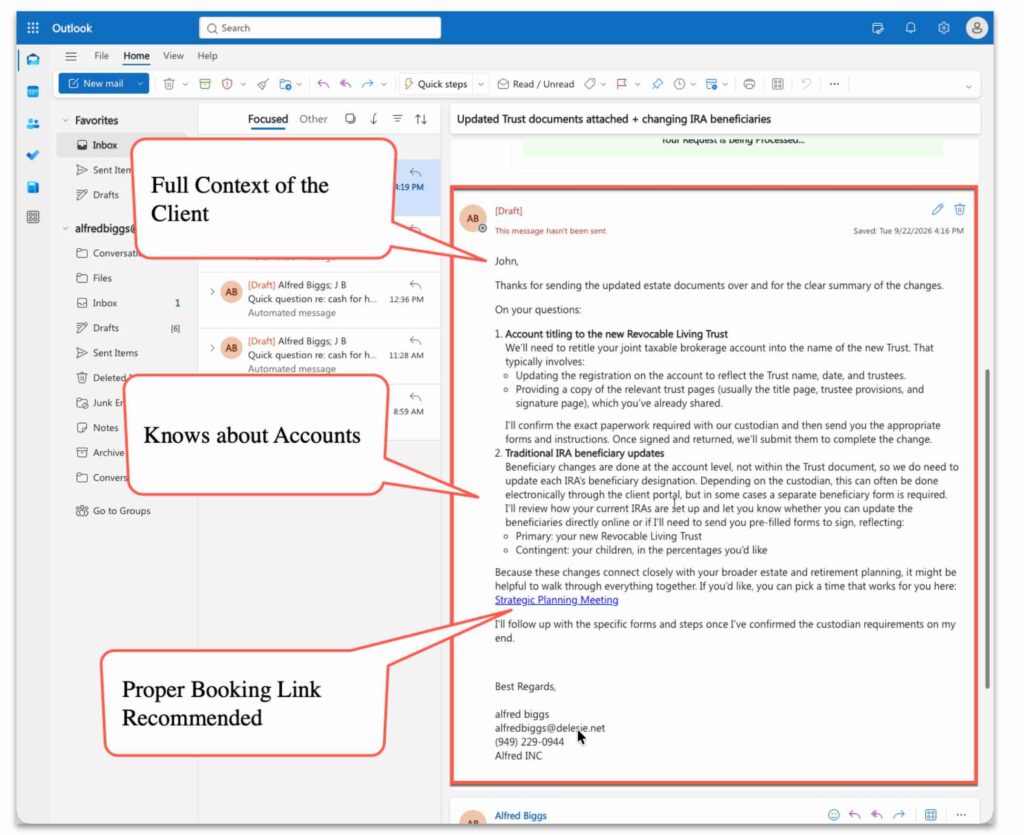
The system has FULL context of the client, the holdings, all their history, and all of their information. It knows who the Owner is and thus will also suggest a relevant Booking link if it thinks this is relevant to the conversation.
From here you can make any edits and then ship it off to the client.
Or if you select to Create a Task or Launch a Workflow:
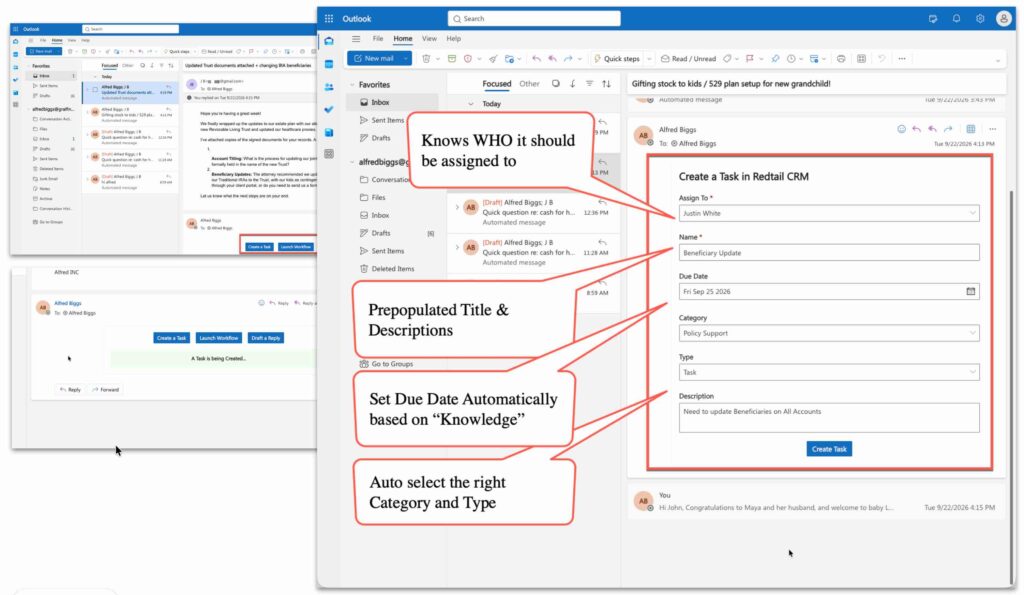
Again it understands the context of the client, who should be assigned a task, what the type/category should be, etc…
Of course you can adjust this prior to creating the record in your CRM.
Setting It Up
Email Assistant is currently in Beta (Nov 2026), Sign up for the Beta OR contact support or your Client Success Manager to enable this feature for you.
This feature is only available to Business Plan Customers with Email hosted on Office 365.
Adding Licenses
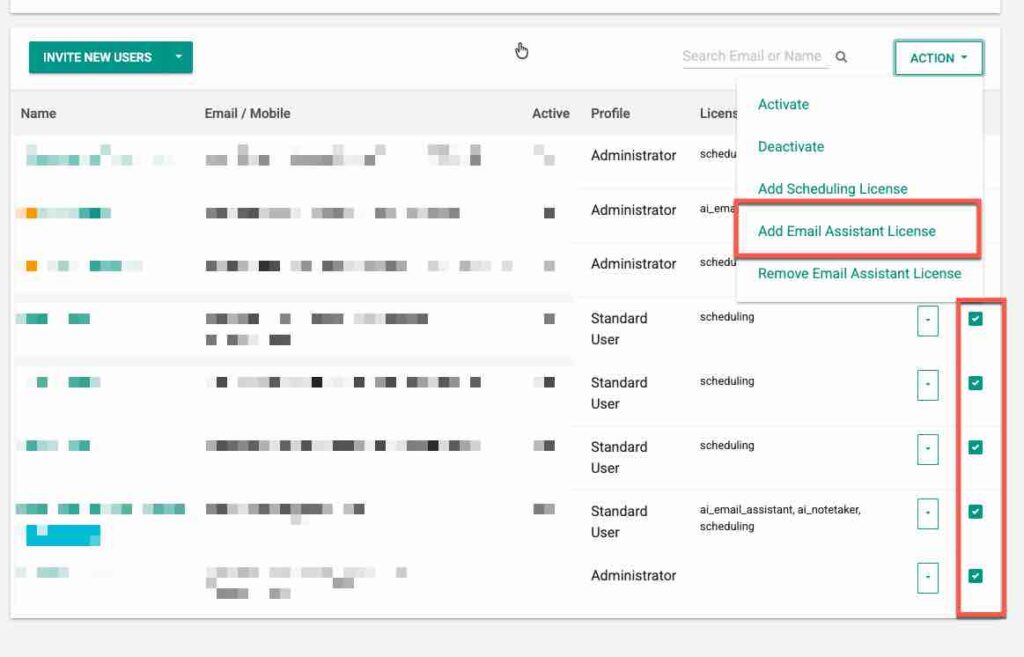
Once your Organization is enabled for Email Assistant you will need to enable Licenses for the Users you want Email Assistant to work for. As an Admin, go to Setup > Users and add the Email Assistant Licenses to the Users you want to enable for Email Assistant Access.
Connecting Microsoft Mail
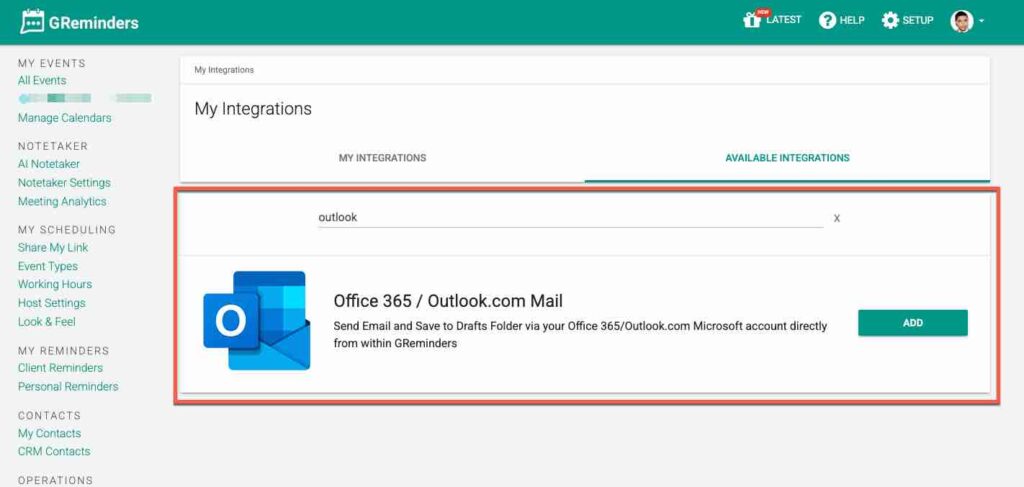
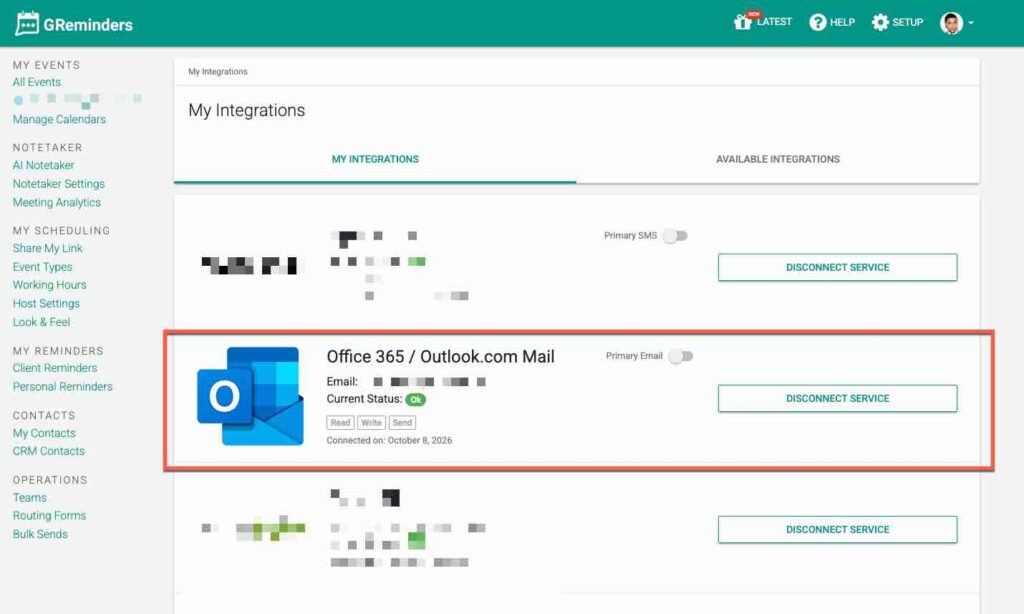
Each user will need to connect your Outlook Email to GReminders (most already have done this), this is under My Profile > Integrations > Microsoft Outlook.
You may already have this connected, if so it looks like this:
Setting Your Style and Tone
Since Email is very personal we want to use your Style and Tone as much as possible when drafting a reply.
Once connected the system will scan your recent Sent Messages and find recent client integrations.
To review these or to change/modify them, click on your Picture and click My Style & Tone
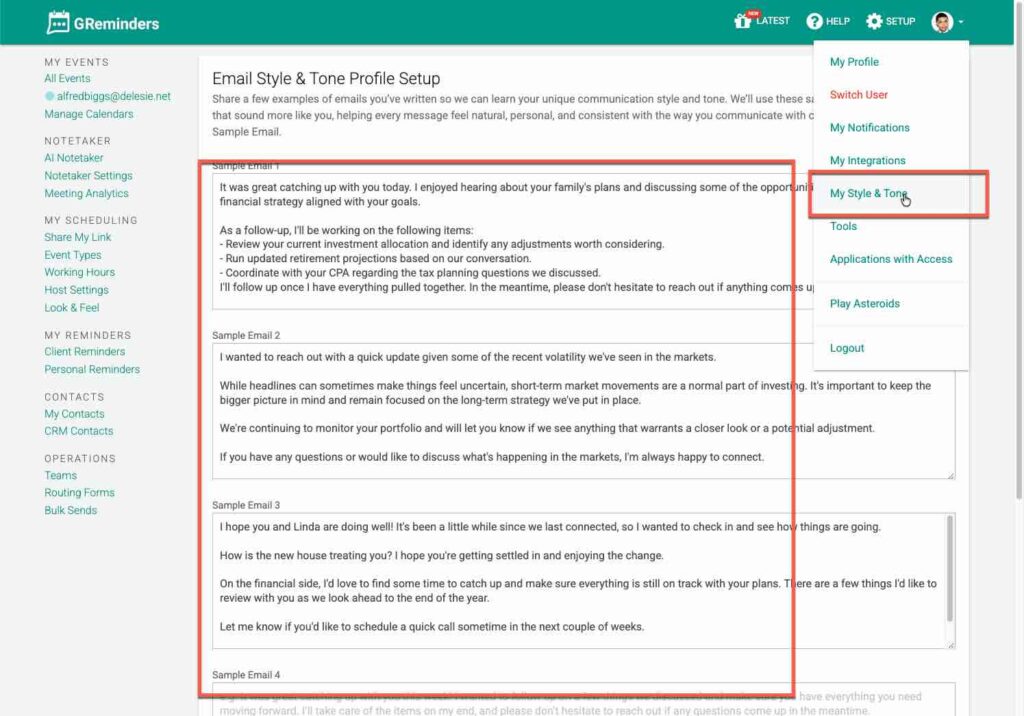
Add or Edit any of these Sample Emails. Then hit Update.
Receiving your First Client Facing Email
Once you have integrated your Outlook Mailbox the system should start working. Below is an example of what you should see when a client email comes into your Inbox.
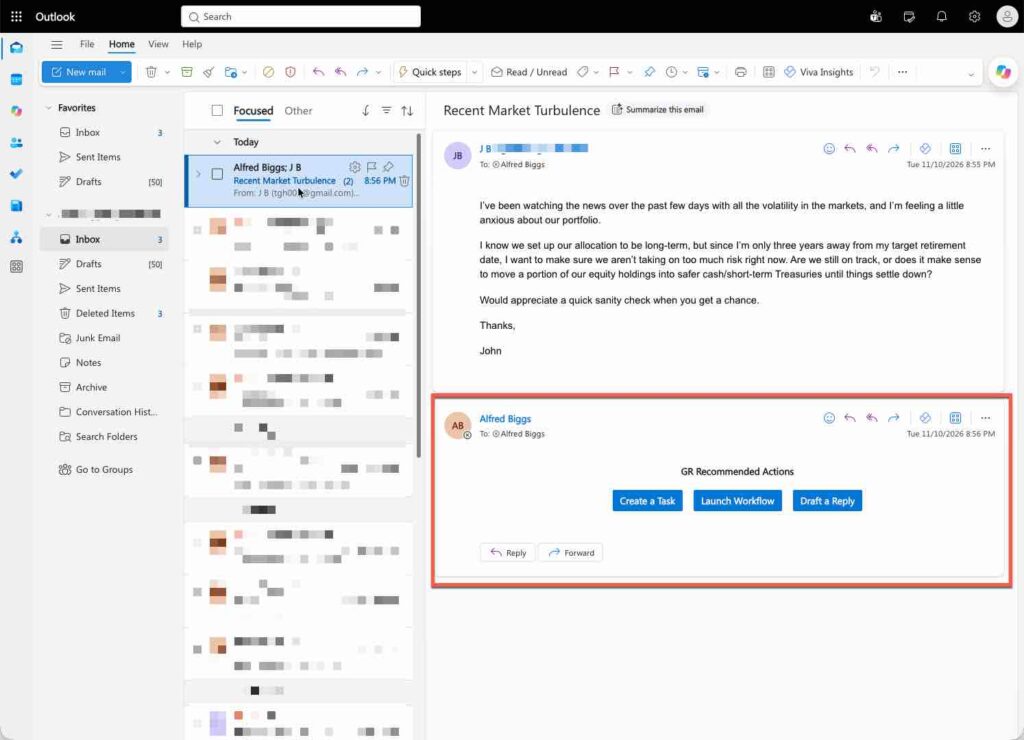
Please Note, currently it is only recommending actions or replies that match a client in your CRM.
We very much look forward to your feedback.
Any questions? Email to [email protected]
FAQs
What actions can the GReminders AI Assistant perform?
The GReminders AI Assistant can draft email replies, suggest task assignments to team members, and recommend workflows for certain actions.
What platforms does the Email Assistant support?
The Email Assistant is native to Outlook and works for Office365 users across Desktop, Web, and Mobile versions.
How can I enable the Email Assistant feature?
The Email Assistant is currently in BETA and can be enabled by contacting support or your Client Success Manager. It is only available to Business Plan customers with Email hosted on Office 365.