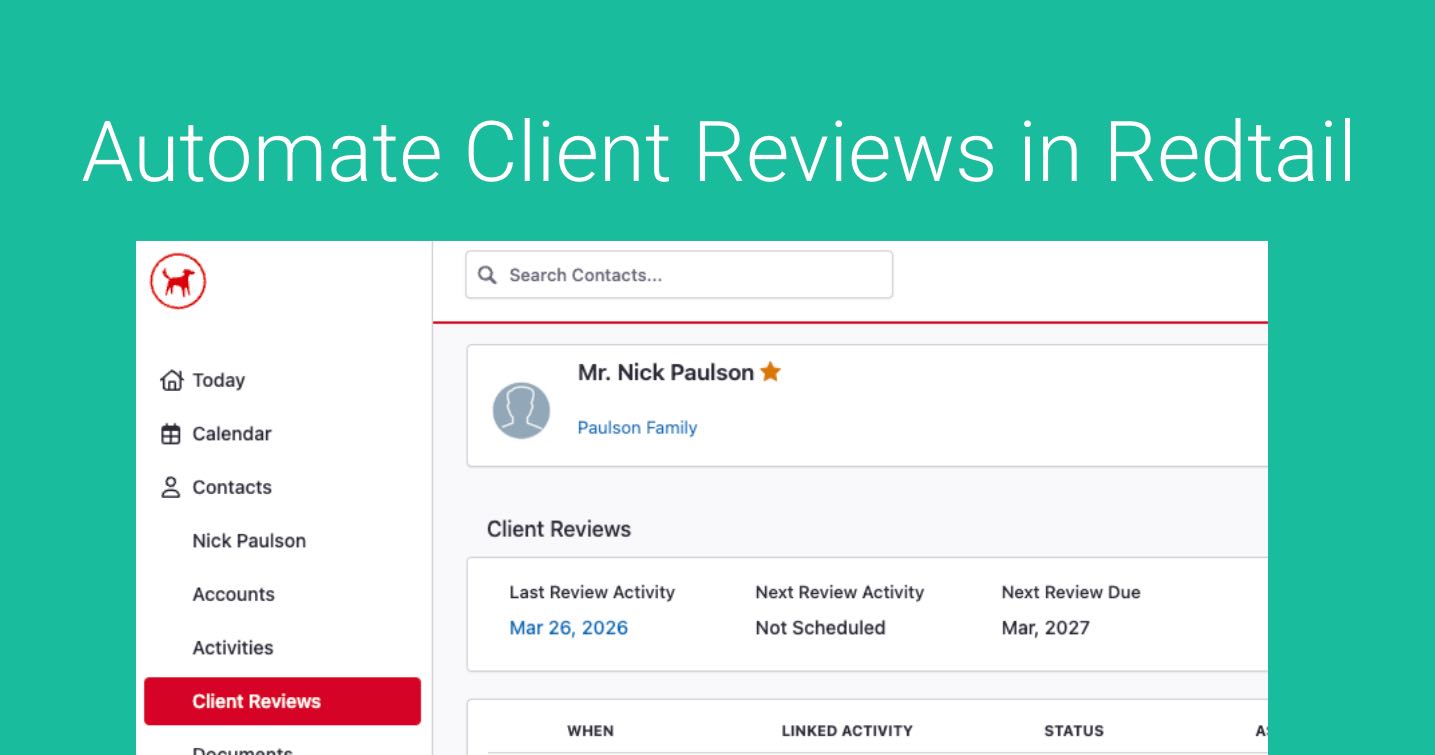
If you are a Redtail Customer and you are using its Client Review Feature for Client Review Reminders, you can leverage these fields for automated Scheduling. This means GReminders can Email or SMS your clients to get them to book their next review when their next Client Review is due.
You can read more about the Redtail feature here.
We encourage you to read this article for how to use Bulk Sends in General.
When setting up Client Reviews in Redtail you first need to Set a “First Review Date”. This is the date the “sequence” or “recurrence” starts. Go to your Redtail Contact Record, click on Client Reviews and click EDIT
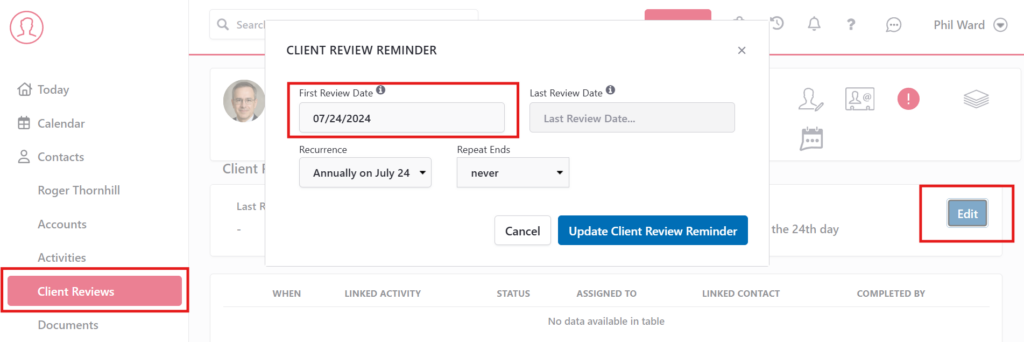
Now that we have this information, we can use these fields to send automated Emails/SMSs to your clients when the time comes for their next Review.
Because these data fields are special, we need to make sure we sync them down to GReminders. In GReminders go to Setup > Integrations > Redtail and check “Sync Contacts” and check “Sync Client Review Data” like so:
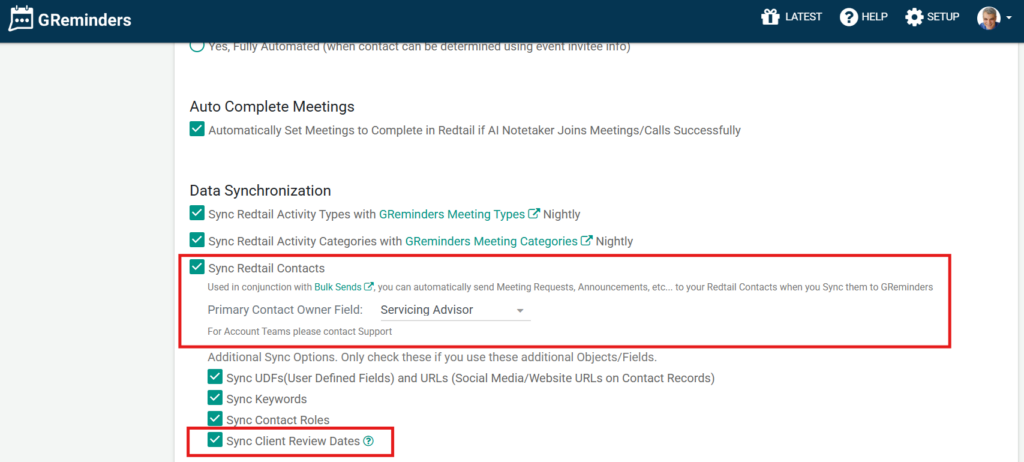
Also make sure you set the Owner of the Contact Record (usually Servicing Advisor). This must match a a user in your GReminders Account.
This will sync your Redtail Contacts to GReminders and these data fields will be available for use in Bulk Sends.
Next, go to back to Home and then go to Bulk Sends. Click NEW
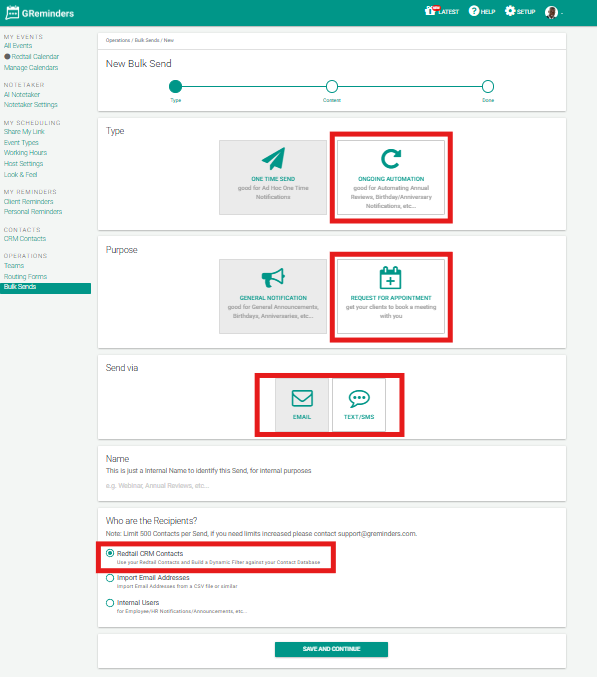
Select:
- Ongoing Automation (you want this to run daily)
- Request for Appointment (you are asking for an appointment)
- Email or SMS (choose how you want to notify, usually Email)
- give it a Name such as “Review Notifications”
- and Redtail Contacts
Click Save and Continue
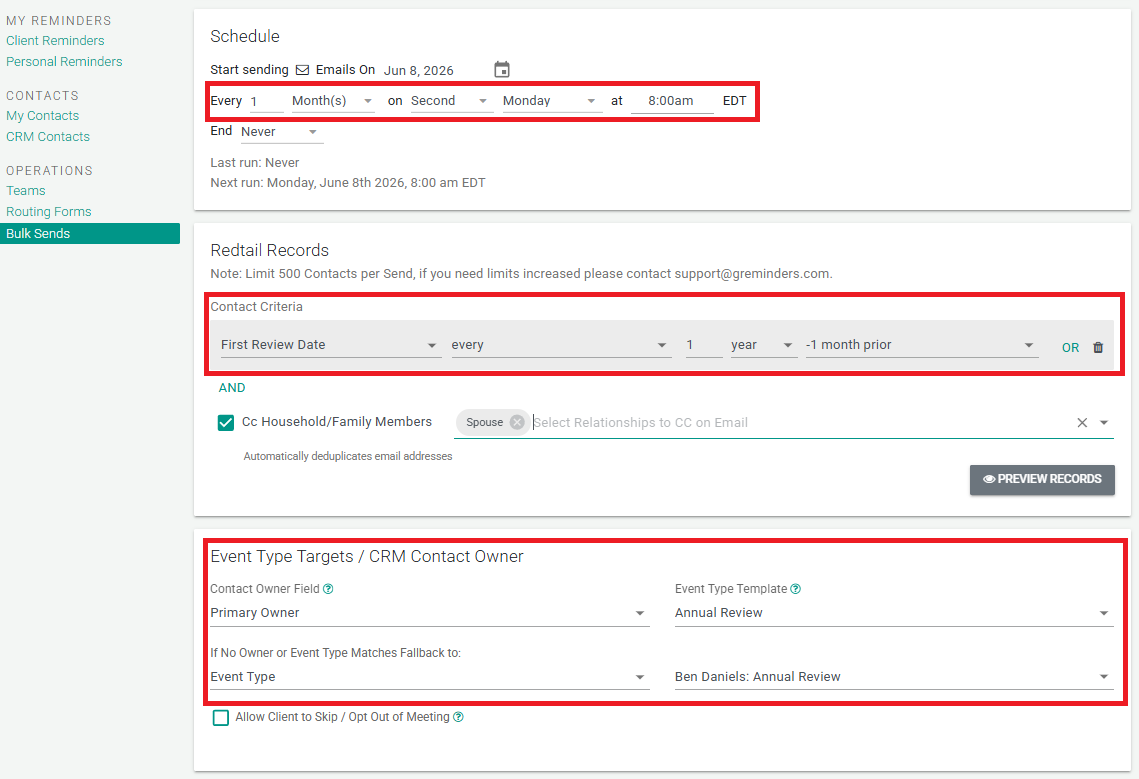
From here you want to set this to DAILY.
For the Criteria this is where we are going to use the First Review Date from Redtail. Select First Review Date and set it to “is every”, 1 year, -1 month prior (to proactivley reach out to them 1 month prior to their original review date referencing month and day).
You can add additional criteria such as Client Status, or other fields that you want to filter on.
Next set the Event Type Template (you need to set this up via Managed Event Types)
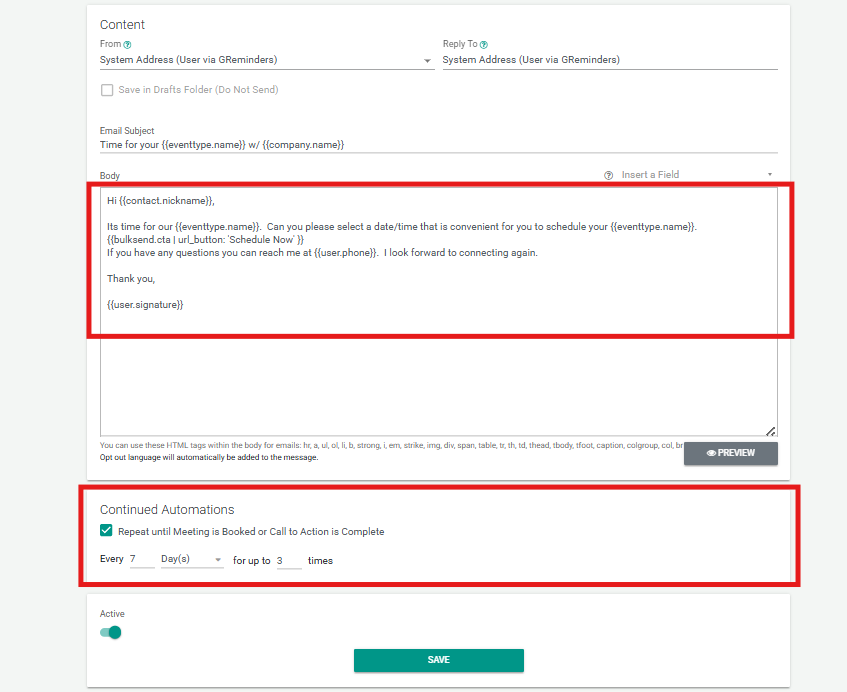
Set your Email Content (what you want to say to in the email/sms)
And select Continued Automations. This will allow you to continue to send this same message every week for 3 weeks (based on this configuration above) until they book with you. You can change this configuration at your pleasure.
We recommend you also watch this video to help you with this configuration.
Our Onboarding or Support team can help you with this. Contact [email protected] with any questions.
FAQs
How do I sync Redtail Client Review data with GReminders?
In GReminders, go to Setup > Integrations > Redtail and check both 'Sync Contacts' and 'Sync Client Review Data'. Also, ensure the Owner of the Contact Record in Redtail matches a user in your GReminders account.
How can I set up automated reminders for client reviews using GReminders and Redtail?
First, set a 'First Review Date' in Redtail for each client. Then sync the data to GReminders. In GReminders, create a new Bulk Send with Ongoing Automation set to run daily, select 'Request for Appointment', choose Email or SMS, and set criteria based on the 'First Review Date' (e.g., 1 year recurrence, 1 month prior). Configure your message and enable Continued Automations to send reminders weekly until the appointment is booked.
Who can I contact for help with setting up Client Review reminders in GReminders?
You can contact the GReminders Onboarding or Support team by emailing [email protected] for assistance with configuration and any questions.