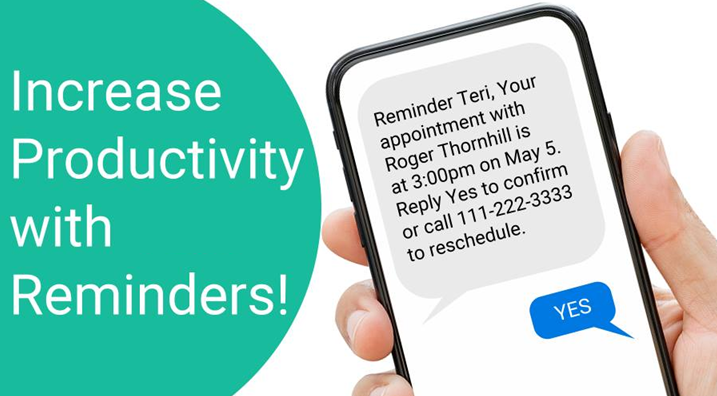
Reminder Templates in GReminders
- Definition: Reminder Templates are pre-configured message frameworks that define the content, timing, delivery method, and conditions for reminders. In Business or Enterprise plans, admins can create and lock Reminder Templates for groups or organization-wide use, ensuring consistency and efficiency.
- Purpose:
- Standardize messaging across an organization or team for a professional client experience.
- Save time by allowing users to create reusable templates instead of crafting reminders for each event.
- Enable personalization and compliance through dynamic custom fields and language.
Key Features
- Template Creation:
- Created in the “Reminder Templates” section of the GReminders setup dashboard
- Admins can create organization-wide templates in “Setup” for users/groups of users.
- Content Customization:
- Templates support text formatting (e.g., bold, bullet points) for emails and concise messaging for SMS/voice.
- Use Custom Fields to insert dynamic data, such as:
- Standard custom fields: {{invitee.firstname}}, {{event.start_time}}, {{event.location}}.
- Custom Fields: {{custom.referrer}} (from Custom Questions, e.g., “How did you hear about us?”).
- Meeting links: {{event.zoom_url}} for virtual meeting integration.
- Example: “Hi {{invitee.firstname}}, your {{event.name}} is scheduled for {{event.start_time}}. Join here: {{event.zoom_url}}.”
- Delivery Settings:
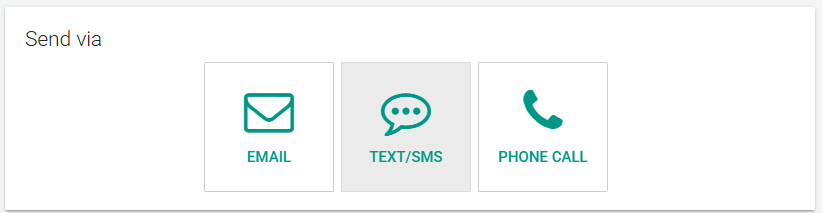
- Method: Choose email, SMS, or voice. Some methods may be unavailable due to certain broker dealer affiliations.
- Timing: Set when the reminder is sent (e.g., 1 day before, 10 minutes before, or 1 hour after the event).

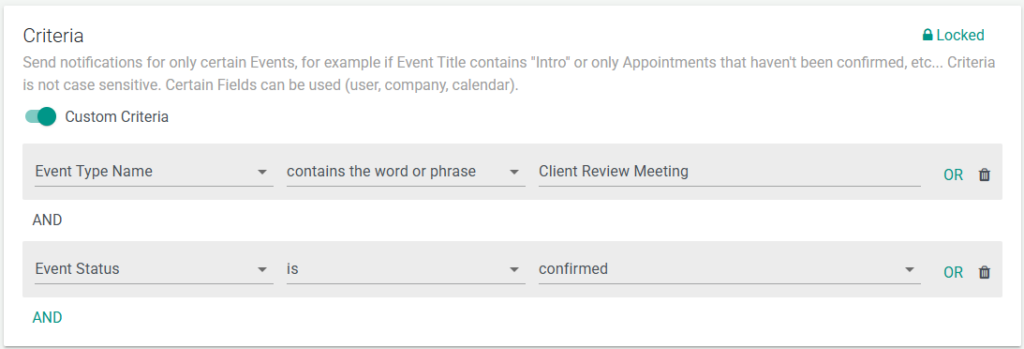
- Conditions: Configure rules, such as sending reminders only for confirmed events or excluding certain Event Types.
- Recipient Options:
- Clients: Send reminders to the invitee who booked the event.
- Personal: Notify the event host or team members (e.g., for round-robin or collective events).
- Additional Recipients: Add CC/BCC for emails or additional phone numbers for SMS/voice.
- Admin Control:
- In Business or Enterprise plans, admins can create and lock Reminder Templates for groups or organization-wide use, ensuring compliance (e.g., pre-approved language in regulated industries).
- Locked templates prevent users from editing certain fields, while unlocked fields allow personalization.
- Branding and Attachments:
- Email templates support branded elements like logos or signatures.
- Attachments (e.g., PDFs with prep materials) can be included in email reminders via an embedded URL link. GReminders has its own Shortener URL service for use with SMS Reminders. You can read more on that here: URL Shortener for SMS Reminders
Setup Process
- Create a Reminder Template:
- Navigate to “Reminder Templates” in the GReminders Setup dashboard.
- Define the delivery method (email, SMS, voice), timing (e.g., 24 hours before), and recipients.
- Write the message, inserting custom fields from the “Insert a Field” dropdown for personalization.
- Assign to Event Types or Profiles:
- Assign the template to a user’s profile or group.
- Configure Integrations:
- Ensure virtual meeting links (e.g., Zoom) are included if applicable.
- Test the Template:
- Schedule a test event to verify the reminder’s content, timing, and delivery.
- Check that custom fields populate correctly and CRM integrations work as expected.
- Admin Management (if applicable):
- In “Set up,” create and assign templates to groups or profiles, locking fields as needed for compliance.
- It is important to double check the order of the reminders once assigned to a user. If an event matches the criteria for 2 or more reminders, they will trigger in top-down order on the page. So the first reminder listed that matches the criteria will be the one that triggers.
Benefits
- Reduced No-Shows: Timely, personalized reminders keep clients engaged and informed.
- Efficiency: Templates eliminate repetitive manual messaging, saving time for users and admins.
- Personalization: Custom Fields allow tailored communications, improving client experience.
- Compliance: Locked templates ensure consistent, approved messaging in regulated industries.
- Automation: Integrates with calendars, CRMs, and virtual meeting tools for seamless workflows.
- Scalability: Organization-wide templates simplify management for teams or large enterprises.
Limitations
- Cost & Credit Limits: Reminders utilize credits based on your active GReminders plan. Account administrators can track real-time credit levels and usage patterns under Setup > Usage Reports.
- Courtesy Alerts: Automated notifications are sent to administrators once your account reaches 80% of its monthly credit allotment, giving your team time to upgrade or add credits before overages begin.
- Automatic Overages: Reminders will not stop sending when you reach 100% capacity. Overage charges will automatically begin accruing so your notifications continue uninterrupted.
- SMS Character Limits: SMS reminders are limited to 320 characters, requiring concise messaging, however 1 SMS Credit = 160 Characters.
- Voice Call Constraints: Voice reminders rely on text-to-speech, which may lack nuance for complex messages.
- Dependency on Client Data: Personalization depends on accurate client input (e.g., phone numbers, emails) during booking.
Additional Notes
- Custom Fields Integration: Reminder Templates heavily leverage Custom Fields (e.g., {{custom.referrer}}) from Custom Questions to include client-specific data, enhancing personalization and CRM integration.
- Managing Your Account:
- Track Usage: Administrators can monitor real-time credit levels and usage patterns under Setup > Usage Reports.
- Self-Service Upgrades: You can manage your subscription, purchase credit add-on packages, or upgrade your plan directly in your Billing Portal.
- Custom Quotes: If you are on a Business plan and need assistance choosing or adding a credit package, contact
[email protected]for a customized quote. - For additional details, see the Billing Overview.
FAQs
What are Reminder Templates in GReminders?
Reminder Templates are pre-configured message frameworks that define the content, timing, delivery method, and conditions for reminders, allowing for standardized messaging and efficiency.
How can admins manage Reminder Templates?
In Business or Enterprise plans, admins can create and lock Reminder Templates for groups or organization-wide use, ensuring compliance and preventing users from editing certain fields.
What are the key features of Reminder Templates?
Key features include template creation, content customization with dynamic fields, delivery settings (email, SMS, voice), timing configurations, and recipient options for personalized reminders.