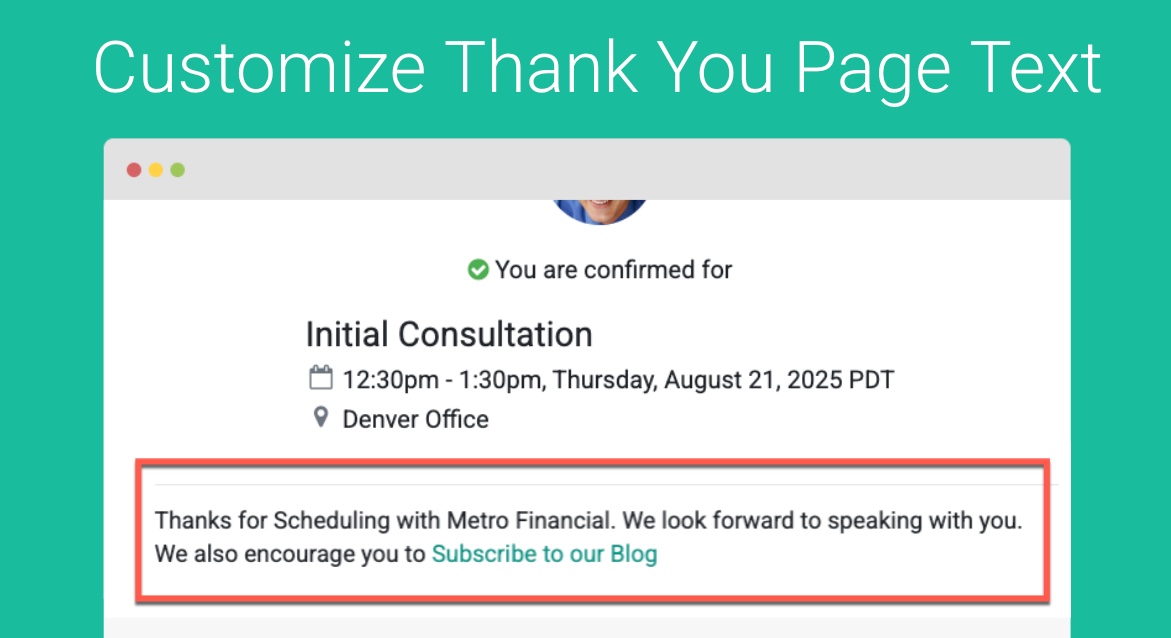
When your clients book meetings with you you can either use the Standard GReminders Thank you Page or you can redirect them to your own Custom Thank You Page.
This article show you how you can customize the base Standard GReminders Thank you page with additional information.
You must have Administrator Permissions for this, and this applies to ALL Scheduling pages across your users.
Go to Setup > Look & Feel > Thank You Page Text

Click on Thank You Page
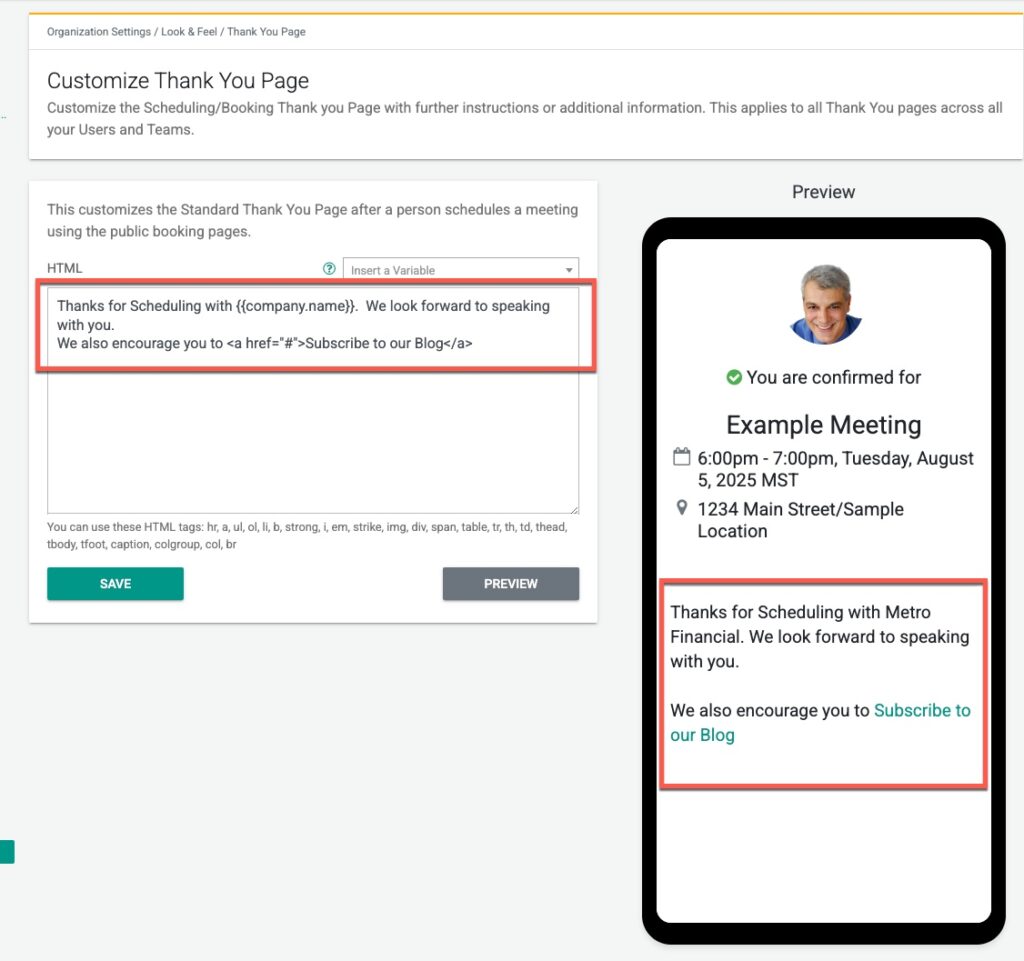
From here, you can enter some text and also use HTML characters to customize your thank you page. This also supports Variables and Code Logic. Read More Here.
Preview your changes, which you should see on the right-hand side.
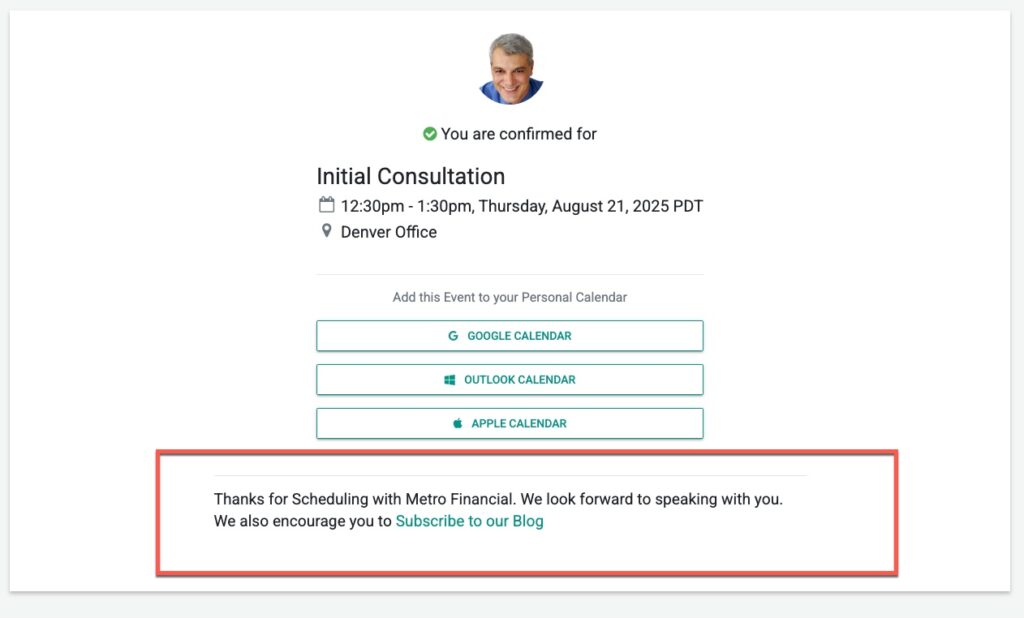
Then save your changes. When people book meetings with you, they should see the new text similar to below:
Conditional Text
Only want to show a message when certain Event Types are booked? No problem. Use Liquid Logic
{% if eventtype.name == "Intro" %}
This text here is for only when an Intro Meeting is Scheduled
{% endif %}
This will only show text IF the Event Type booked equals “Intro”. You can use all kinds of operators or logic to match your specific needs. Questions, please email [email protected]
That’s It!
Any Questions? Email to [email protected]
Happy Scheduling
FAQs
How can I customize the Standard GReminders Thank You Page?
You can customize the Standard GReminders Thank You Page by going to Setup > Look & Feel > Thank You Page Text, entering your desired text or HTML, using variables and code logic, previewing your changes, and then saving them.
Can I show different messages based on the Event Type booked?
Yes, you can use Liquid Logic to display conditional text. For example, using {% if eventtype.name == "Intro" %}Your message{% endif %} will show the message only when the 'Intro' Event Type is booked.
Do I need special permissions to customize the Thank You Page?
Yes, you must have Administrator Permissions to customize the Thank You Page, and changes will apply to all Scheduling pages across your users.