
Jotform is an awesome and popular Tool that lets you build custom forms of any kind. Simple, complex, conditional, etc… We are fans!
Popular use cases include Client Intake Forms, Surveys, Feedback from your Customers, Scheduling Interviews, Job Applications, etc…..
A common use case is to put Jotform in FRONT of a GReminders Scheduling Form. For example get your clients to fill out an Initial Customer Intake or Onboarding form where they fill out a bunch of information about themselves, what they hope to achieve with your service, etc…. and THEN if you want to get them to schedule a meeting with you, this is a great recipe for this. Like this:
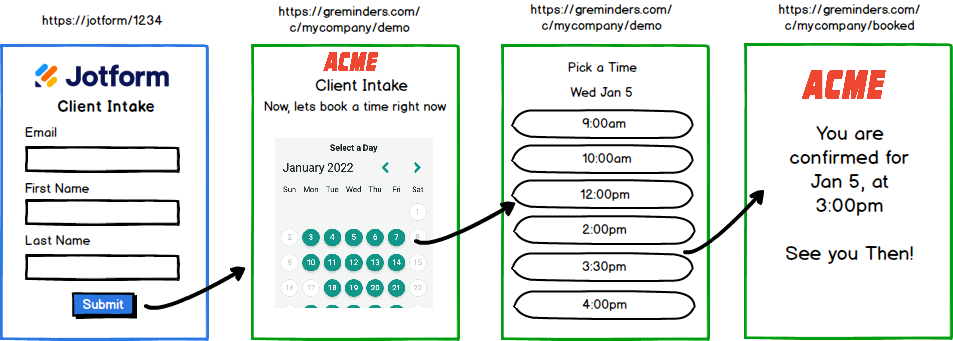
Let’s walk through how to do this:
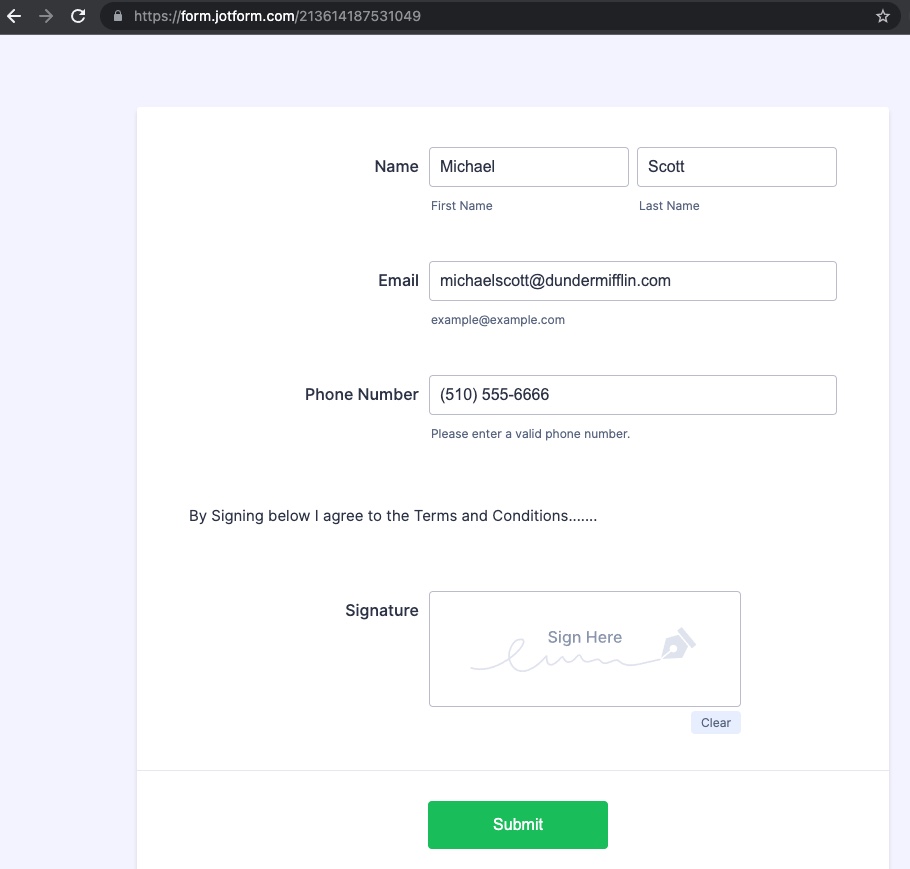
Setup your Form on Jotform. Create a Form, minimal information should include Name and perhaps a Phone Number or Email address. Example:
In your Settings > Thank you page section of your Jotform you will need to enter a custom redirect:
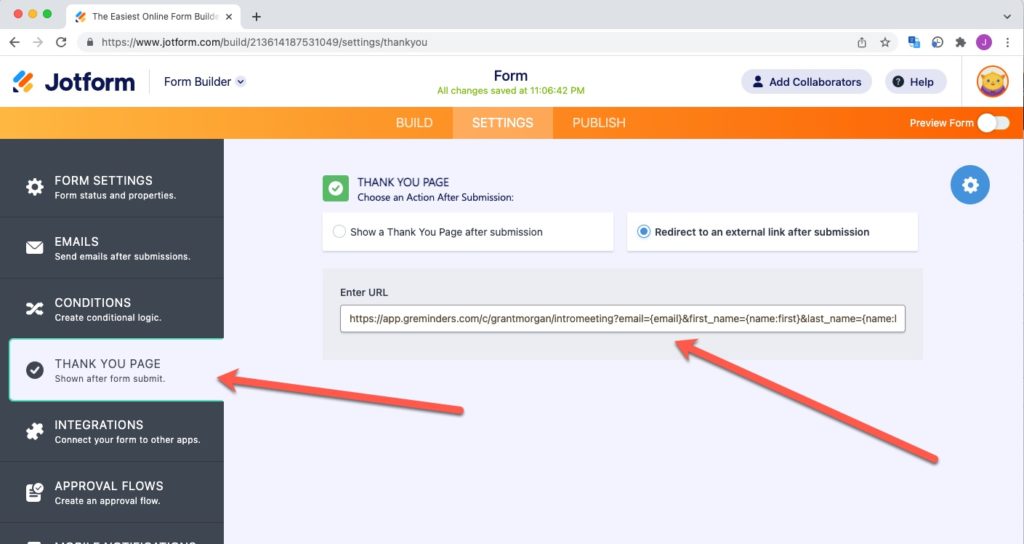
The key to this redirect is to use your GReminders Event Type Booking form and then pass in your parameters.
In this case our redirect page URL looks something like this:
https://app.greminders.com/c/xxxxxxx/yyyyyyy?email={email}&first_name={name:first}&last_name={name:last}&phone={phoneNumber}&auto_submit=true
where the URL is your Event type AND you pass in the parameters into GReminders so they are PREFILLED. The key to this is grabbing the answers from the Jotform and passing them into GReminders.
Breaking it down some more: last_name={name:last} where {name:last} is the answer to the lastname question on the Jotform, you are passing last_name back to GReminders.
You can get the Jotform field name from the Field Settings > Advanced here:
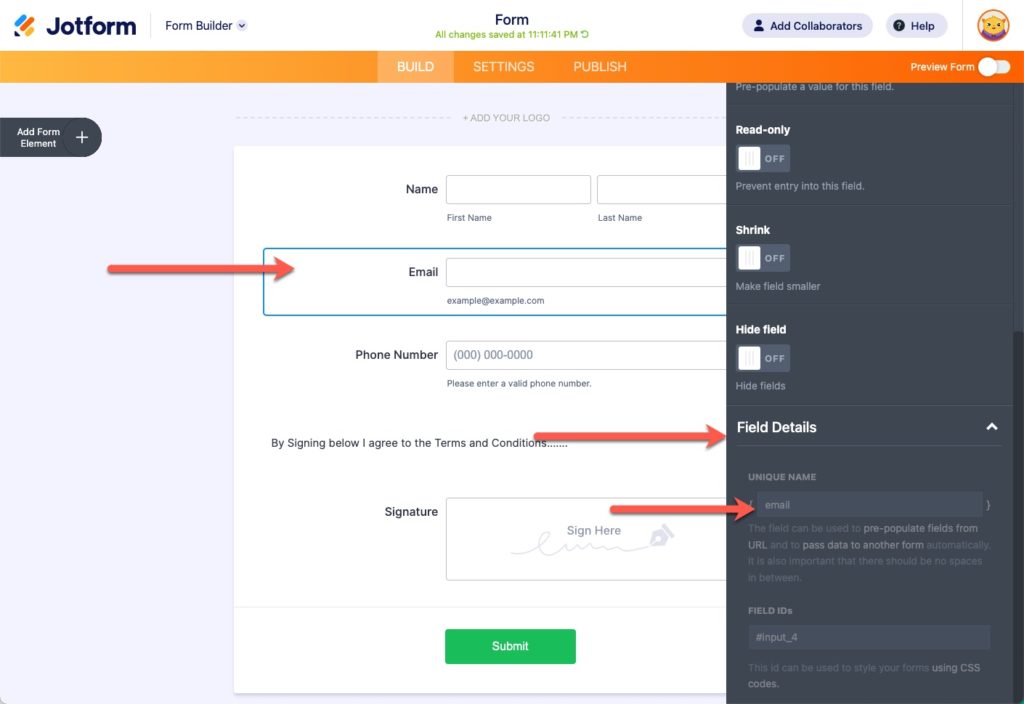
You can read more here about getting Jotform field IDs and Names.
And then use these fields to pass the answers to GReminders.
Want to do conditional Thank You pages? For example, if you have different Event Types in GReminders for different Services you Offer, no problem. Jotform Conditional Thank you Pages to the rescue.
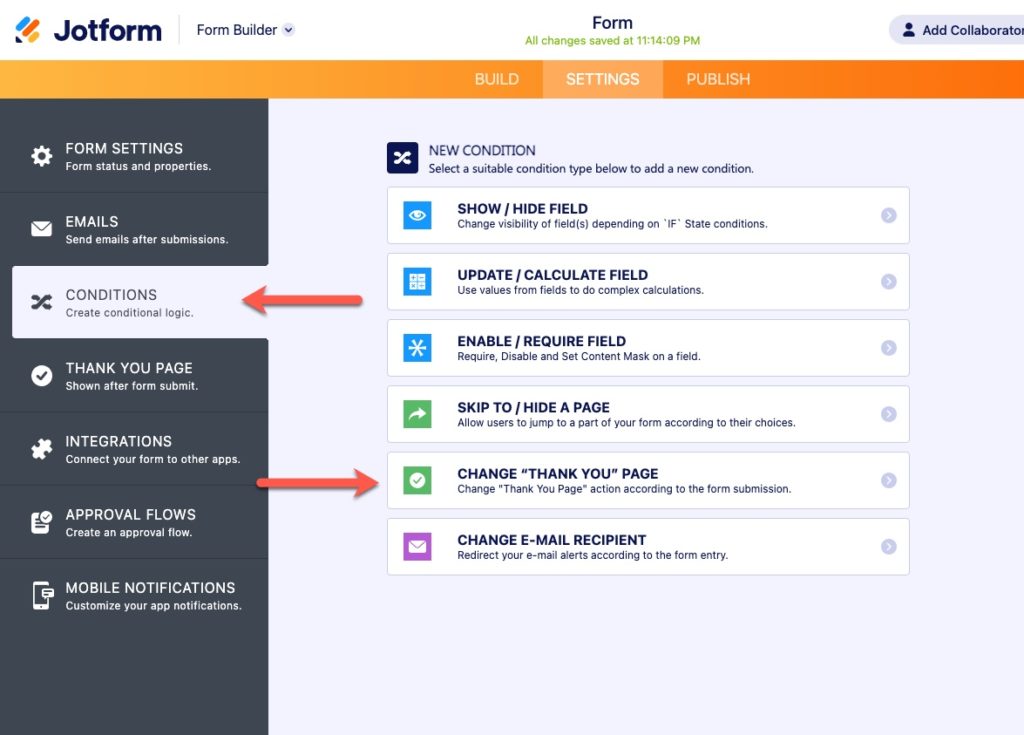
Go to your Jotform Form, Settings > Conditions and select Change Thank you Page, then set your Conditions. Perhaps you want to use a different Event type based on their native Language OR you want to send them to a different Event Type based on some Service offering. Easy.
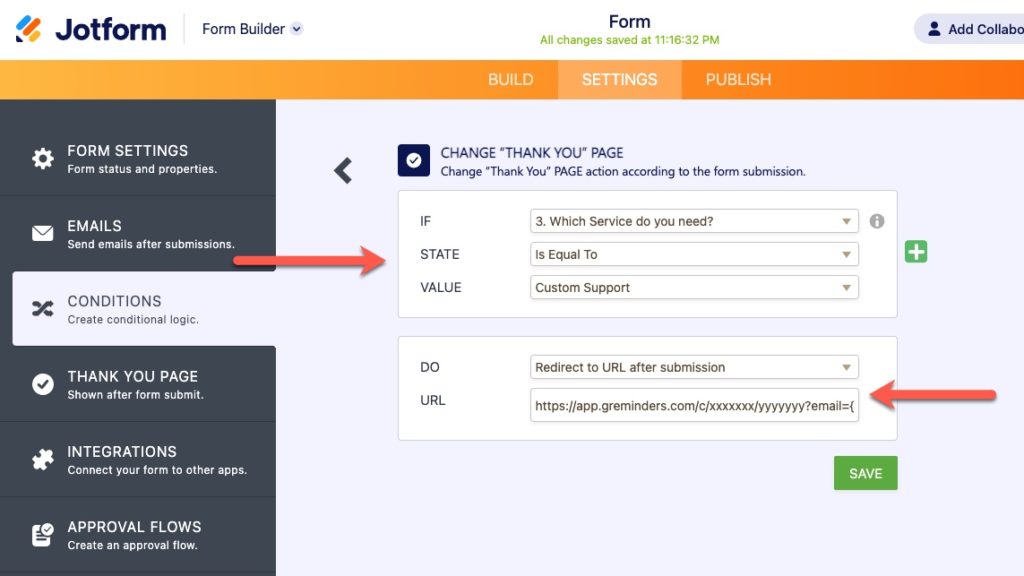
Again, make sure you use the proper Event Type URL and pass in the parameters just like the other Thank you page above.
If you want to auto submit the GReminders “form” after they pick the right date/time you can include auto_submit=true in the parameters. As long as your form validates (no required fields missing) the system will automatically submit the form.
So Jotform > GReminders Scheduling date/time > Done!
Want to go the other way? GReminders -> Jotform
Yes you can do this as well.
When you create an event type use the Custom Thank you Redirect and send your client, after scheduling, to a Jotform page with some fields prefilled.
In your Event Type scroll down to the Thank You Page section, select Custom Redirect and paste in your form with the form variables. Example:
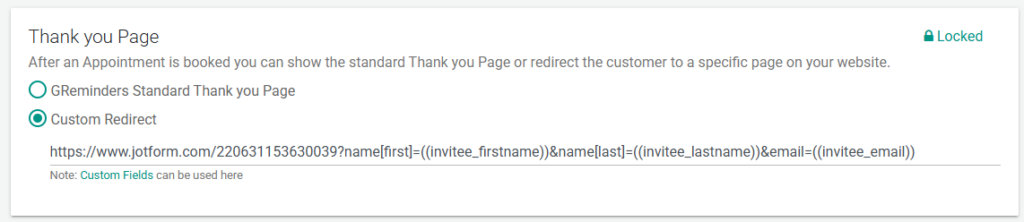
In this example we are passing in
https://www.jotform.com/220631153630039?name[first]={{invitee.firstname}}&name[last]={{invitee.lastname}}&email={{invitee.email}}
where {{invitee.firstname}} is the GReminders variable for firstname, etc… You can see all the available variables here for your account.
You can even do this for Embedded Jotforms. Please see this Jotform article for more information.
That’s It
Need help? We’ve got you covered, reach out to [email protected]
Happy Scheduling!
Keywords: Jotform, automated scheduling, sms reminders, Custom Forms, Custom Fields, Thank you Pages
FAQs
How do I integrate Jotform with GReminders for scheduling?
You can set up a Jotform with the necessary fields like Name, Phone Number, or Email, then in the Jotform Settings under the Thank You page section, enter a custom redirect URL to your GReminders Event Type Booking form. Pass the form parameters from Jotform to GReminders by including field variables in the URL so that the scheduling form is prefilled.
Can I use conditional Thank You pages in Jotform to redirect to different GReminders event types?
Yes, Jotform supports conditional Thank You pages. You can set conditions in your form settings to change the Thank You page URL based on user responses, such as language or service type, and redirect users to different GReminders event types accordingly, passing the appropriate parameters.
Is it possible to redirect from GReminders back to a prefilled Jotform after scheduling?
Yes, in your GReminders Event Type settings, you can use the Custom Thank You Redirect option to send clients to a Jotform URL with fields prefilled using GReminders variables like {{invitee.firstname}}, {{invitee.lastname}}, and {{invitee.email}}. This allows you to collect additional information after scheduling.