Automating meeting summary sharing is essential for streamlining post-meeting workflows while ensuring that sensitive recordings are restricted to authorized staff members.
In this article we will explore how to manually or automatically share Notetaker records to the right people.
Sharing Internally Manually
On the Notetaker Page you can manually share the recording to other Users within your GReminders Account. Simply click the Share Button:
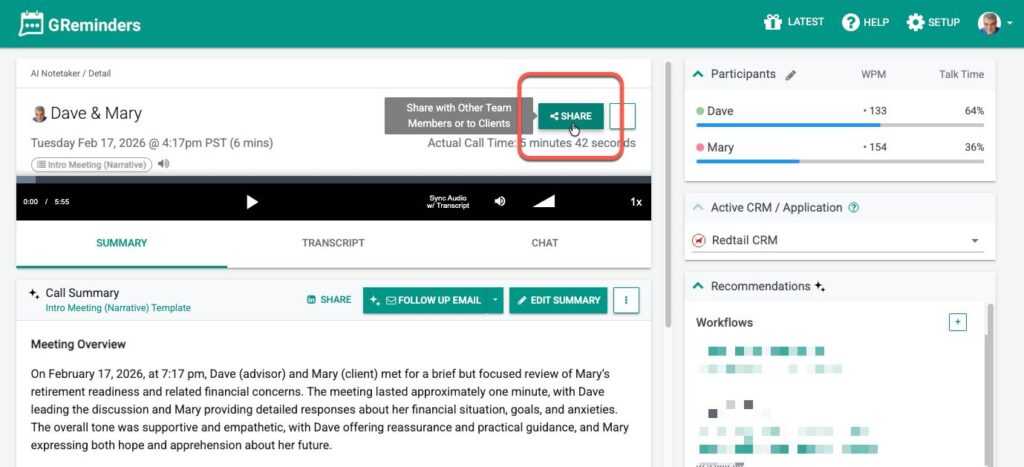
From here you can add Users like so:
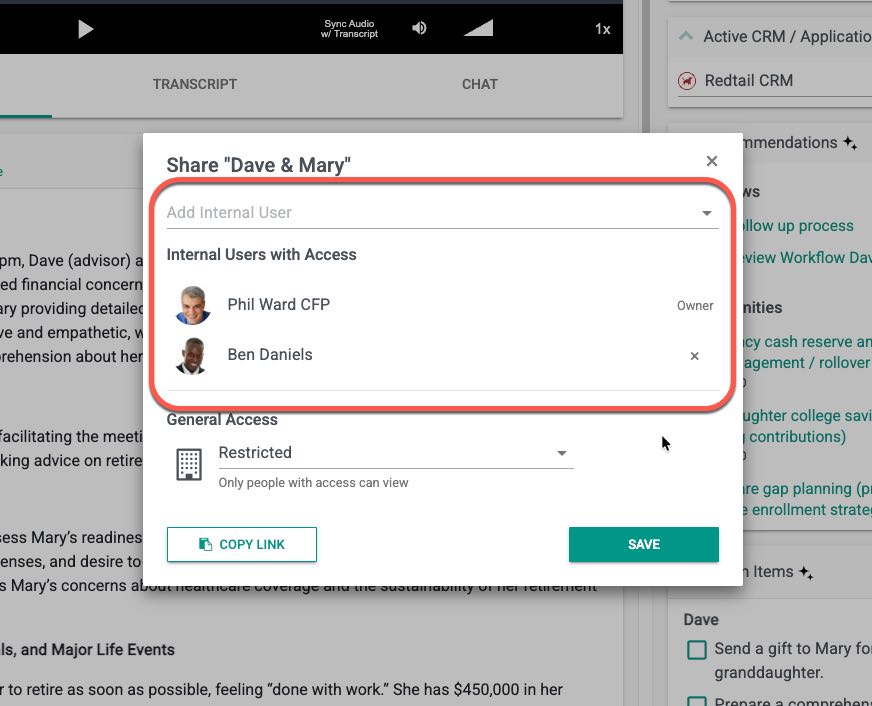
Add users and click Save.
Sharing a Notetaker Externally to your Organization
From this page you can also share this Notetaker Summary to external participants with or without a password. You decide.
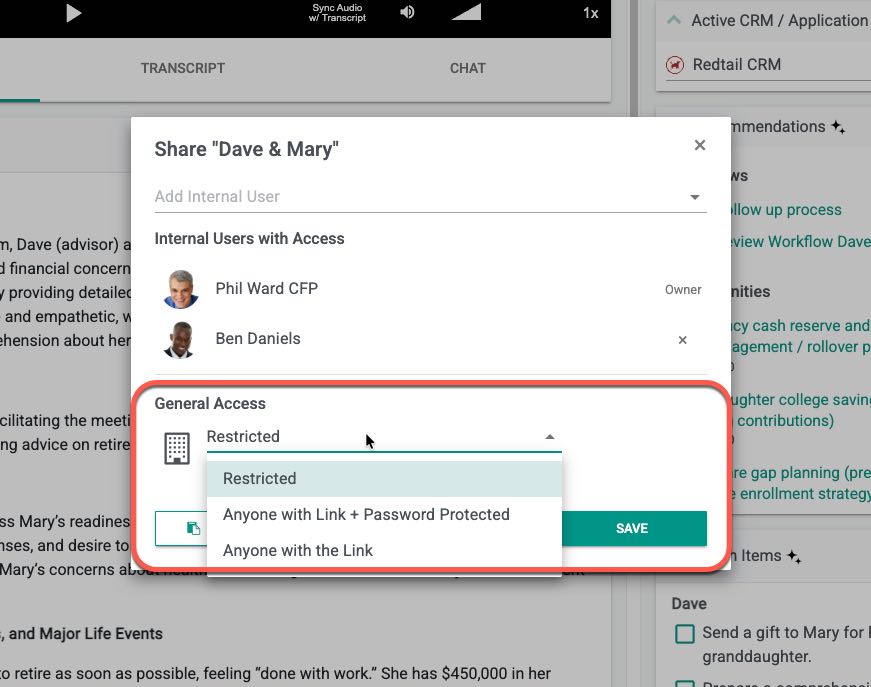
Click on the Restricted dropdown and select
Anyone with Link & Password Protected
This will generate a public link that will require a password to access. Once you click this click Copy Link and the link will be copied to your clipboard you can share via email or any other means.
Anyone with the Link
This is a fully public link that can be shared without a password. Click Copy Link, it will copy the URL into your clipboard you can share around.
Default Notetaker Sharing Settings
Under Notetaker Settings you have the ability to automatically share Notetaker Records with other Internal Participants (assuming they are GReminder Users). Since they were on the call you likely want to automatically share the Notetaker Meeting notes with them. This is the default settings
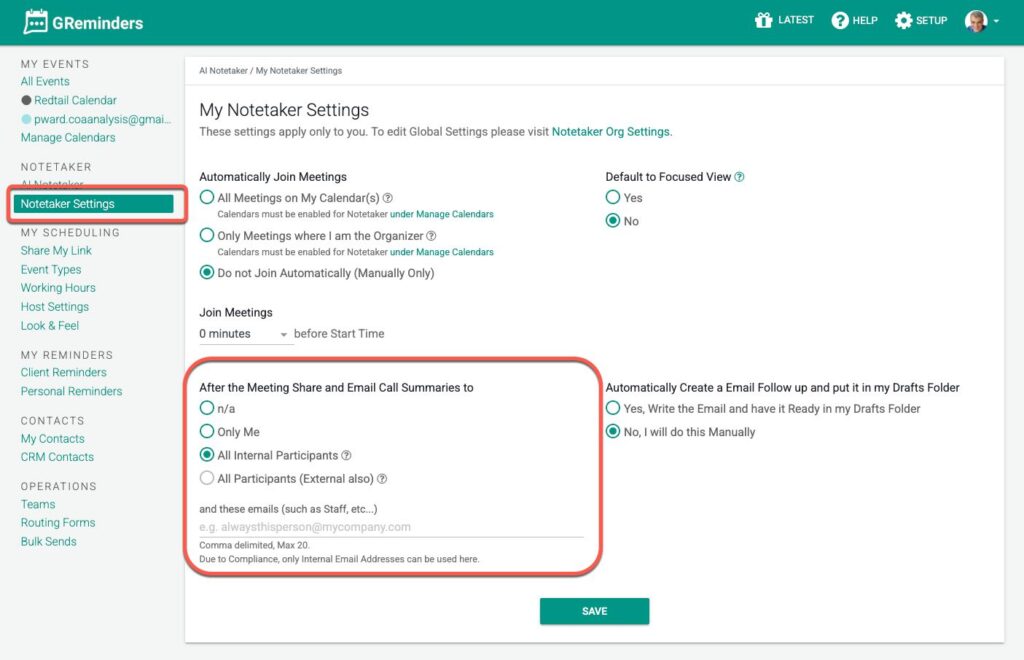
Optionally you can change this to just yourself.
Automatically Sharing Notetaker Records with Staff
If you have an Assistant or Common Support Staff that normally process all your Notetaker Records you can automatically share ALL Notetakers to certain users.
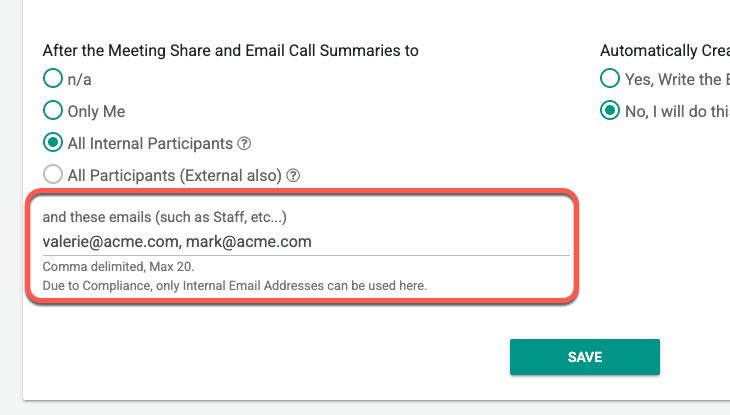
In this example I am always sharing all my Notetaker Records to both Valeria and Mark on my Team. Simply add their email addresses (these should also be GReminders Users) and the records will be auto shared to them.
This is useful if you have staff process your calls post Meeting, such as reviewing notes, Opportunities, Workflows and Tasks and then pushing them back to your System of Record (CRM, ERP, etc…)
Please Note any changes made to the Settings will not affect existing Records, only NEW Records moving forward.
That’s It.
Any Questions? Please email to [email protected]