This guide walks you through setting up GReminders API access for NetSuite, ensuring a smooth and secure integration. It explains how to create the required roles, permissions, and user accounts, generate access tokens, and obtain the REST API base URL. By following these steps, you can quickly configure your GReminders integration to improve efficiency and streamline operations—making it an essential resource for teams integrating GReminders into their existing systems.
Please Note, Configuration of Task Reminders and application functionality needs to be configured by the GReminders Team. Please contact your Customer Success Manager or Account Rep to review details of your use case and NetSuite Setup.
This article is about the connectivity to Netsuite, not the Application Functionality.
This is for TOKEN based Authentication
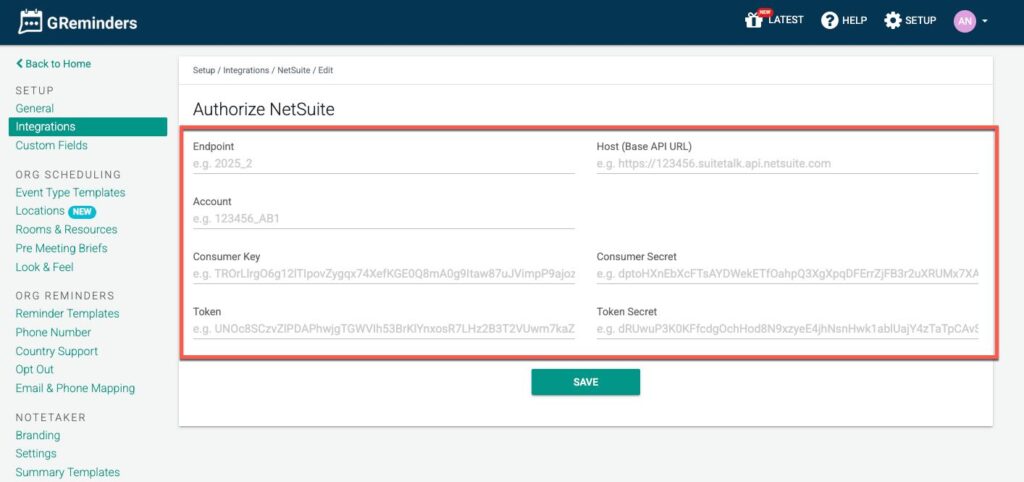
The Output of these steps is to collect the following Items:
Endpoint
Host
Account
Consumer Key & Secret
Token & Secret
Prerequisites
Token-Based Authentication is enabled in NetSuite
Admin access to:
Roles
Integrations
Access Tokens
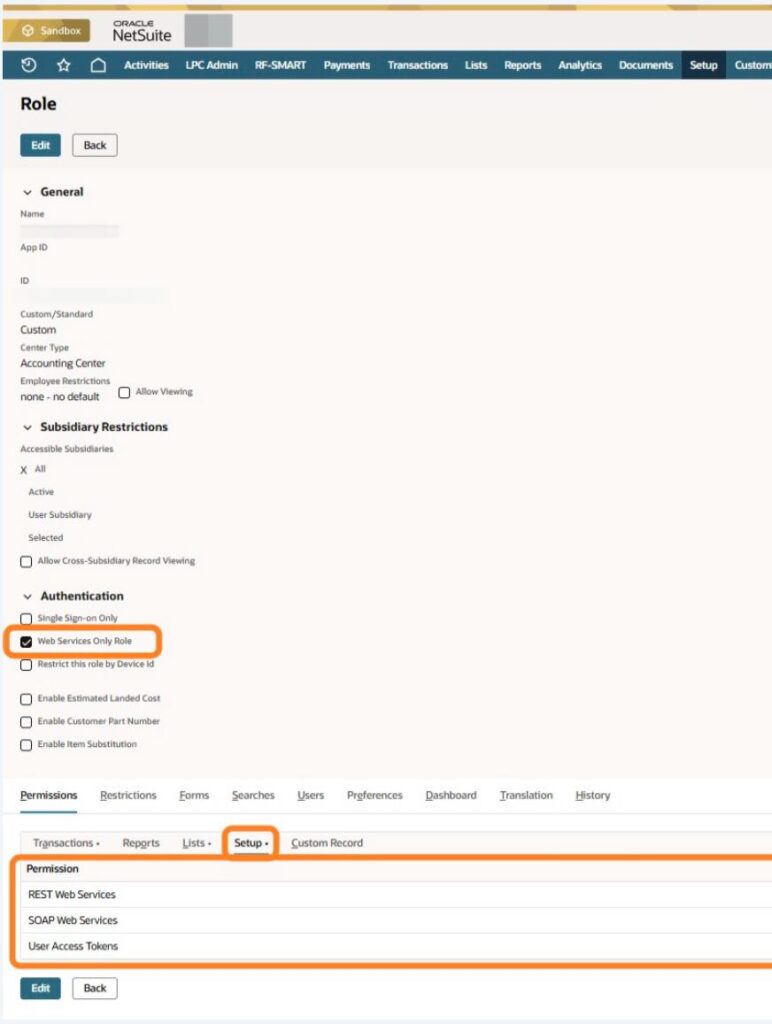
1. Create the GReminders Integration Role
Navigate to Setup → Users/Roles → Manage Roles → New Set the following:
Name: GReminders – Integration
Web Services Only: Enabled
Single Sign-On Only: Disabled
Restrict by Device ID: Disabled Subsidiary Access
Set Accessible Subsidiaries according to business needs (often All)
Enable cross-subsidiary viewing if required
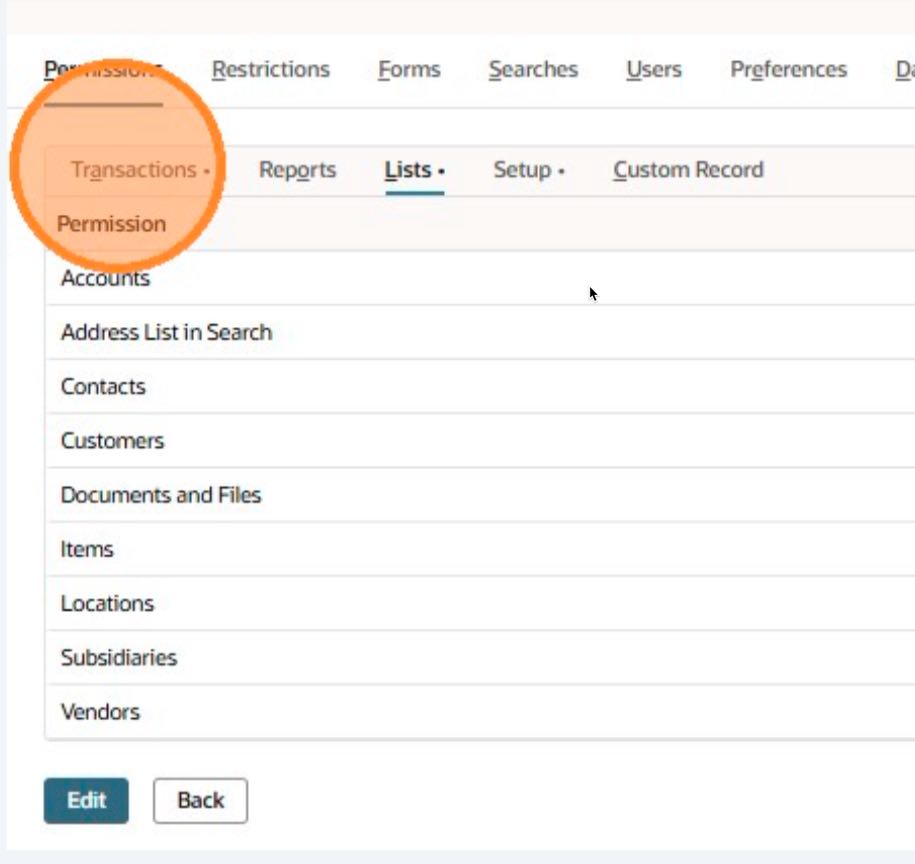
2. Permissions
Enable permissions required for API access and token usage
Add only the record and transaction permissions GReminders requires (customers, contacts, activities, custom records, etc.)
Start minimal and expand only if permission errors occur Save the role
3. Create the GReminders API User
Navigate to Lists → Employees → Employees → New
A) Create a dedicated user:
Name: GReminders API User
Email: Controlled/shared mailbox per internal standard
B) Open the Access tab:
Enable Give Access
Assign the role: GReminders – Integration
C) Set subsidiary, department, or class restrictions if applicable
D) Save the employee
Create the Integration Record (Consumer Key & Secret)
Navigate to Setup → Integration → Manage Integrations → New
A) Set:
Name: GReminders
Enable Token-Based Authentication
If required by GReminders, enable Authorization Code Grant
Save the integration
Immediately copy and securely store:
Consumer Key (Client ID)
Consumer Secret (Client Secret)
These values are shown only once.
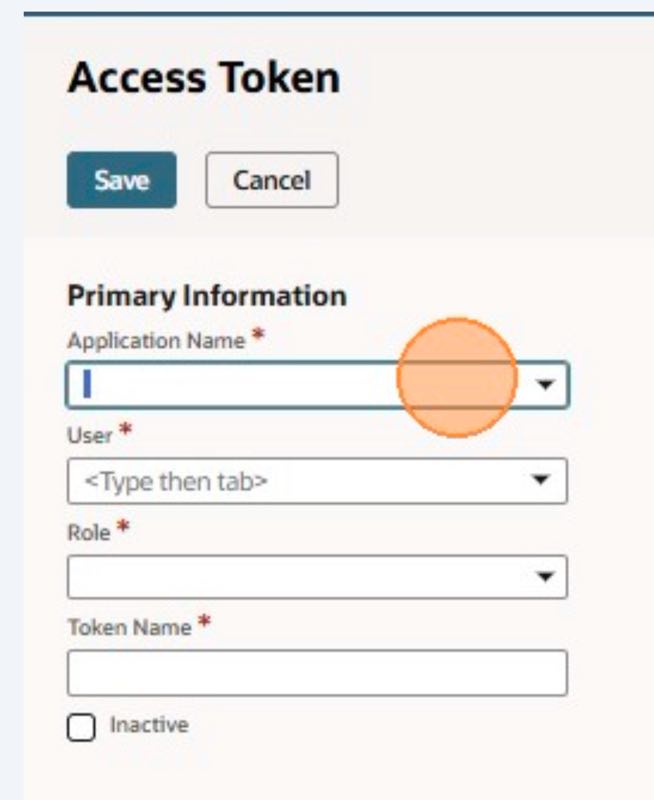
4. Create the Access Token
Navigate to Setup → Users/Roles → Access Tokens → New
A) Populate:
Application Name: GReminders
User: GReminders API User
Role: GReminders – Integration
Token Name: GReminders – Prod (or include environment/date)
B) Ensure Inactive is unchecked
C) Save
Immediately copy and securely store:
Token ID
Token Secret
These are also shown only once
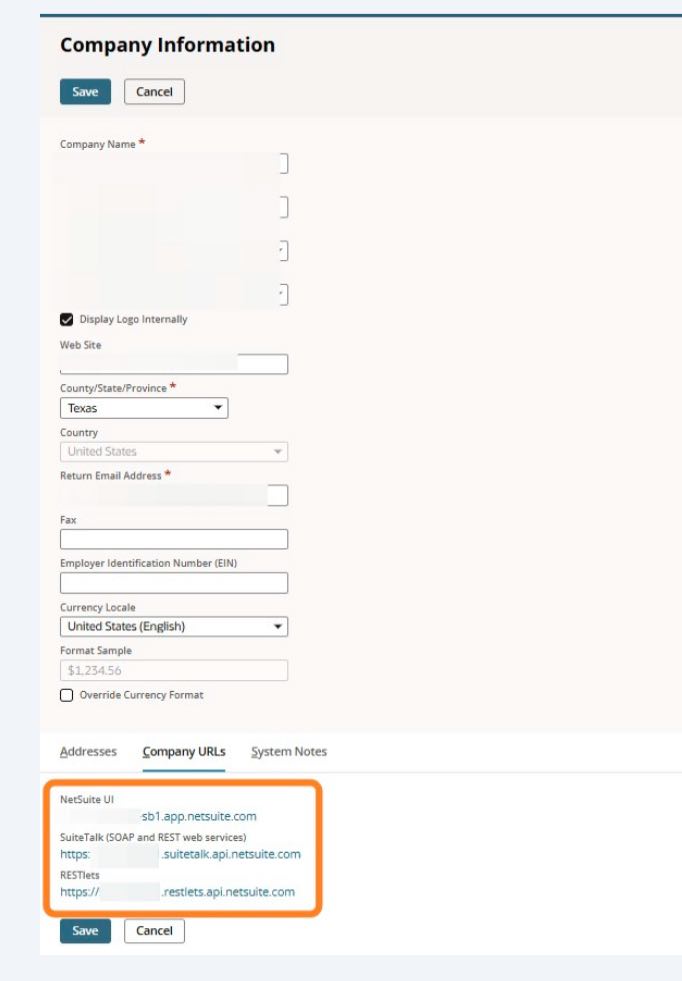
5. Retrieve the NetSuite REST API Base URL
Navigate to Setup → Company → Company URLs
A) Locate the REST Web Services section
B) Copy the REST API URL (example format): https://<account_id>.suitetalk.api.netsuite.com
C) Save this value with the integration credentials
This is the base endpoint GReminders will use for REST API calls.
6. Go to GReminders and Paste in the Values
Within GReminders go to Setup > NetSuite > click Setup and paste in the Values
Click Save
If you receive a Green Success Message you are Connected.