Overview
The GReminders integration for Redtail CRM brings AI-powered meeting intelligence directly into your workflow. Once enabled, the AI Notetaker joins your calls in real time and makes smart suggestions — automatically generating meeting notes, creating contact entries, kicking off workflows, creating opportunities, and assigning tasks to the right team members within Redtail.
| What’s Included: AI Notetaker — Automatic meeting transcription and note capture Note Entry — Push meeting notes directly into Redtail contact records Workflow Kick-Off — Trigger Redtail workflows based on meeting outcomes Opportunity Creation — AI-suggested opportunities logged to the right contact Task Creation & Assignment — Automatically assign follow-up tasks to the proper teammates in Redtail Meeting Prep — AI-generated pre-meeting briefs with key household details and recent activity, including past notes, & email conversations Client Follow-Up Emails — Auto-drafted recap emails ready to send after every meeting Scheduling & Booking Links — Share booking links and schedule directly within Redtail |
Getting Started
Follow these steps to enable GReminders directly in your Redtail CRM.
Step 1: Open Your Integration Settings
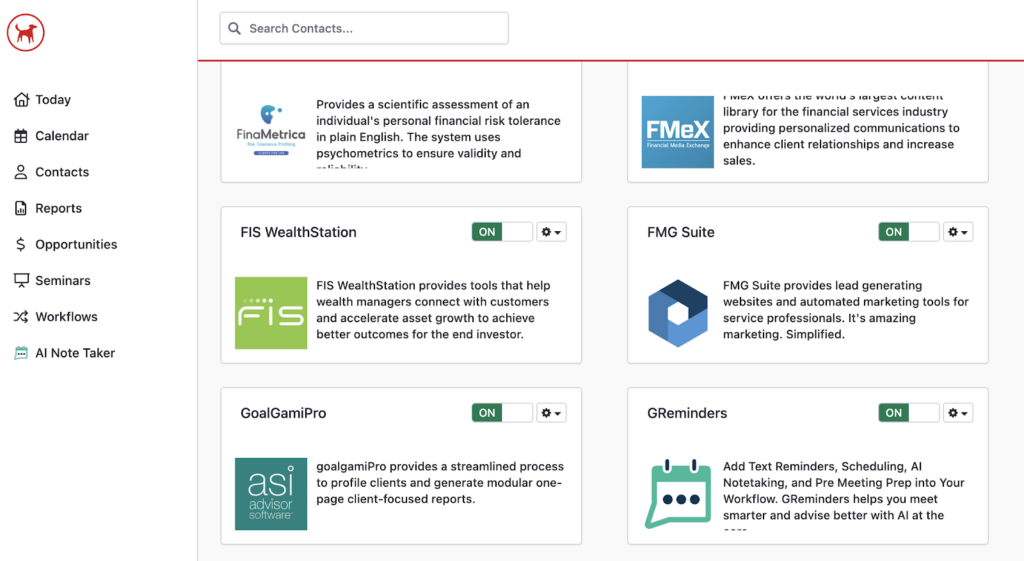
Click your name in the top right corner of the Redtail dashboard, then select Manage Integrations. You’ll see all available integration tiles.
Step 2: Enable the GReminders Tile
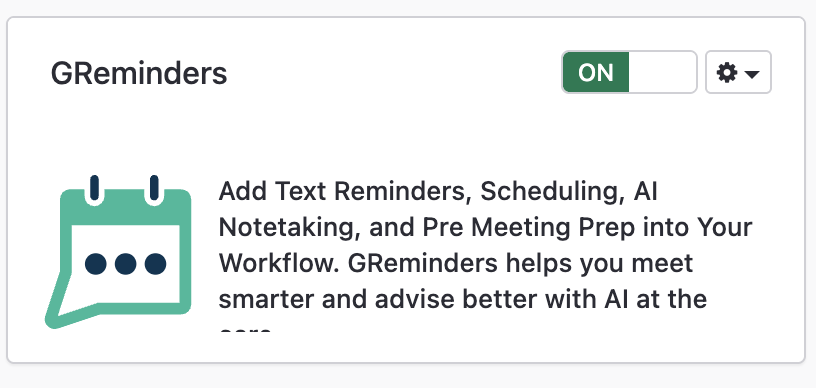
Locate the GReminders tile and toggle it to ON. You’ll be prompted to authenticate with your GReminders account.
Step 3: Access Settings
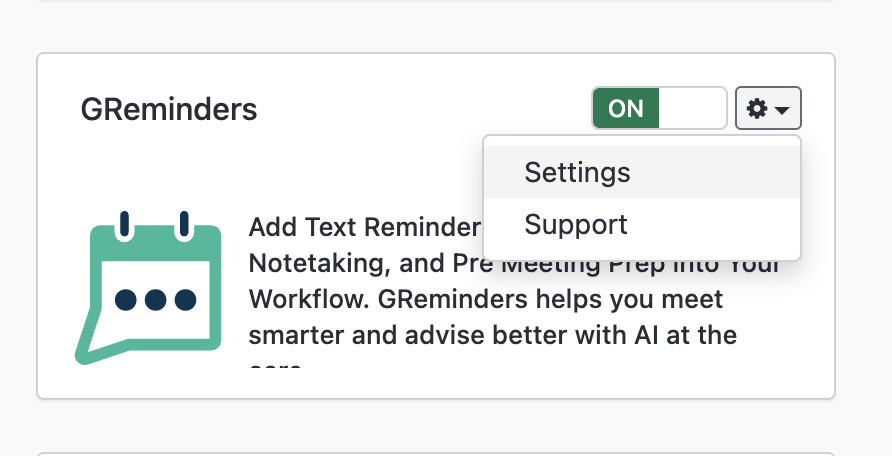
Once authentication is successful, you’ll now have all the features turned on and connected to your Redtail CRM. To make changes to the authentication or unlink the account, click the cog wheel, then settings.
AI Notetaker
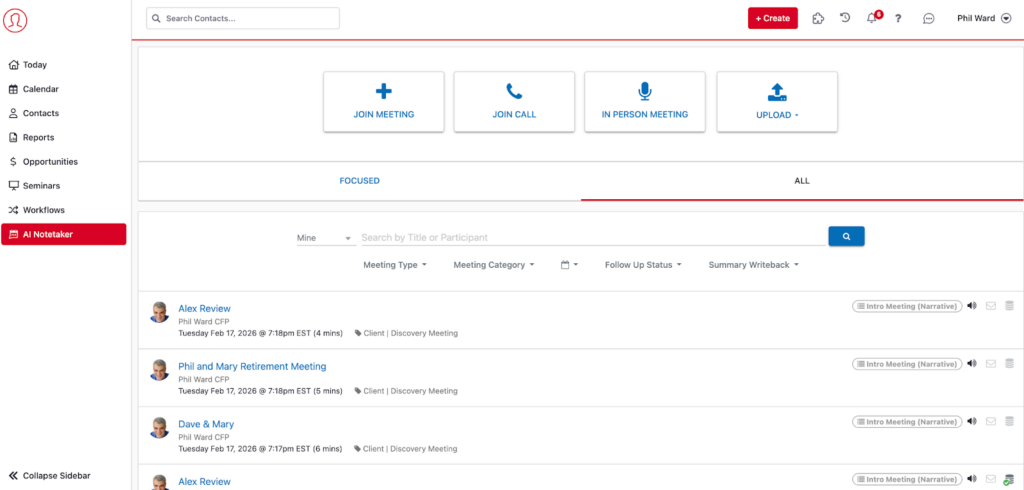
Once the integration is active, the AI Notetaker is automatically enabled. You’ll immediately see all of your meeting notes transcribed and displayed on the left-hand panel. Each meeting shows the participants, date, duration, meeting type, and category.
Meeting Detail View
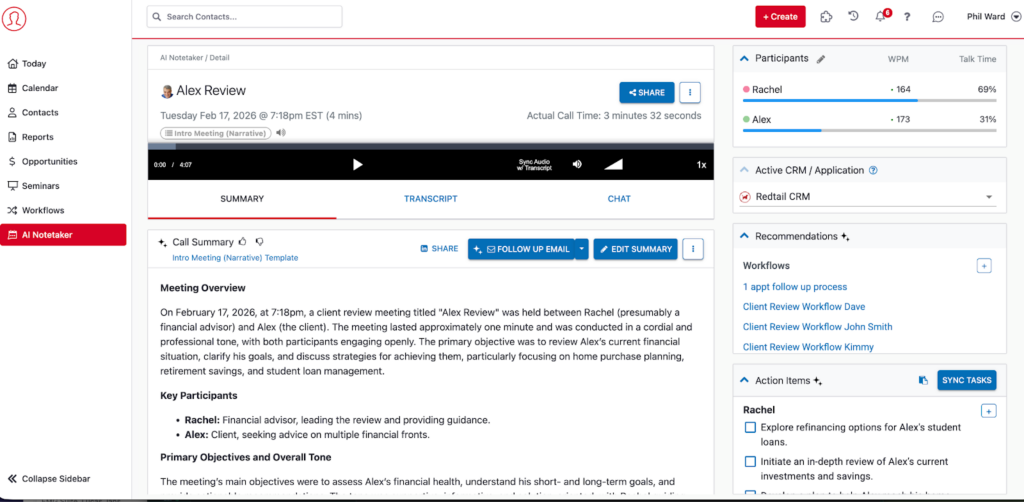
When you drill into any meeting, you’ll see the full Call Summary with an AI-generated meeting overview. The right panel surfaces Recommendations and Action Items — all powered by GReminders AI. From here you can follow up via email, edit the summary, or sync tasks directly to Redtail.
AI generated content will never be sent to the client or used as a note, without Advisor Approval.
Log Notes to Redtail CRM
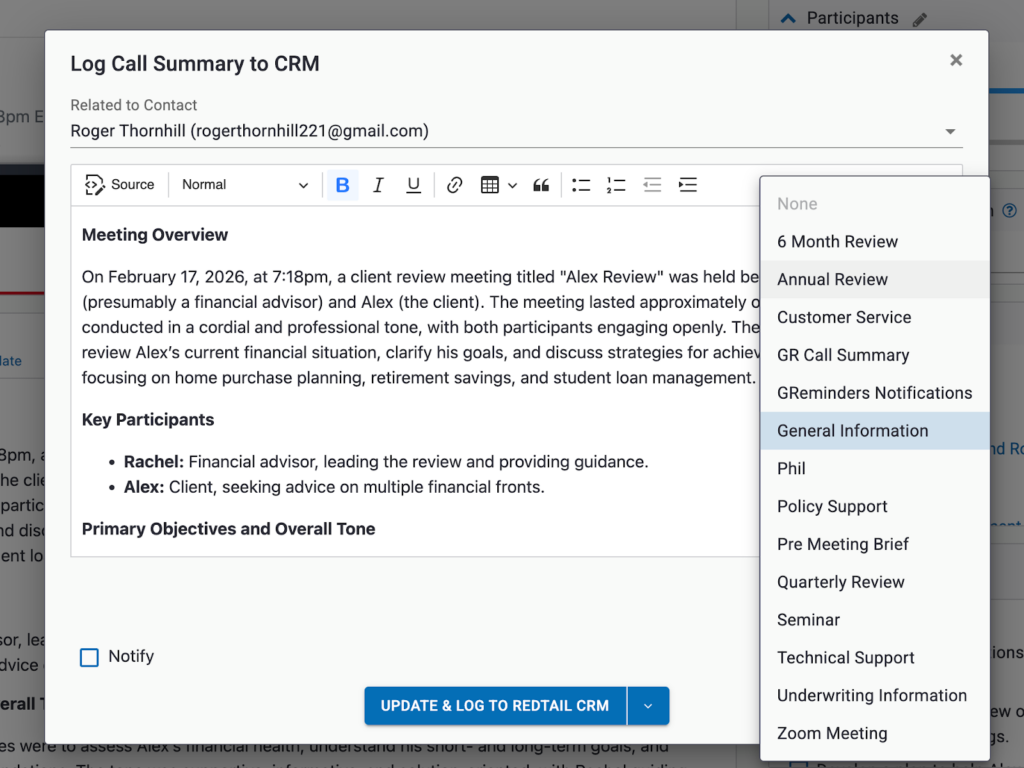
Click Follow Up Email or use the log action to push the call summary directly into the contact record in Redtail. The note is pre-populated with the AI-generated summary and you can select the appropriate category (Customer Service, General Information, Policy Support, etc.) before saving.
AI-Generated Client Follow-Up Emails
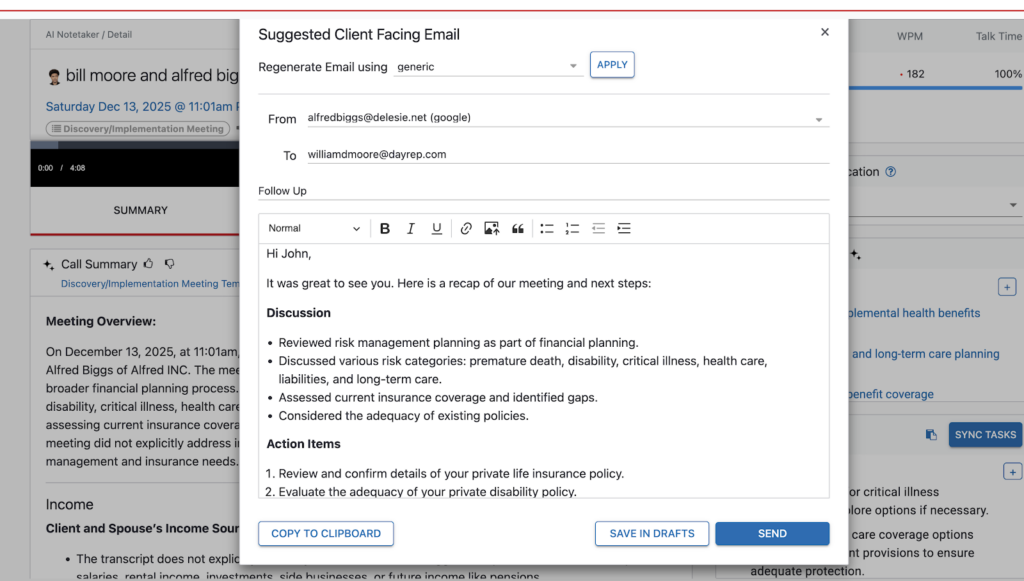
GReminders automatically drafts a Suggested Client Facing Email after every meeting. The email includes a recap of discussion points and action items, ready to send. You can copy it to your clipboard, save it as a draft, or send it directly — all from within the meeting view.
Contact Records & Meeting Prep
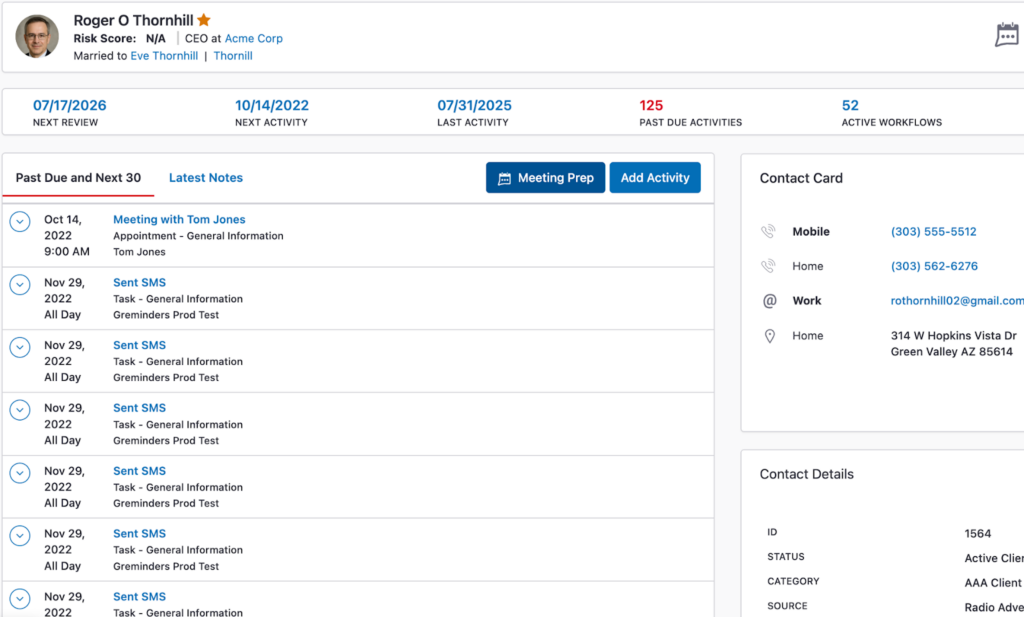
Within any Redtail contact record, you’ll see the full client profile including past activities, upcoming tasks, contact details, and portfolio information. The GReminders integration adds a Meeting Prep button directly into the contact view.
AI-Powered Meeting Prep Briefs
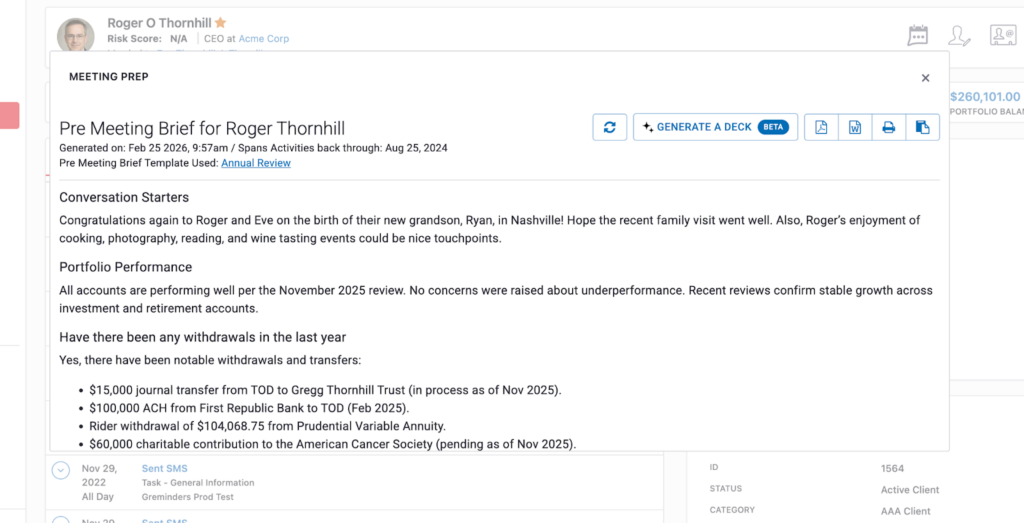
Click Meeting Prep to generate a comprehensive pre-meeting brief. The AI pulls together key household details, recent and relevant notes, financial overview, conversation starters, and a CRM deep link — everything you need to walk into any meeting fully prepared.
Task & Activity Creation

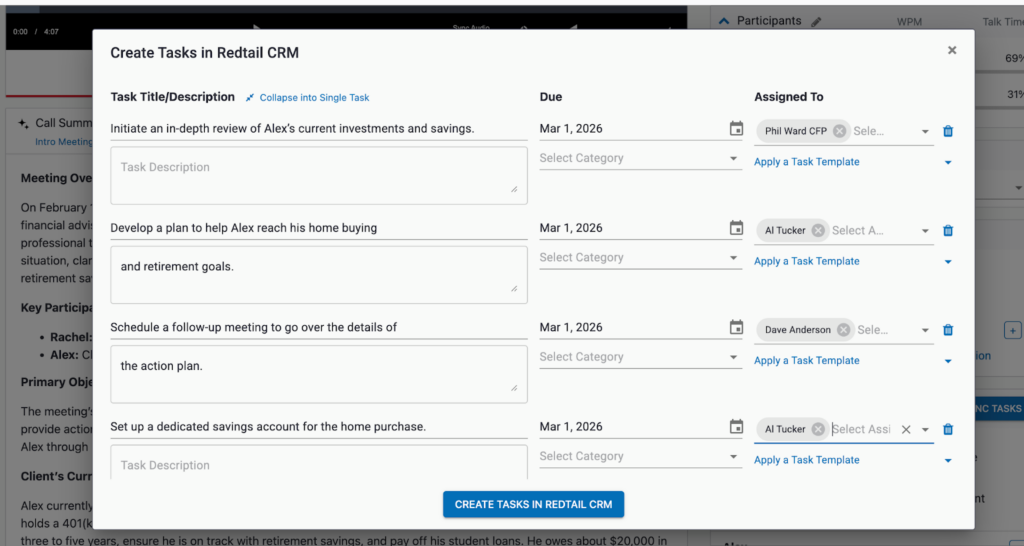
From the meeting detail view, the AI agent suggests tasks based on the conversation. These tasks are created directly in Redtail as activities, with the ability to set the subject, date, type, category, priority, and — most importantly — assign them to the proper teammates. Linked contacts are automatically associated so nothing gets lost.
Scheduling & Booking
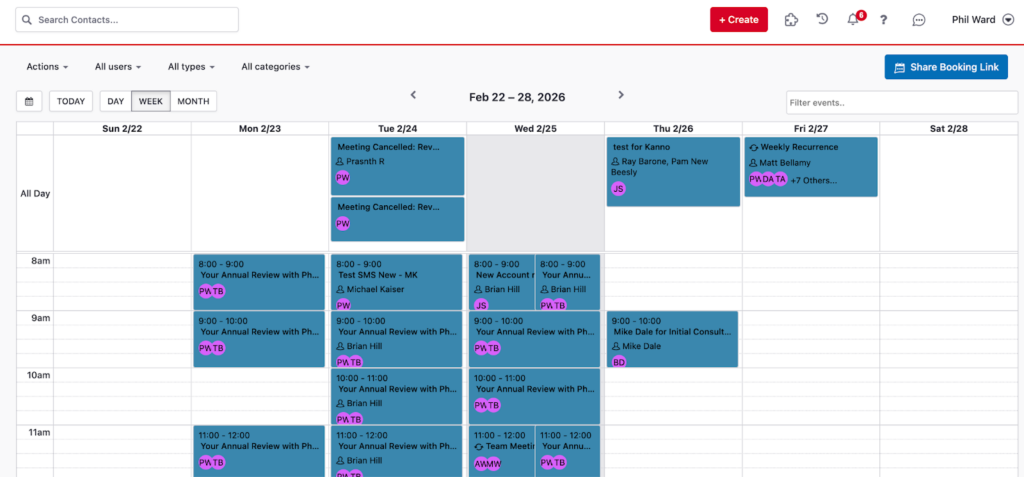
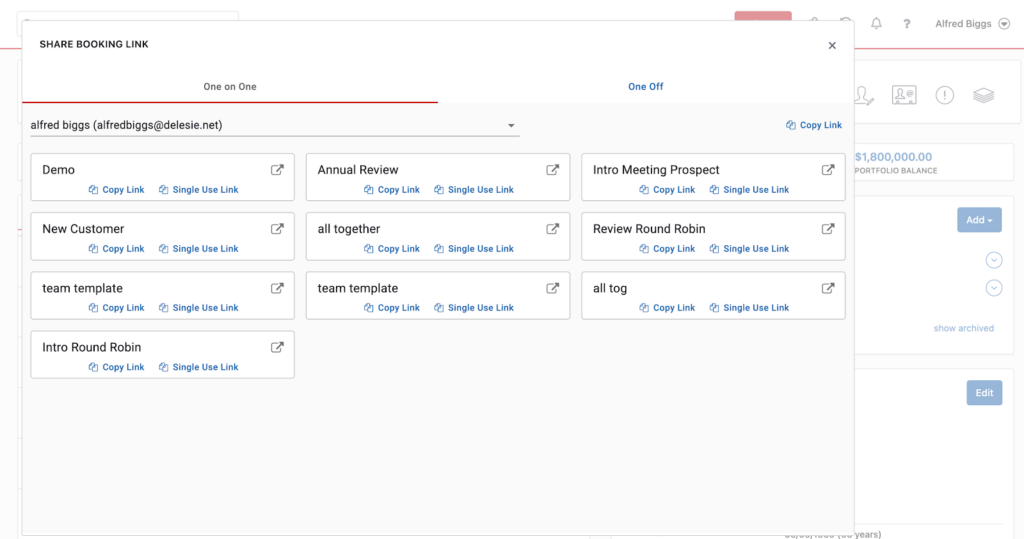
The integration also enables the GReminders Scheduler directly within Redtail. From the calendar view, click Share Booking Link to quickly send your scheduling link to clients, or book meetings on their behalf through your own links.
One-on-One Booking Links
The One on One tab shows all your available meeting templates — from demos and annual reviews to new customer onboarding. Each template has a Copy Link and Single Use Link option, making it easy to share the right booking page with clients.
One-Off Meetings with Multiple Advisors
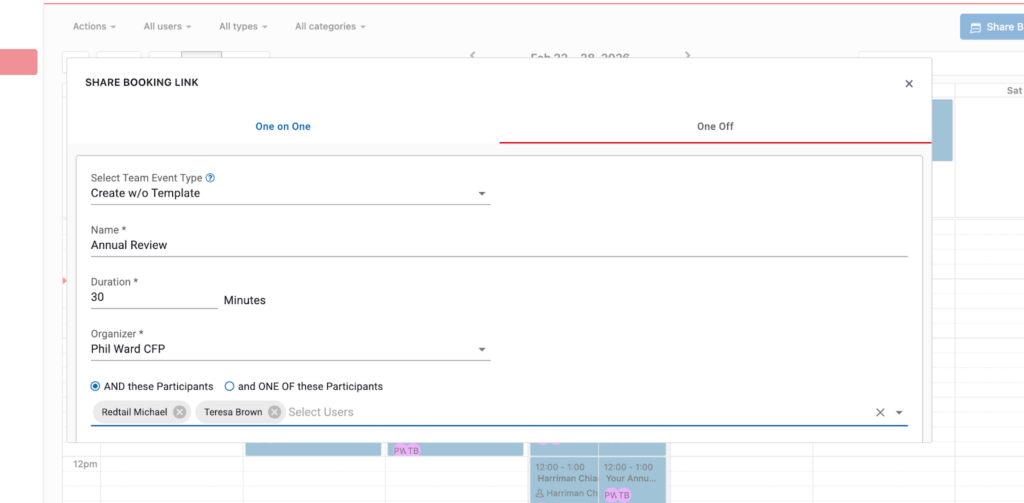
Need to loop in a colleague? The One Off tab lets you create a custom meeting that includes multiple team members. Select your event type, set the duration, choose the organizer, and add participants. Your client receives a single calendar link that books across multiple advisors’ calendars simultaneously — no back-and-forth required.
Next Steps
Once your integration is live, we recommend:
- Run a test meeting to see the AI Notetaker in action and verify notes flow into Redtail
- Share your booking link with a colleague to test the scheduling experience
- Try Meeting Prep on an upcoming client meeting to see the AI-generated brief
- Explore task and workflow automation to see how the AI agent can streamline your post-meeting follow-up
Have questions? Reach out to the GReminders team at support@greminders.com — we’re here to help.