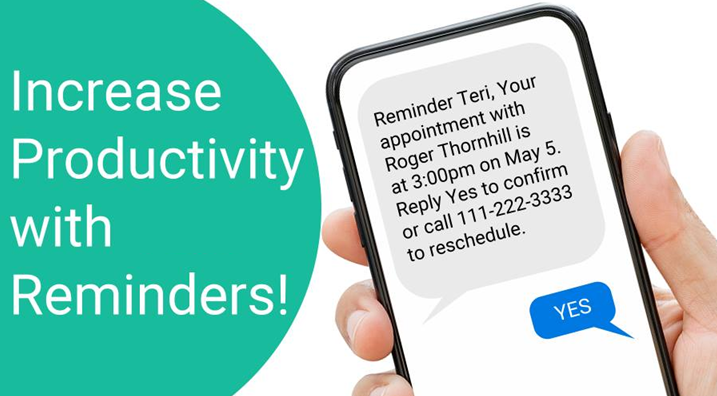
A template is what tells the system what you want sent to your client and at what time. Looking at your home page of GReminders, you will find client reminders under “Reminders” on the menu on the left. This is where individual users will access their reminder templates. For accounts with multiple users who wish to set up reminders at the organization level, you will access your reminder templates under the SETUP option at the top of the page. In this article we’ll set them up at the user level.
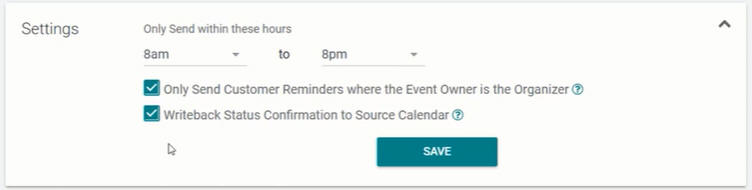
Under settings you can determine what hours you wish to send reminders (remember if 8 am is set as the earliest time you’ll send reminders, and you have an 8 am appointment, your client would not receive a reminder scheduled to go out 2 hours prior to the appointment since it would be out of the time range indicated). You can also select write back status confirmation to source calendar. This will let you see directly on your google or outlook calendar if someone has confirmed an appointment.
Now let’s start a new client reminder template. There are five different types of templates; you have a reminder, a follow-up, initial booking, reschedule, and cancellation.
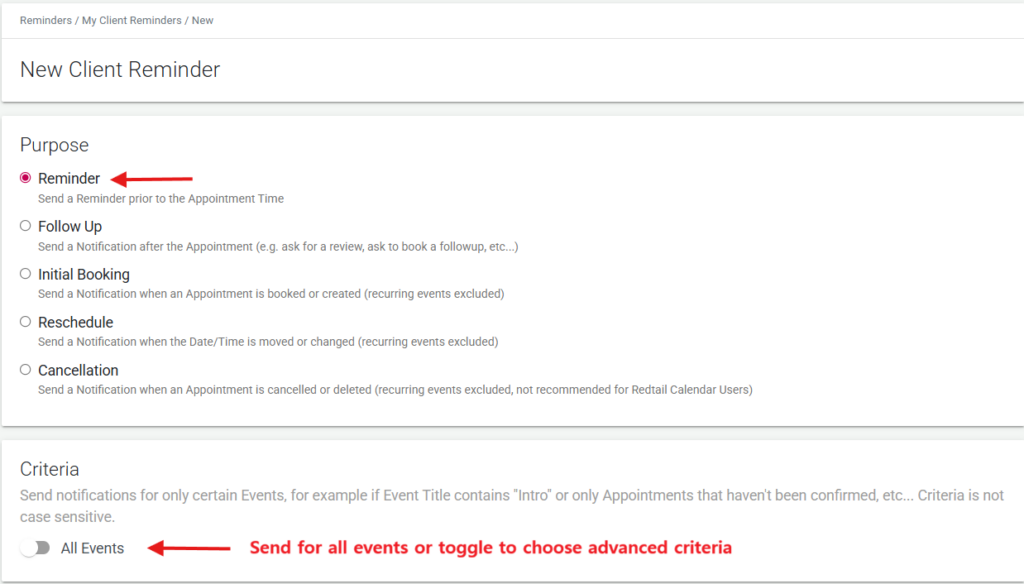
This is a reminder template. You can send the reminder to all events or change the criteria to only send when something in the event, the name, the calendar, the time, etc., matches the criteria. Reminder criteria only looks for meeting criteria on your calendar, not contact criteria. We’ll leave it at “All”. Next, choose whether to send an SMS, email, or voice call reminder. You can also choose when to send it.
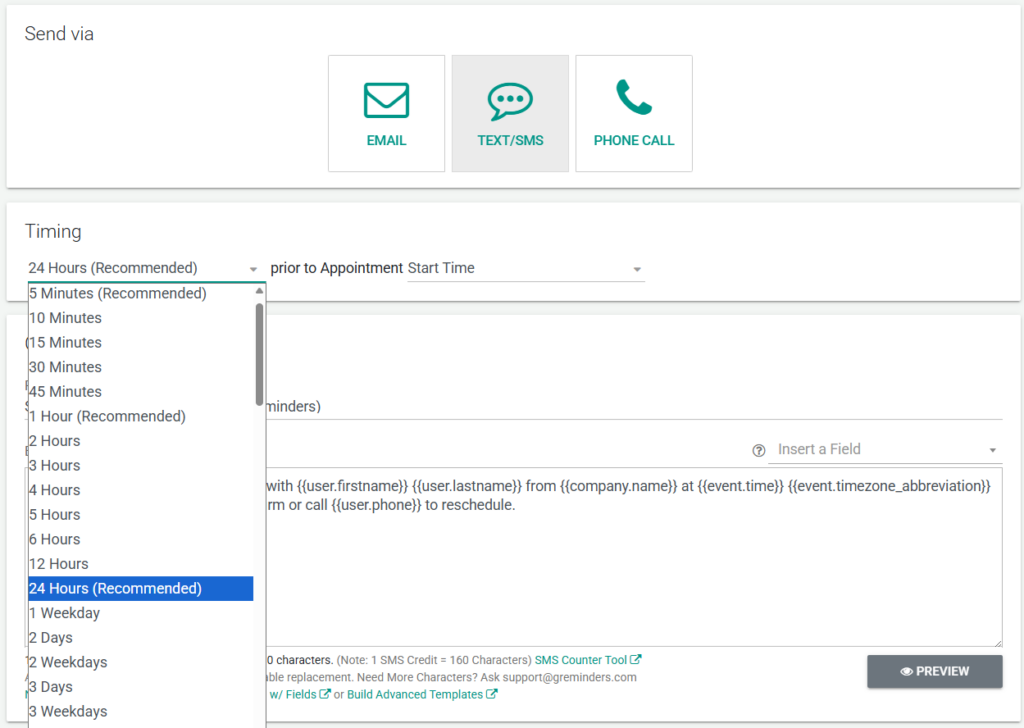
We give you lots of options of when you can choose to send a reminder. In this example we’ll select 24 hours prior to the appointment. Next you can edit the message however you like or use one of the templates linked below. Just remember that custom fields, surrounded by double brackets, will pull directly from the information in the appointment.
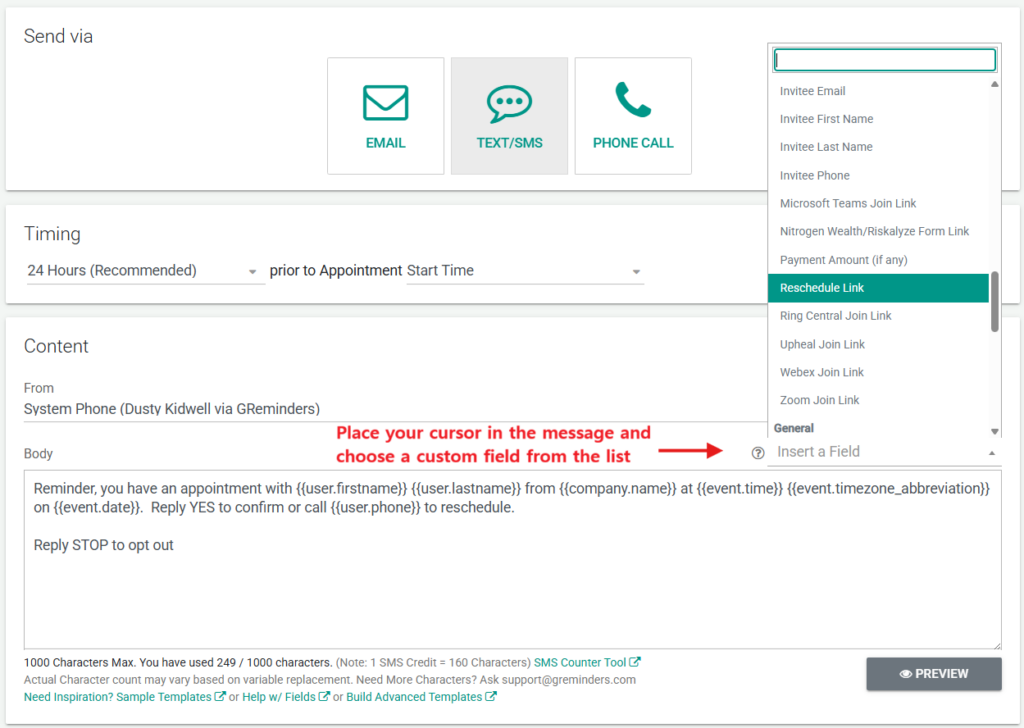
You can select standard variables from the list.
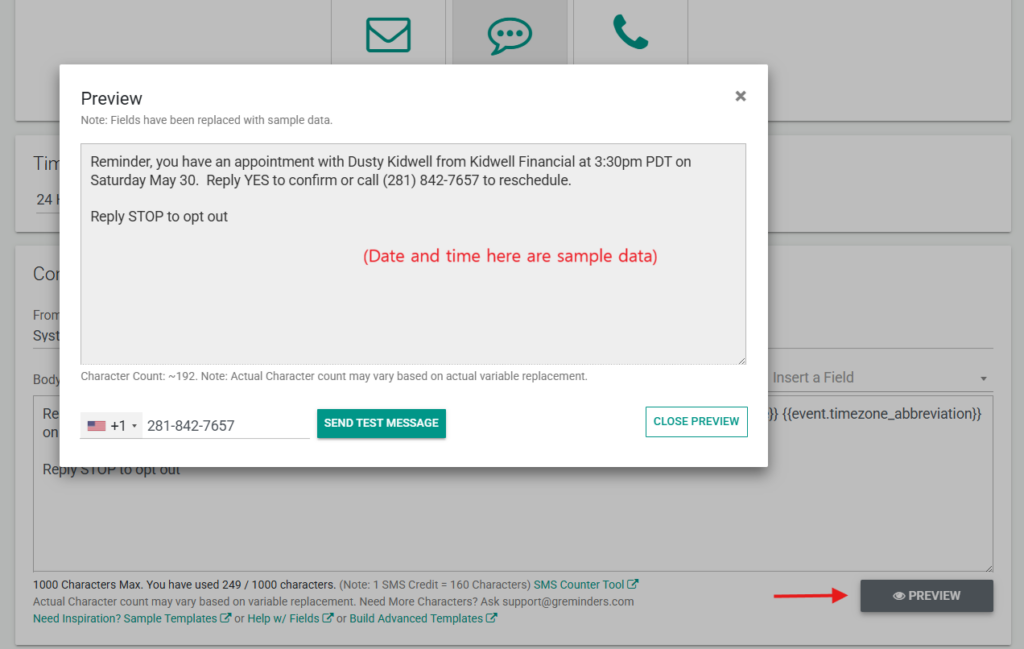
When you click “Preview”, some of the variables are filled with sample data. You can have as many templates as you like. Create a nickname for your templates, it’ll help you keep organized.
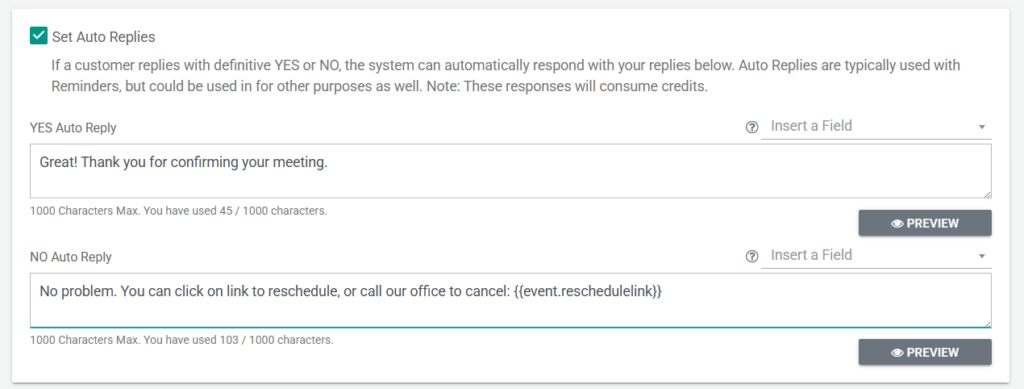
Edit the response that is sent when the SMS reminder is replied to with YES or NO based on your cancellation and reschedule process.

We’ll save this template and you can see it’s a reminder for 24 hours prior to the appointment start time.
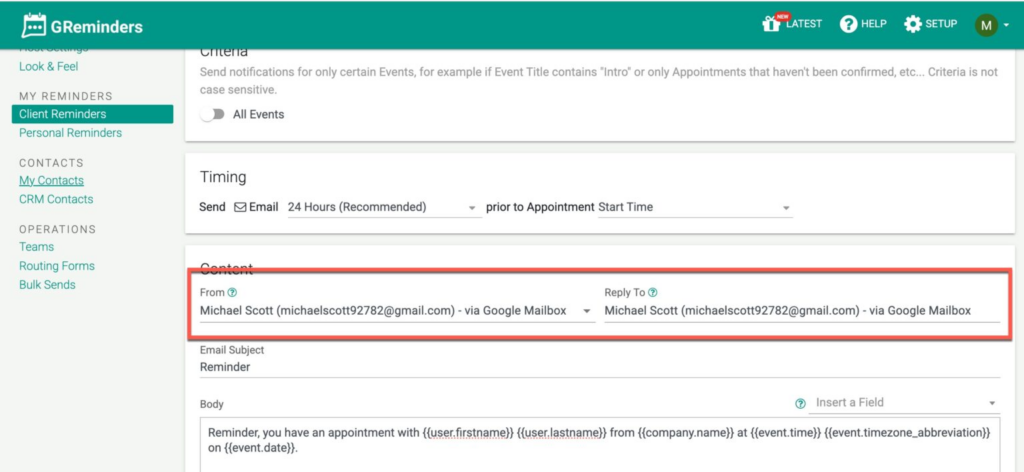
You can choose to send email from GReminders OR from your own Mailbox. By default all mail is sent from our domain greminders.com and replies are forwarded to you.
If you choose to receive replies directly back to your inbox, GReminders will not be able to read these, and thus not aware of confirmations or declines. You will receive them just like any other email. Alternatively, choose that the reply to email is greminders.com so that will be able to put a checkbox or X on your calendar event.
Click HERE to read more on how to send reminder emails from your email.
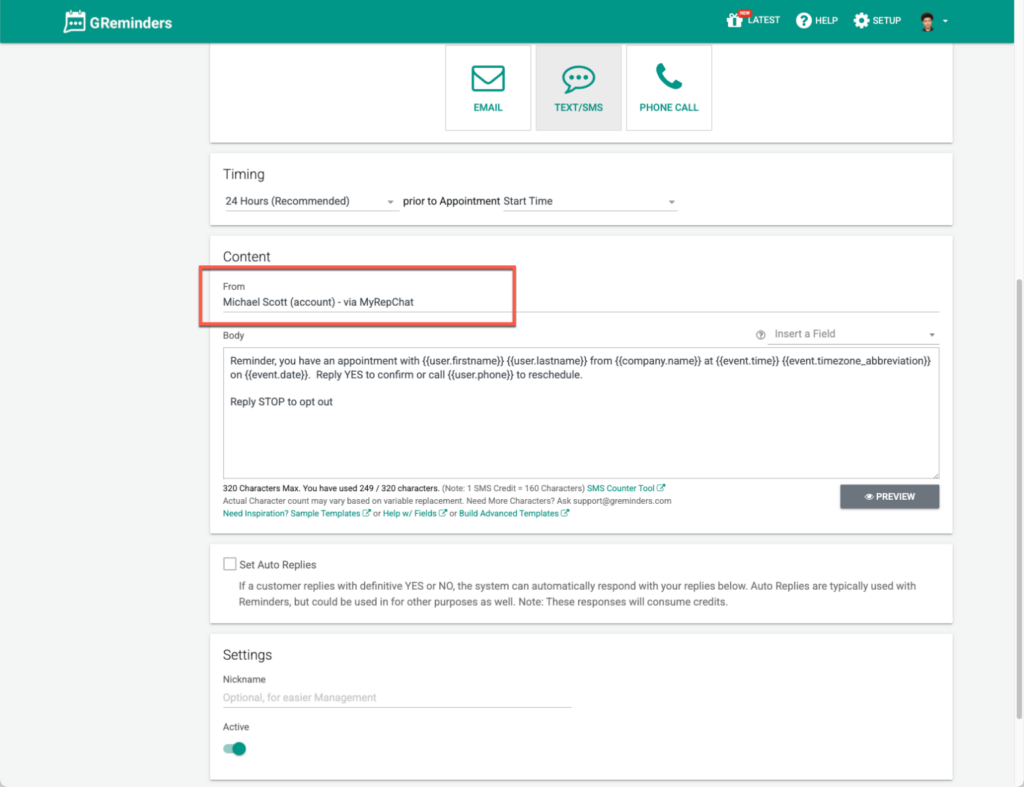
GReminders also allows you to send Text/SMS messages via your MyRepChat phone number. Click HERE to read more on how to send SMS messages from your MyRepChat number.
If reminders are coming from your own number, GReminders does not have visibility into deliveries or replies. Those are handled outside of the system. So you will not see delivery confirmations, or reply confirmations/declines in GReminders. Those will all come to your number. Additionally, when using your own SMS provider, we recommend using Confirmation Links instead of asking for a Yes/No Reply.
It is important to remember to put a phone number or an email address in the appointment details and our system will do the rest. That’s it you’re ready to go!
We’ve compiled a list of templates that you can use in your reminders
FAQs
Where can I access client reminder templates in GReminders?
Individual users can access their reminder templates under 'Reminders' on the menu on the left of the home page. For accounts with multiple users setting up reminders at the organization level, templates can be accessed under the SETUP option at the top of the page.
What types of reminder templates can I create in GReminders?
There are five different types of templates you can create: reminder, follow-up, initial booking, reschedule, and cancellation.
Can I send reminders from my own email or phone number using GReminders?
Yes, you can choose to send emails from GReminders or from your own mailbox. However, if you send from your own mailbox, GReminders will not be able to track replies or confirmations. Similarly, if you send SMS messages from your own number, GReminders won't have visibility into deliveries or replies, which will be handled outside the system.