GReminders offers a variety of Sign On options.
- Google Workspace / GMail Account
- Microsoft Account
- Username and Password (optional w/ 2FA)
- SAML (Your Enterprise Identity Provider such as Okta, OneLogin, etc…)
Note, that if your Google or Microsoft Account are using Okta or another IdP you can simple use the Microsoft or Google Login which will already proxy to Okta or similar.
SAML enables Single Sign-On (SSO) by allowing users to securely log into multiple applications using one set of corporate credentials and central Multi-Factor Authentication (MFA) rules. While SAML handles this secure user login (authentication), its partner protocol SCIM automatically manages creating and deleting those user accounts behind the scenes (provisioning). Read more about SCIM here.
If you want to setup SAML directly, this article is for you.
Getting it Setup
In your IdP provider, lets use Okta as an example, setup a new Application.
When asked for your SAML Sign On URL use:
https://app.greminders.com/saml2/acsWhen asked for your XML for IdP Configuration use:
https://app.greminders.com/saml2/metadataFor Audience URI you can use “greminders” or any other unique value you like
For Application Username use Email.
Next you will need to download the Metadata XML file provided to you by your IdP. This is typically the Metadata URL. You may need to copy and paste it into your browser. Copy the output of the XML file into your clipboard
Next, within GReminders. Go to Setup > SAML
Click Create a new IdP
Here you need to give it a name (e.g. Okta) and then paste the copy of the XML file you have you in your clipboard:
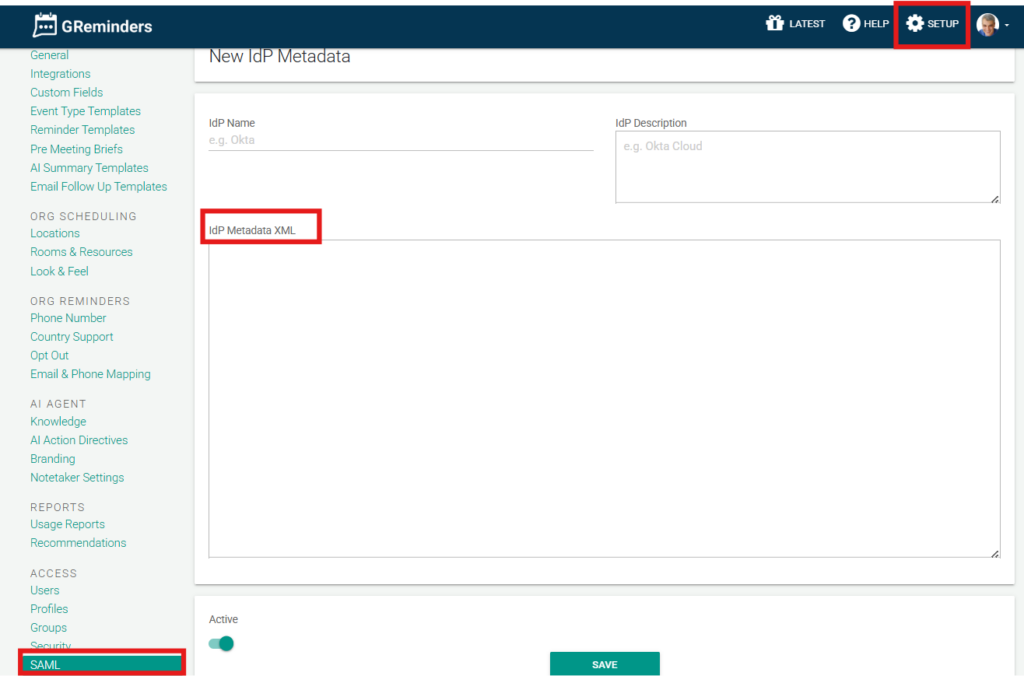
The form will validate your XML, if its in valid it will tell you so.
Click Save.
Next go to Setup > Security and enable SAML as a login provider.
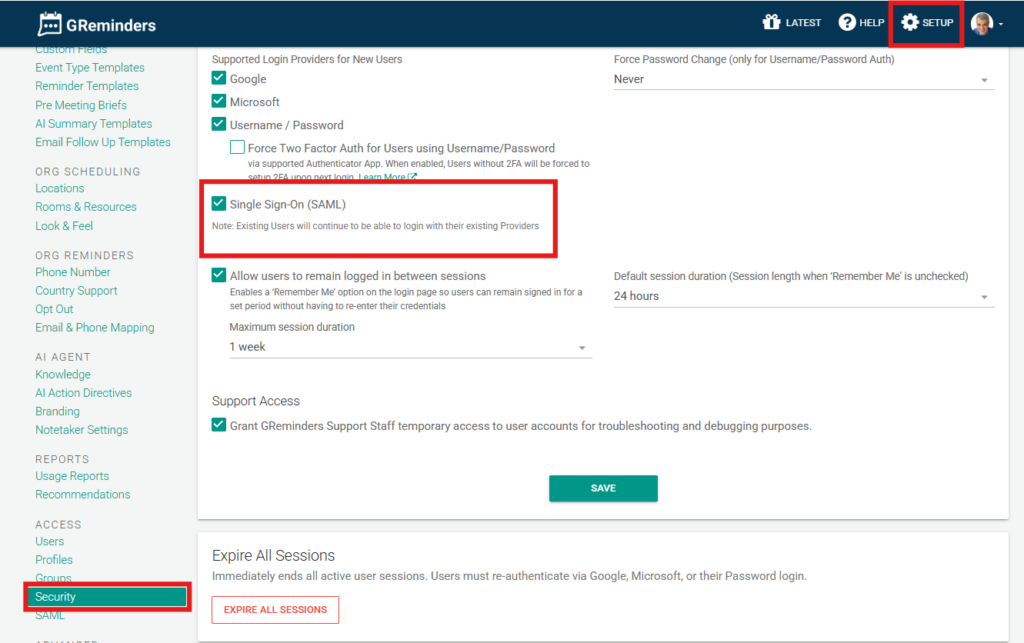
You are connected.
Now you can invite a NEW user under Setup > Users OR you can try to change your own Login Provider under Profile to SAML.
When this user logs in they should be offered the ability to login via your Okta or IdP you have configured.
That’s It.
Note, SAML is a “Enterprise” Level feature, and should used with a reasonable general understanding of how your corporate identity solution works and general concepts of SSO.
If you have any questions, please contact [email protected]
FAQs
What Sign On options does GReminders offer?
GReminders offers several Sign On options including Google Workspace/GMail Account, Microsoft Account, Username and Password (optional with 2FA), and SAML (using your Enterprise Identity Provider such as Okta, OneLogin, etc.).
How do I set up SAML SSO with GReminders using Okta?
To set up SAML with Okta, create a new application in your Okta IdP. Use https://app.greminders.com/saml2/acs as the SAML Sign On URL and https://app.greminders.com/saml2/metadata for IdP Configuration XML. Use 'greminders' or another unique value for Audience URI and Email for Application Username. Download your IdP Metadata XML, then in GReminders go to Setup > SAML, create a new IdP by naming it and pasting the XML. Save and then enable SAML under Setup > Security. You can then invite new users or change your login provider to SAML.
Is SAML a feature suitable for all users?
No, SAML is an Enterprise Level feature and should be used by those with a reasonable understanding of corporate identity solutions and Single Sign-On (SSO) concepts.