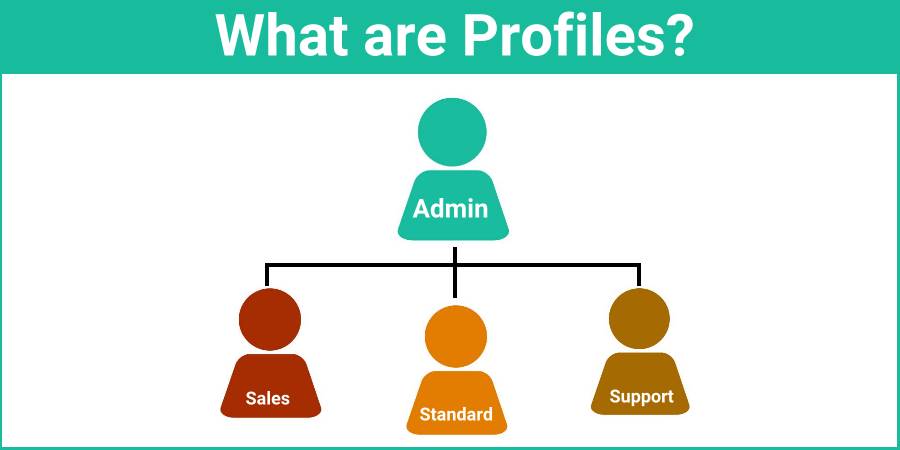
Profiles are a set of users who share similar “Functions”. Profiles control which Features and Permissions those users have access to in GReminders. Think of them as “Permission Profiles” or “Security Profiles”.
Profiles allow you to easily apply permissions and functionality to a number of users with just a few clicks.
You can think of them as “Like Users” or perhaps as Departments, but it doesn’t need to be that way.
GReminders ships with two out-of-the-box System Profiles:
- Administrator
- Standard User
By default Administrator has “global permissions” to everything. It is likely you are the administrator if you are reading this post.
Standard User is a “normal user”.
However you may want to setup special Profiles for certain types of users. For example, you may have “Sales” users and “Non Sales Users”. Or you may have “Sales” and “Marketing” profiles.
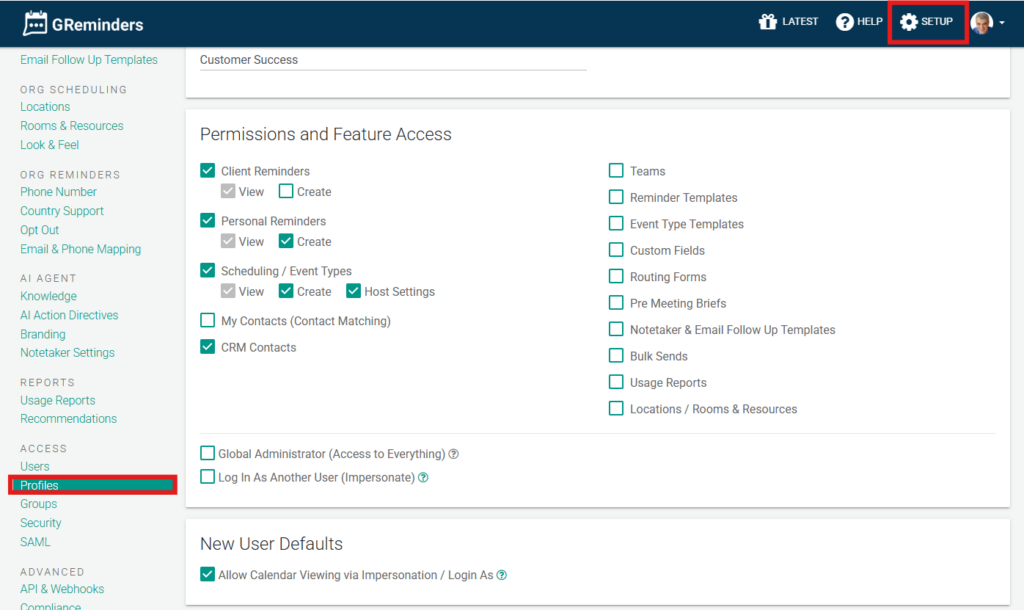
Within Profiles you manage Permissions and Feature Access.
Permissions simply control the features that this profile (and related users) has access to. You can get very fine-grained in your permissions, whereby you can allow someone to view their client reminders, but not create new ones, etc…
You can also grant the “Login as” permission to users independently of Global Admin permissions. This is ideal for support staff who need to assist team members without having full administrative access to the organization.
- Use Case: Allow staff to log in as advisors to manage working hours or host settings.
- Security Note: While a user with this permission can manage settings, they are still restricted from accessing Notetaker recordings while impersonating/masquerading as another user.
User Assignments
You put Users INTO a Profile. ONE User can ONLY have ONE Profile. You can assign as many users as you want to a Profile, but just remember a single user can only be assigned to a single Profile.
It is best practice to keep your Profiles to a minimum, so you have less to manage. Only create New Profiles if you need to give different permissions/integrations or feature access to different Users.
Groups
Groups hold a set of Users.
Groups is an easy way to assign Tasks or Share Records to a group of users. They are also used to assign Managed Event Type or Reminders Templates to a set of Users.
One User can belong to one or many Groups. All Users always belong to an “Everyone” Group.
Any questions? Contact [email protected]
FAQs
What are Profiles in GReminders?
Profiles are sets of users who share similar functions and control which features and permissions those users have access to in GReminders. They act as permission or security profiles to easily apply permissions and functionality to multiple users.
Can a user be assigned to multiple Profiles?
No, one user can only have one Profile. However, you can assign as many users as you want to a single Profile.
What is the difference between Profiles and Groups in GReminders?
Profiles control permissions and feature access for users and each user can only have one Profile. Groups hold a set of users and are used to assign tasks, share records, or assign managed event types or reminder templates. A user can belong to multiple Groups.