
Part of sending Text Reminders is getting confirmations that your client or customer will show up to the appointment.
By default, you are notified by Email (or SMS, depending on your settings) that your customer has confirmed.
However, sometimes its nice to be able to see this at a glance within your Google or Microsoft Calendar.
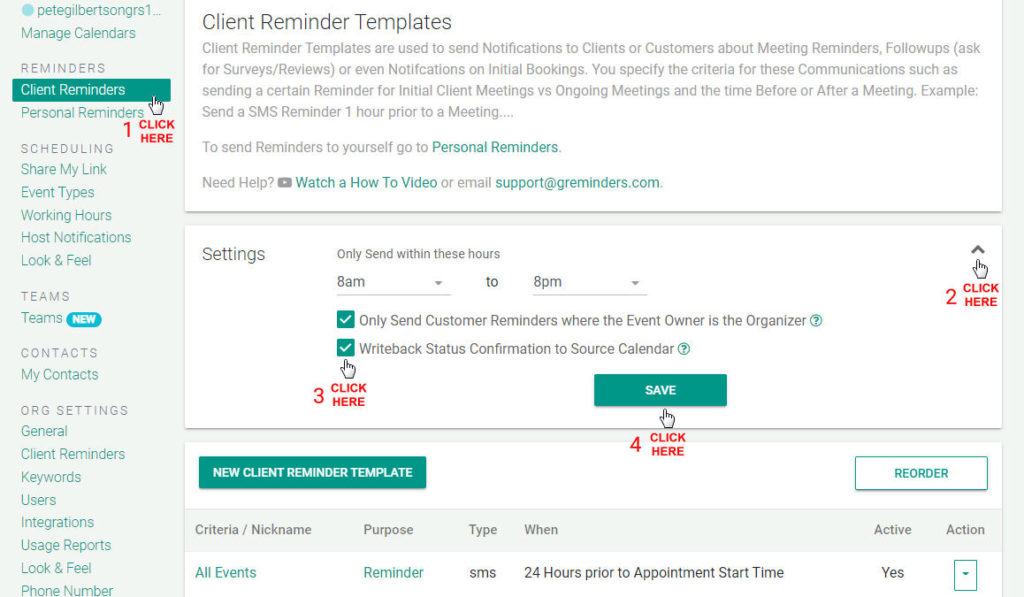
You can now enable a “writeback” setting so that you will see if your customer or client has replied. Click on Client Reminders on the left menu (either under User settings or Org Settings, depending on your particular setup), then select the drop-down settings as shown below. Next, select the checkbox next to ” Writeback Status Confirmation to Source Calendar”. Then save your changes.
Once you do this and your customer replies with a positive “Yes” or similar response, you will see a little checkbox in your Google or Microsoft Outlook Calendar like so:
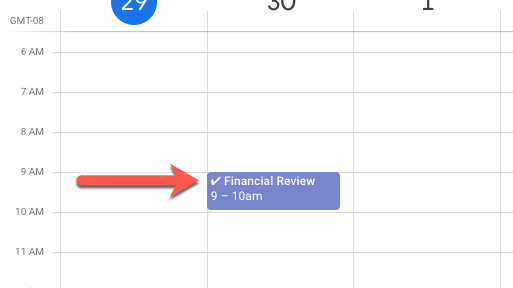
This means your customer has replied with a positive response.
Or for a hard decline you will see:

If a customer replies with anything other than No, Can’t Make it, etc… (a reply that we deem a “Hard No”), you wont see any icon, since it may involve another type of response. These replies will be sent to you based on your notification settings, either via SMS or Email.
Now you can see your confirmations/declines at a glance.
Note: This confirmation writeback does not work on Calendars where you only have “Read Only” access. So you need full permissions on the Calendar in order for the system to do this.
Any Questions? Email to [email protected].
Happy Scheduling!
FAQs
How can I see client confirmations directly in my Google or Microsoft Calendar?
You can enable the "Writeback Status Confirmation to Source Calendar" setting in Client Reminders under User or Org Settings. Once enabled, positive client responses will appear as checkboxes in your calendar.
What types of client replies show icons in the calendar?
Positive replies like "Yes" will show a checkbox icon, and hard declines will show a different icon. Replies that are not considered a hard no will not show any icon but will be sent via your notification settings.
Why might confirmations not appear in my calendar even after enabling writeback?
The confirmation writeback does not work on calendars where you only have "Read Only" access. You need full permissions on the calendar for the system to write back the confirmation status.