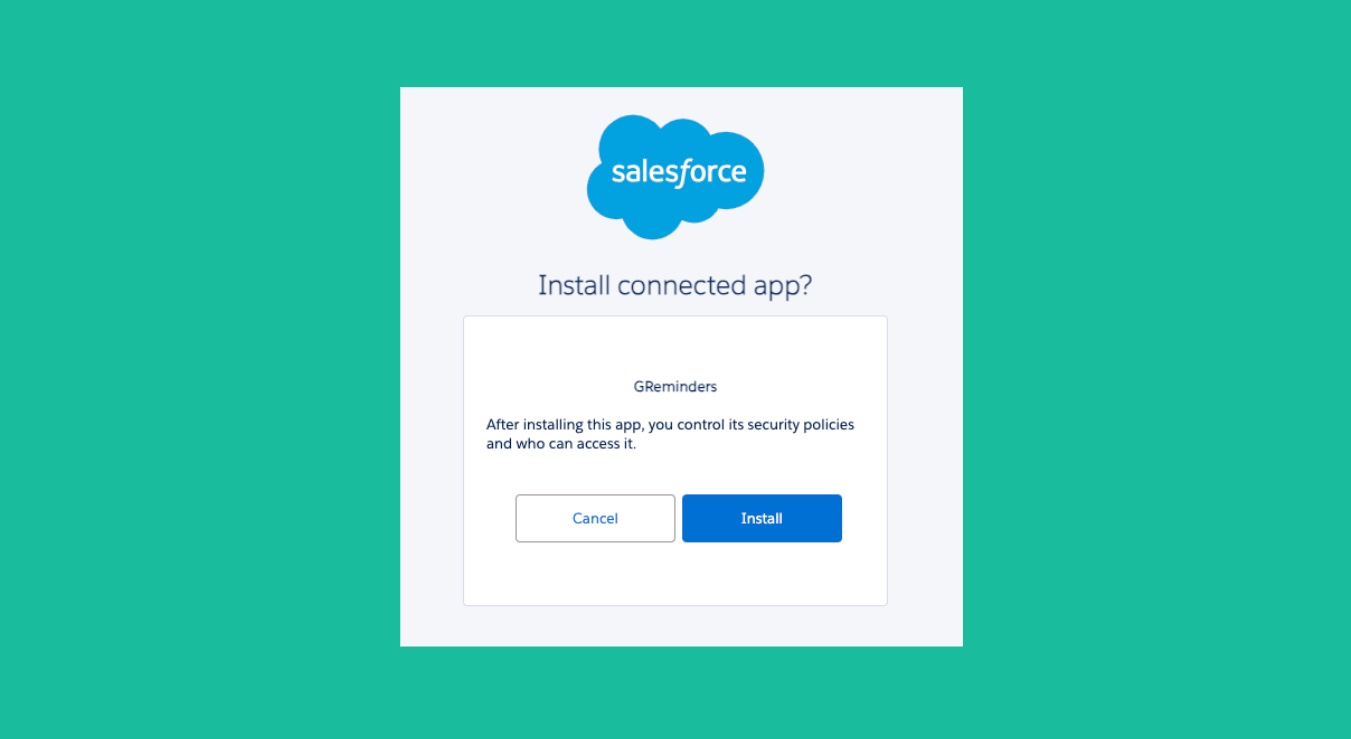
If you are hitting issues with your Users connecting their Salesforce account to GReminders you may be hitting permission issues with your Salesforce Org and GReminders.
Salesforce (as of Sept 2025) is locking down OAuth Applications. Read more here.
Here is what you need to to fix this:
If the Admin has connected Salesforce to GReminders you will need to whitelist the GReminders App.
Step 1: Explicitly Install GReminders in Your Org
In the Quick Find box on the left, type Connected Apps and select Connected Apps OAuth Usage.
Go to Salesforce Setup > OAuth Connected Apps
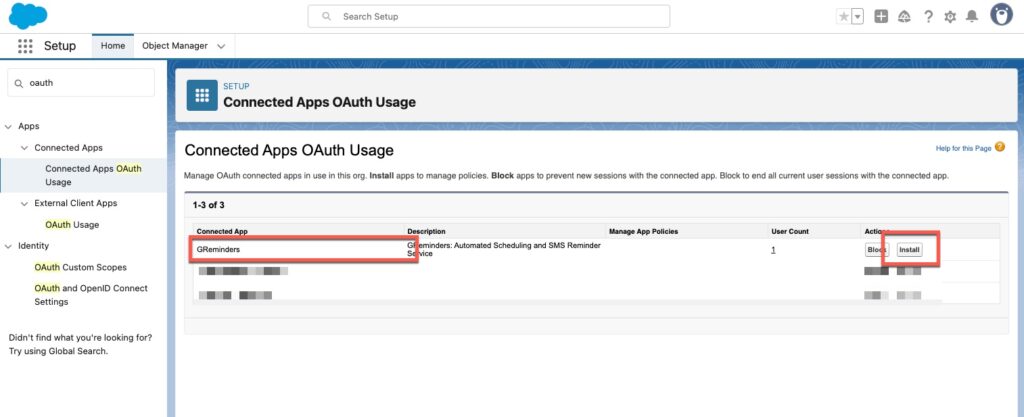
Scroll through the list of applications to locate GReminders.
Install the Connected App into your Salesforce.
All this does it allow you to manage the Permissions on the Application.
Once you install the app you will be able to manage the Application Policies, but in general this should allow your users to individually connect Salesforce.
Step 2: Configure Your OAuth Access Policies
Option A: Allow Restructured Self-Authorization (Recommended for smaller teams)
If you want to let your users connect their own calendars without individual admin intervention:
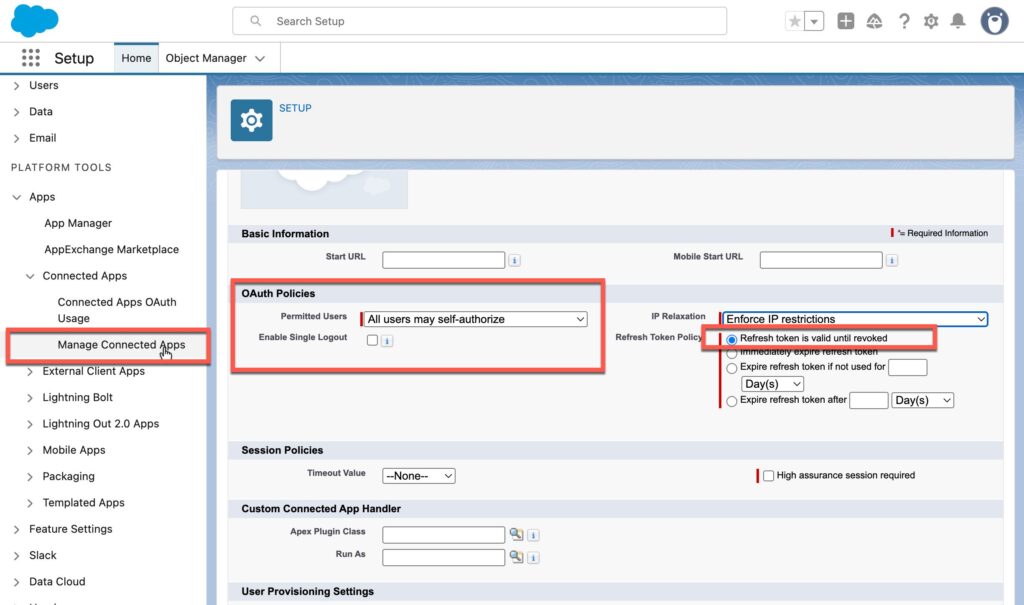
- In Setup, go to Manage Connected Apps (found under Apps > Connected Apps).
- Click Edit next to GReminders.
- Under the OAuth Policies section, find the Permitted Users dropdown.
- Ensure it is set to “All users may self-authorize”.
- Click Save.
Option B: Admin-Approved Pre-Authorization (Recommended for Enterprises)
If you maintain tight control over API data access and want to pre-approve only the specific users who possess a GReminders license:
- Under Manage Connected Apps, click Edit next to GReminders.
- Change the Permitted Users dropdown to “Admin approved users are pre-authorized” and click Save.
- Click directly on the name GReminders to open its detail page.
- Scroll down to the Profiles or Permission Sets related lists at the bottom of the page.Click Manage Profiles (or Manage Permission Sets) and check the boxes for the specific roles/teams (e.g., Standard User, Sales User, or a custom GReminders Sync permission set) allowed to use the app.
Step 3: Reconnect Salesforce to GReminders
Within GReminders go to Setup > Integrations > select Salesforce or your Salesforce Overlay and connect Salesforce using your Salesforce account.
You should be fully connected. Each user can connect their own Salesforce login under My Profile > Integrations.
Check OAuth Policies
If you continue to have problems with system disconnecting go to Setup > Manage Connected Apps and click on the GReminders app.
Check to make sure your Refresh Token Policy is set to Refresh Token is valid until revoked.
If you have any issues please contact [email protected]
Keywords: Salesforce Troubleshooting, Salesforce Connection Issues, Salesforce Connected App
FAQs
How do I fix permission issues when connecting Salesforce to GReminders?
To fix permission issues, you need to whitelist the GReminders app in your Salesforce Org by explicitly installing the GReminders Connected App, then configure the OAuth access policies either by allowing all users to self-authorize or by admin-approved pre-authorization, and finally reconnect Salesforce to GReminders through the GReminders integration settings.
What are the steps to configure OAuth access policies for GReminders in Salesforce?
You can configure OAuth access policies by going to Manage Connected Apps in Salesforce Setup, editing the GReminders app, and setting the 'Permitted Users' dropdown to either 'All users may self-authorize' for smaller teams or 'Admin approved users are pre-authorized' for enterprises. In the latter case, you must assign the app to specific profiles or permission sets.
What should I check if my Salesforce connection to GReminders keeps disconnecting?
If the connection keeps disconnecting, go to Setup > Manage Connected Apps in Salesforce, click on the GReminders app, and ensure that the Refresh Token Policy is set to 'Refresh Token is valid until revoked'. If issues persist, contact [email protected].