If you use Zoom Phone (VOIP) as your phone system, you can now get all the benefits of AI Notetaker with Zoom Phone Calls.
Benefits include:
- Automatic Summaries of the Call
- Extracting Tasks/Action Items from the Call
- Recommending Workflows to be Triggered from the Call
- One click push into your CRM or System of Record
Read More about the Benefits of AI Notetaker here.
To Install
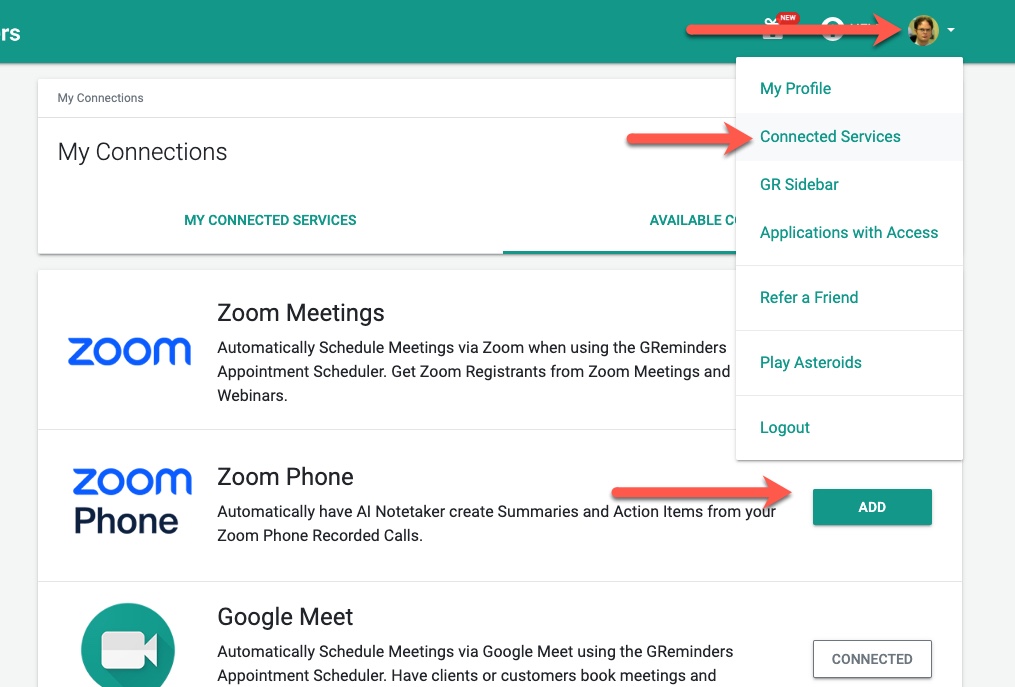
To connect your Zoom Phone Account go to your Profile > Connected Services > and click on Zoom Phone, and connect your Zoom Phone Account.
Next, in order for GReminders to get the recording, you need to enable Recordings on Zoom Phone. You can record calls ad hoc or have them automatically recorded.
Please view this Zoom Call Recording Settings Article
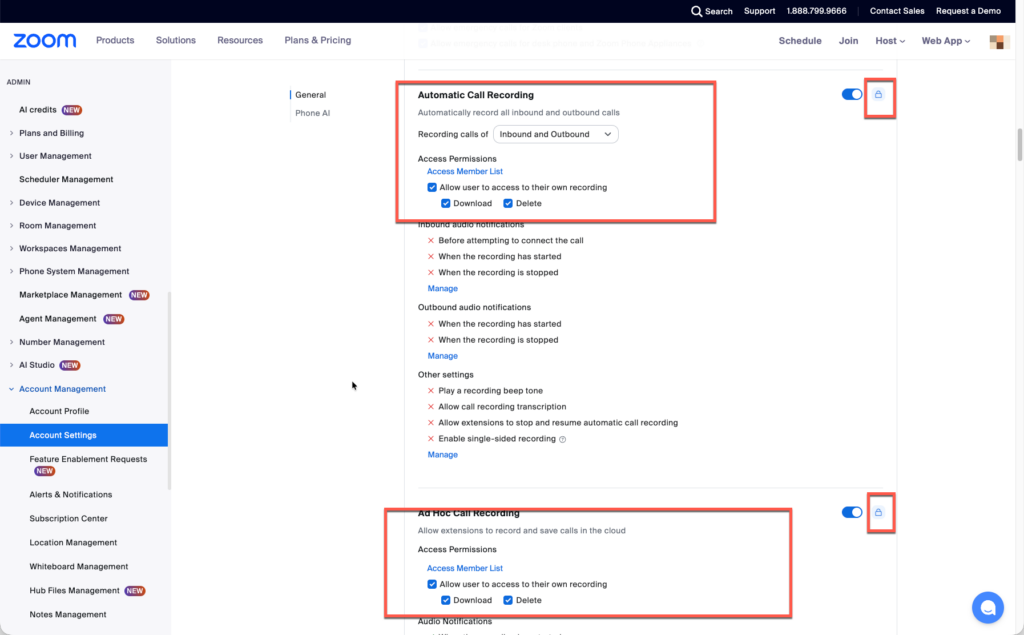
If you want to auto record all calls or allow ad hoc call recording you can do this via the Admin Console for ALL Users under Account Management > Account Settings > Zoom Phone Tab.
Required Permissions
** You MUST allow users Access to Download Recordings **
If you have a Company Account go to Admin > Phone System Management > Users & Rooms. Select User > Policy Tab > scroll down to Automatic Call Recording.
Enable Allow user to access their Own Recordings, make sure Download and Delete are checked.
Apply these to all your users (or do it selectively for GReminders Users)
Lock these settings if you want them to auto apply to all users in the system.
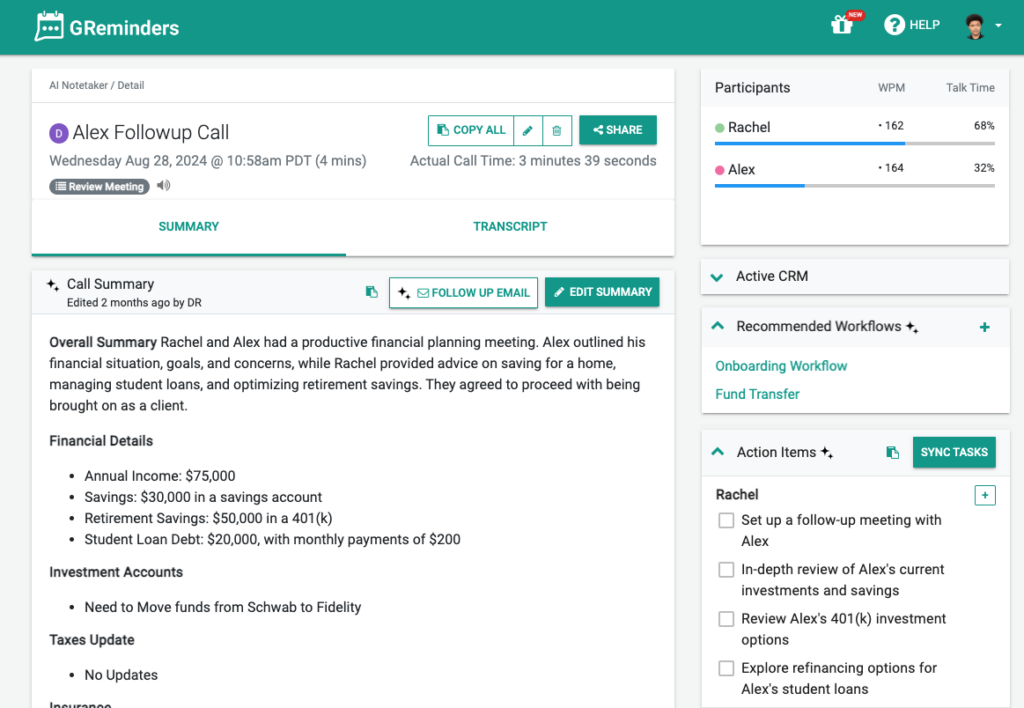
Then simply take inbound or outbound calls. GReminders will get notified of a completed call recording and GReminders’ Notetaker will do the rest.
Your Notetaker recording and summary will look something like this:
That’s It.
To Uninstall
Go to My Profile > Connected Services and click the Disconnect Service Button next to Zoom Phone:
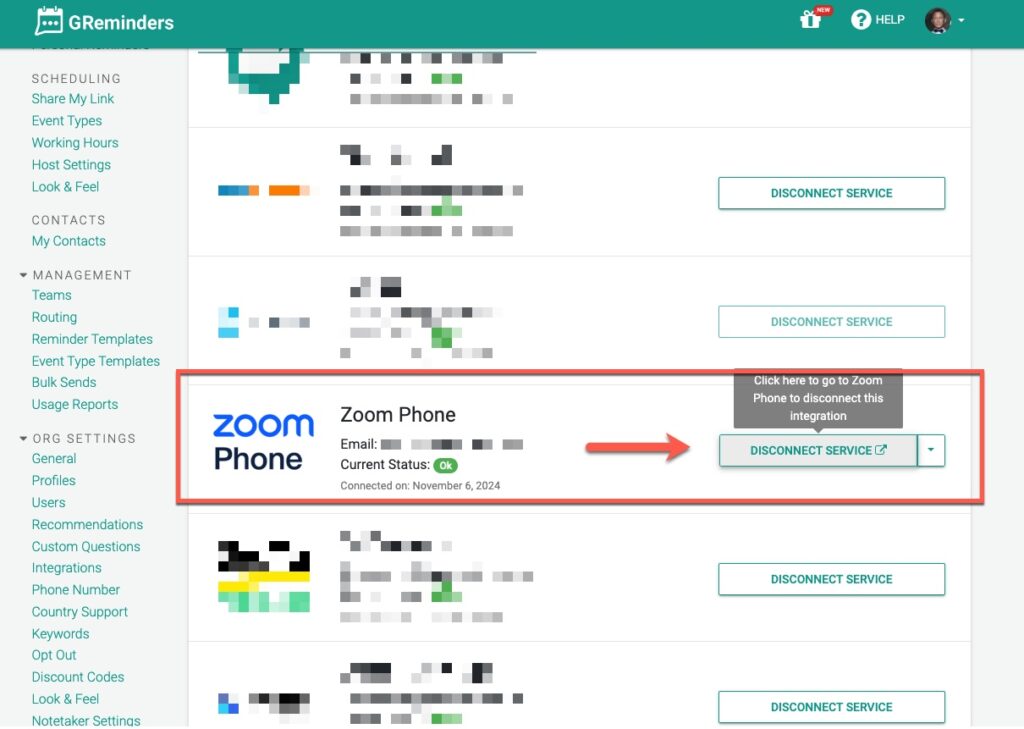
This will remove the Connection and no longer process recorded calls. Existing Recorded Calls will remain on the system until they hit their data retention expiration. Read more here.
Any Questions? Email to [email protected]
FAQs
What are the benefits of using AI Notetaker with Zoom Phone Calls?
The benefits include automatic summaries of the call, extracting tasks and action items from the call, recommending workflows to be triggered from the call, and one-click push into your CRM or system of record.
How do I connect my Zoom Phone account to use AI Notetaker?
To connect your Zoom Phone account, go to your Profile > Connected Services, click on Zoom Phone, and connect your Zoom Phone account. Then enable call recordings either ad hoc or automatically via the Admin Console under Admin > Phone System Management > Users & Rooms > User > Policy Tab > Automatic Call Recording.
How do I uninstall or disconnect AI Notetaker from Zoom Phone?
To uninstall, go to My Profile > Connected Services and click the Disconnect Service button next to Zoom Phone. This will remove the connection and stop processing recorded calls, but existing recorded calls will remain until their data retention expiration.