If you are in an industry that requires 3rd party monitoring of all client communications, GReminders can help.
Our system currently logs all your outgoing SMS, email, and voice reminders along with incoming SMS replies within our app. You can accessed the archive under Usage Reports > Delivery > Logs. To understand how to set up data retention options, click here.
We can also writeback a record of your reminders to integrated CRMs. The reminders are written to the contact record.
However, if you require additional archiving and e-discovery by companies such as Smarsh, Veritas, Global Relay, etc., you are able to accomplish this by setting up BCC Archiving in GReminders.
BCC Archival Setup
Begin by contacting your compliance department or the 3rd party vendor directly and request an email address for BCC Archiving. It most cases, this will be a unique address that will only be used with GReminders.
Next, in GReminders, go to Integrations and scroll down to BCC Archiving. Click on Setup.
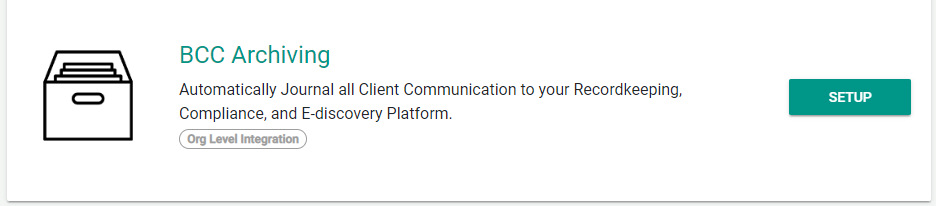
Note: You are setting up BCC Archiving for your entire organization.
Then fill in the BCC Email Address you received from your compliance department or vendor and save your changes.
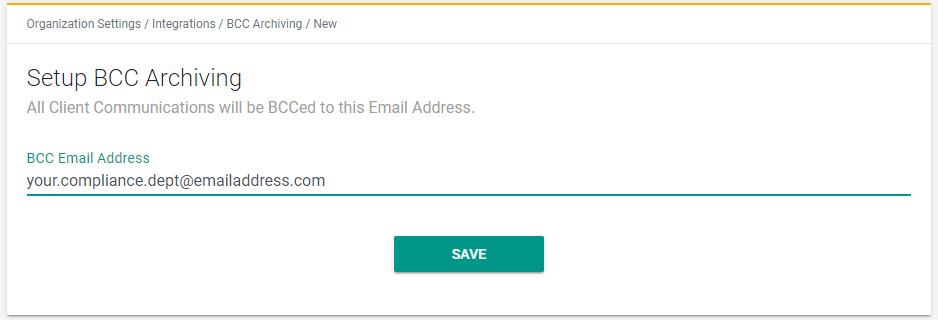
That’s it! All of your communications to and from the GReminders app will be converted to emails and forwarded to the indicated email address. It’s an easy way to satisfy compliance requirements for 3rd party archiving and e-discovery.
If you have any questions, reach out to us here.
FAQs
What types of communications does GReminders log within the app?
GReminders logs all outgoing SMS, email, and voice reminders along with incoming SMS replies within the app. These can be accessed under Usage Reports > Delivery > Logs.
How can I set up BCC Archiving for compliance with 3rd party archiving and e-discovery vendors?
To set up BCC Archiving, first contact your compliance department or 3rd party vendor to get a unique BCC email address. Then, in GReminders, go to Integrations, scroll to BCC Archiving, click Setup, enter the BCC email address, and save your changes. This will forward all communications to the specified email for archiving.
Can GReminders write back reminder records to integrated CRMs?
Yes, GReminders can write back a record of your reminders to integrated CRMs by adding the reminders to the contact record.