The GReminders Bulk Sends feature allows you to automatically invite clients to schedule their upcoming review meetings based on criteria pulled directly from your connected CRM (e.g., Redtail, Wealthbox, Salesforce, etc.). By sending a personalized booking link tied to your Event Type, clients can self-schedule at their convenience—streamlining your review process.
The key to success is organizing your CRM contacts so that GReminders can accurately identify who to invite and when. There are several proven approaches, depending on whether you’re starting from scratch or already tracking review schedules somewhere.
If You’re Not Yet Organized: Starting Fresh
If you don’t currently track review schedules systematically, here are two simple ways to get started using tags.
Note: Each of these options will require a separate Bulk Send for each Tag/Review Month.
Option 1: One Tag Per Review Month (with Multiple Tags for Higher Frequency)
Assign a tag like “January Review”, “February Review”, etc. For clients with semi-annual, quarterly, or more frequent reviews, add multiple tags corresponding to each of their review months.
- Pros: Intuitive and easy to understand for new team members. Tags can be added in bulk quickly.
- Cons: If a client’s schedule changes (e.g., from annual to semi-annual), you’ll need to manually add/remove multiple tags.
How it would look in a GReminders Bulk Send:

Option 2: One Tag Per Review Month + Separate Frequency Field
Assign a single tag for the primary review month (e.g., “January Review”). Use an additional field (e.g., Category, UDF/custom field, or another tag like “Semi-Annual”) to indicate frequency.
- Pros: Clients only need one primary “Review Month” tag, reducing maintenance.
- Cons: Requires ensuring the frequency field is accurate for Bulk Sends to target the right clients.
How it would look in a GReminders Bulk Send:

Already Tracking Reviews on your Calendar?
Many users already note review dates in calendar events. However, GReminders cannot access calendar items for Bulk Send invitations— GReminders can only use contact fields to find the appropriate contacts for a Bulk Send invite.
Solution: Move or duplicate this information to a contact-level field. For example:
- Search your CRM calendar for the “Last Review” or “Next Review” calendar event in a specific month, such as January.
- Bulk-add a tag like “January Review” to the related contacts in those calendar events that month.
This one-time cleanup sets you up for seamless, ongoing automation with GReminders. Once complete, future review scheduling for each contact should be managed directly at the contact level—using the dedicated field you’ve created in your CRM. This keeps everything accurate, up-to-date, and fully automated moving forward.
If you are a Redtail user, use this link to learn more about bulk actions in Redtail
Using Date-Based Fields for Review Dates (Instead of Tags)
An alternative to Tags are Date-based fields. Date-based fields often provide the best long-term flexibility, especially for staggered schedules.
Note: You will need to create multiple Bulk Sends IF multiple frequencies of Reviews are required, such as a Bulk Send for Annual invites, another Bulk Send for Bi-Annual invites, etc.
Approach 1: Standardize on the 1st of the Month
Create one custom date field (e.g., “Annual Review Date”). Set every client’s date to the 1st of their review month (e.g., January 1 for all January reviews).
- Pros: Groups clients by month exactly like tags. Simplifies Bulk Send setup—one automation can cover all months with dynamic criteria.
- Cons: Clients with mid-month reviews get invited separately from the main monthly batch.
Approach 2: Use the Exact Day of the Month
Set the date field to the client’s actual preferred or policy-aligned review day.
- Pros: Perfect alignment with policy renewals or personal preferences.
- Cons: Invites and booking reports arrive individually throughout the month (no single monthly summary email).
How these two approaches would look in a GReminders Bulk Send (Annual Example):
Handling Different Review Frequencies with Date-Based Fields
| Option | Description | Best For |
|---|---|---|
| 1 | Create separate date fields: “Annual Review Date”, “Semi-Annual Review Date”, “Quarterly Review Date”, etc. Each gets its own Bulk Send automation with frequency-specific timing. | Clear separation when frequencies are managed independently. |
| 2 | One date field per policy/provider (e.g., “Allianz Review Date”, “Mass Mutual Review Date”). | Policy-specific reviews tied to different carriers or products. |
| 3 | Single “Next Review Date” field + separate frequency field (e.g., Category: “A”=Annual, “B”=Semi-Annual, etc). GReminders uses both for timing. | Balanced simplicity with flexibility across frequencies. |
| 4 (Redtail Only) | Add multiple UDF date fields per client. Each populated date triggers its own invite automatically. | Clients with truly variable or multiple independent review dates. |
Important: How Scheduling and Frequency Work in GReminders
The way you configure the recurring schedule for a Bulk Send depends on whether you’re using tags or date-based fields:
– If using tags: The schedule and frequency are determined in the **Schedule** section of the Bulk Send setup.
For example, create separate Bulk Sends for each month (e.g., one targeting the “February Review” tag). Set it to recur every 12 months (for annual reviews), every 6 months (semi-annual), etc., at your preferred time (e.g., the first Monday of the month). This sends batch invites to all matching tagged contacts according to that fixed recurrence. An example screenshot is below.

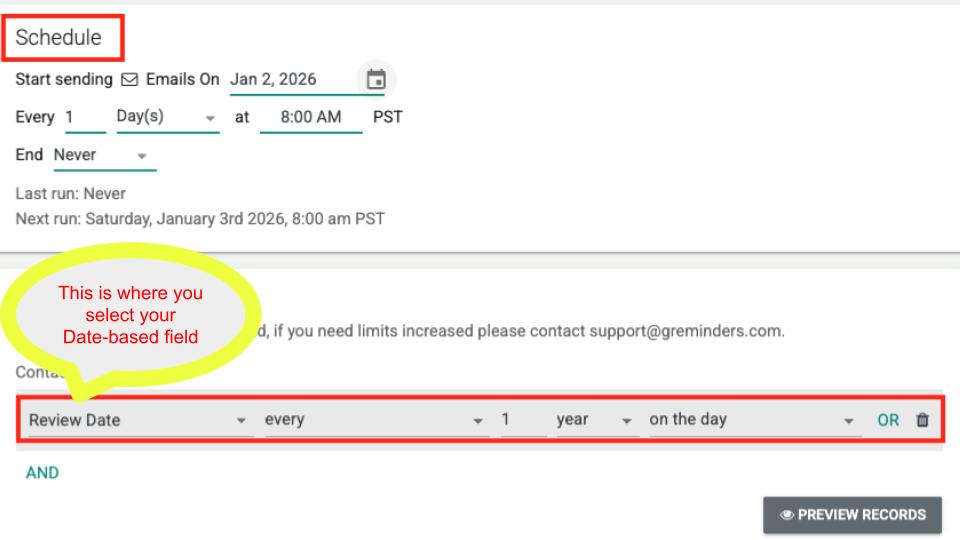
– If using date-based fields: The frequency is driven by the **CRM Records** (criteria) section of the Bulk Send. This is where you can determine how often the invites are sent based on the Date-based field you have for each client’s review.
To catch contacts as their dates approach, set the **Schedule** section to repeat **daily**. This allows the Bulk Send to run every day, constantly scanning your CRM for any contacts whose date-based field now matches the criteria, ensuring timely invites without needing multiple month-specific automations. An example screenshot is below.

Tags vs. Date-Based Fields: Which Is Better?
| Approach | Description | Pros | Cons |
|---|---|---|---|
| Tags | Implied “yes”—if the tag exists, the client qualifies for the group. | Simple, easy to understand. Great for monthly batch invites. | Less flexible for precise timing; changes require manual tag edits. |
| Date-Based Fields | Use a custom date field (e.g., “Next Review Date”). GReminders can auto-update this when a review is booked. | More versatile: Invite by exact date ranges. Matches policy renewals precisely. Fewer Bulk Send automations needed. | Slightly more setup; reports may come individually rather than batched by month. |
Recommendation
Most users find the sweet spot is a single date-based field set to the 1st of the month, combined with a frequency indicator if needed. This gives you monthly batch processing (easy reporting) while keeping automation simple.
Whichever method you choose, GReminders makes it easy to test and refine your Bulk Sends. Start small with one month or a segment, review the results, and expand from there.
That’s it! Need help setting up your criteria or automations? Please email [email protected]
Happy Scheduling!
Keywords: Bulk Send, client automation, review invites, bulk send criteria,
FAQs
How does the GReminders Bulk Sends feature work for scheduling client review meetings?
The GReminders Bulk Sends feature automatically invites clients to schedule their upcoming review meetings based on criteria pulled from your connected CRM. It sends a personalized booking link tied to your Event Type, allowing clients to self-schedule at their convenience, streamlining the review process.
What are the main approaches to organizing CRM contacts for Bulk Sends if I am starting fresh?
There are two main approaches: 1) Assigning one tag per review month (e.g., 'January Review') and adding multiple tags for clients with higher frequency reviews; 2) Assigning one primary review month tag plus a separate frequency field to indicate review frequency. Each approach has pros and cons related to ease of maintenance and accuracy.
What is the difference between using tags and date-based fields for managing review invites in GReminders?
Tags are simple and intuitive, great for monthly batch invites but less flexible for precise timing and require manual updates. Date-based fields offer more versatility, allowing invites by exact date ranges and better alignment with policy renewals, with fewer automations needed. However, date-based setups may require more initial configuration and result in individual invite reports rather than monthly batches.