If you have multiple “Owners” / Account Teams / Advisors of a Account / Household and you want to schedule a meeting with all or some of those Advisors/Owners this article is for you.
GReminders already supports 1:1 event types and “Fixed” Teams. But if you have “Dynamic Teams” which is to say, different clients have different combinations of people who service them, we can support you WITHOUT having to create 100 different predefined team combinations.
First you need a compatible CRM which includes Redtail, Wealthbox, Salesforce / Financial Services Cloud (and any of the Overlays such as Practifi, Quivr, XLR8, Elements, etc…), Dynamics, etc… Your Contact record probably looks something like this:
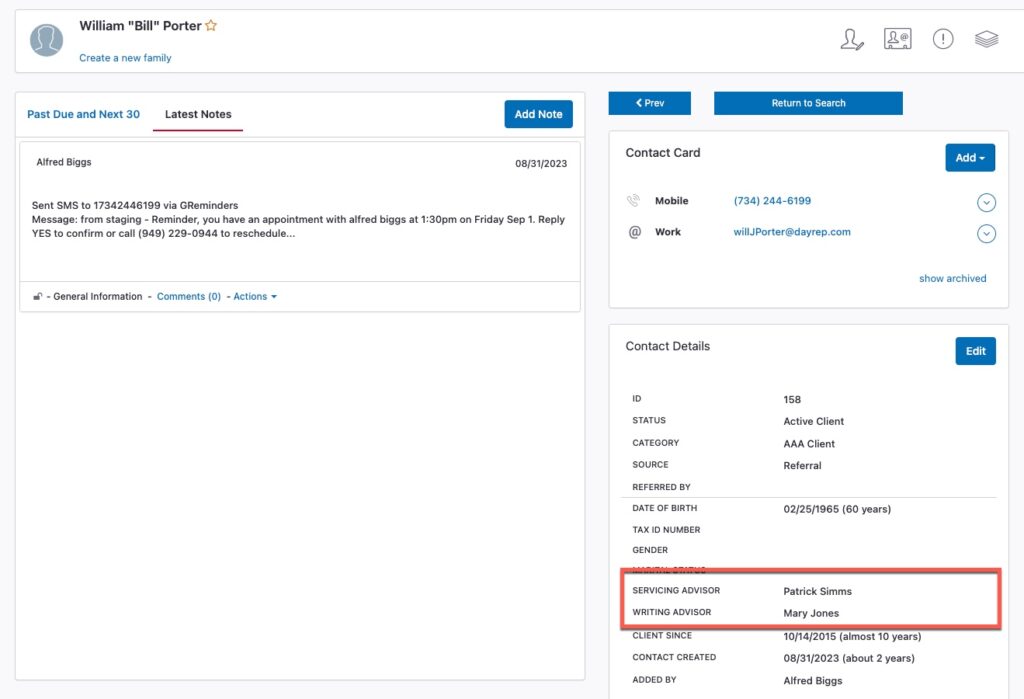
Redtail (notice both Servicing Advisor and Writing Advisor are different)
Wealthbox (notice multiple different people as Servicing this Account)
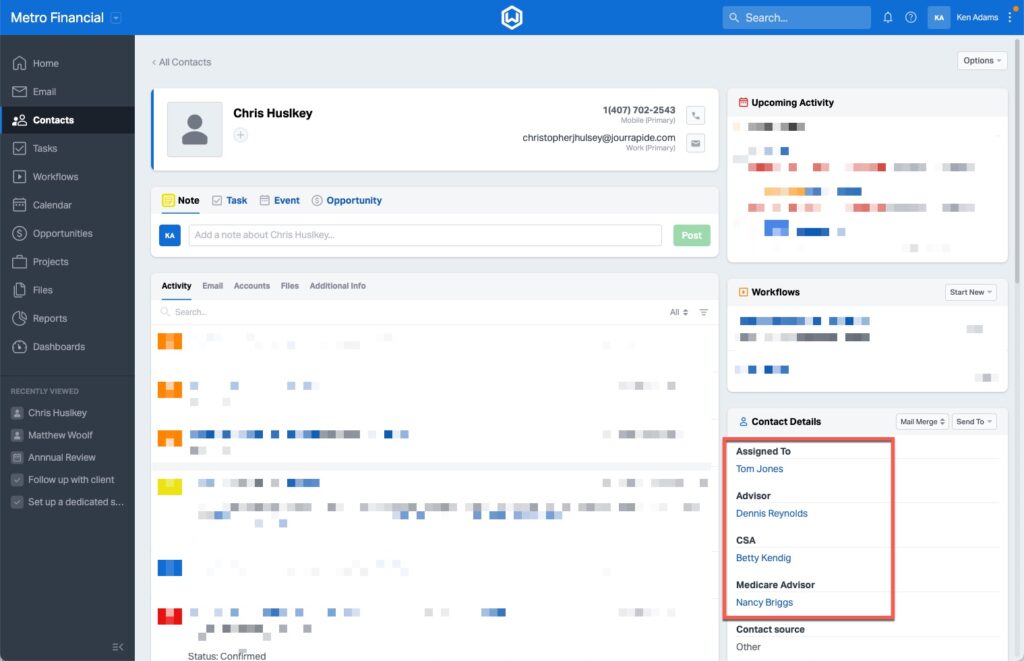
From here we need to determine the most common case, who should be part of the meeting.
You must communicate this “configuration” to GReminders Support team. Send an email to your Customer Success Manager you are working with OR email to [email protected] and tell them you want to setup Dynamic Teams and usually you need to Assigned To Owner and the CSA on a meeting. Our team will configure your account to look at those fields.
Update: November 2025
Redtail Contact Roles are also now supported:
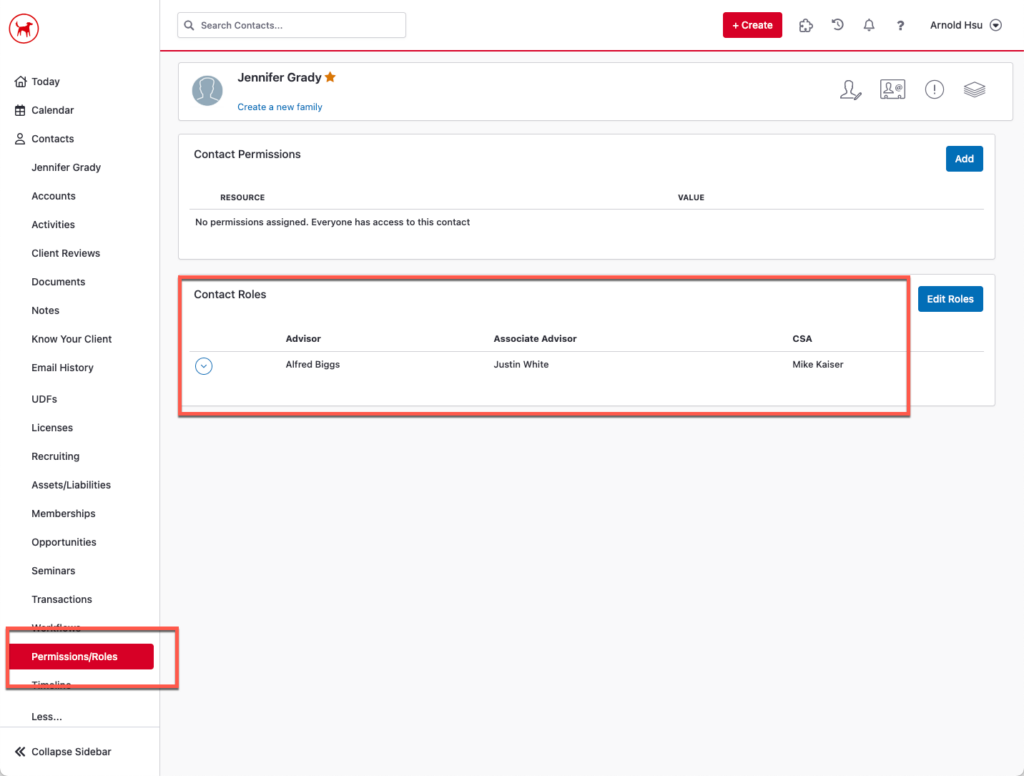
Please Note, each of these “Users” (Advisors or people who “own” these Households/Accounts) must be Users in GReminders.
Once the configuration is loaded go to CRM Contacts and navigate to the Account/Household/Contact Record. Click on the Schedule Tab:
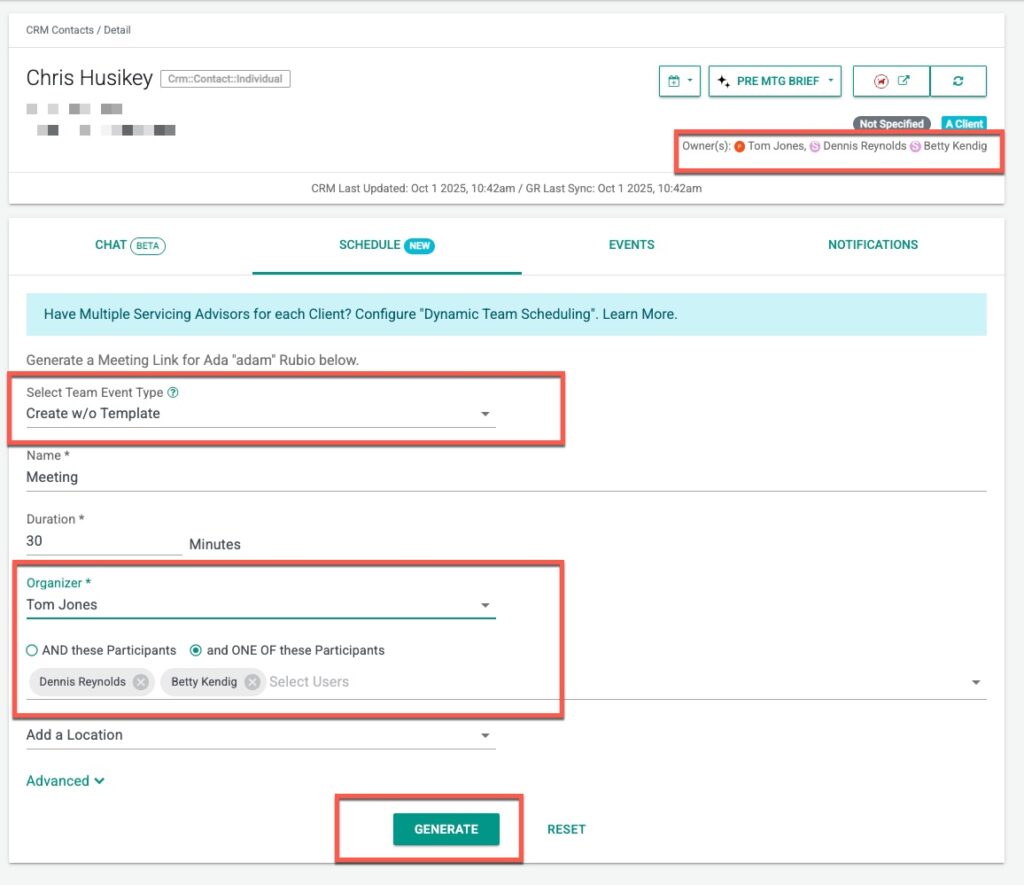
Here you will see the “Owners” are automatically populated as Organizer and other Participants.
One of them will be an Organizer (every event requires an Organizer, again this comes from the configuration we setup), and other “Owners” will be participants.
You can decide if it requires All participants or if we should Choose only One of them. This may depend on your service level with your client OR your general knowledge of who should attend this meeting.
You can also select a Managed Team Event Type Template (so all those settings you setup in the Event Type will auto apply). ONLY All Together or Hybrid Managed Team Event Type Templates apply here.
From here click GENERATE
This will generate a “One Time” Link which you can either send to the client so they can book a meeting OR you can book it on their behalf.
This link also contains the Customer Information to make it easier to book. If you click on the link you will see date/time:
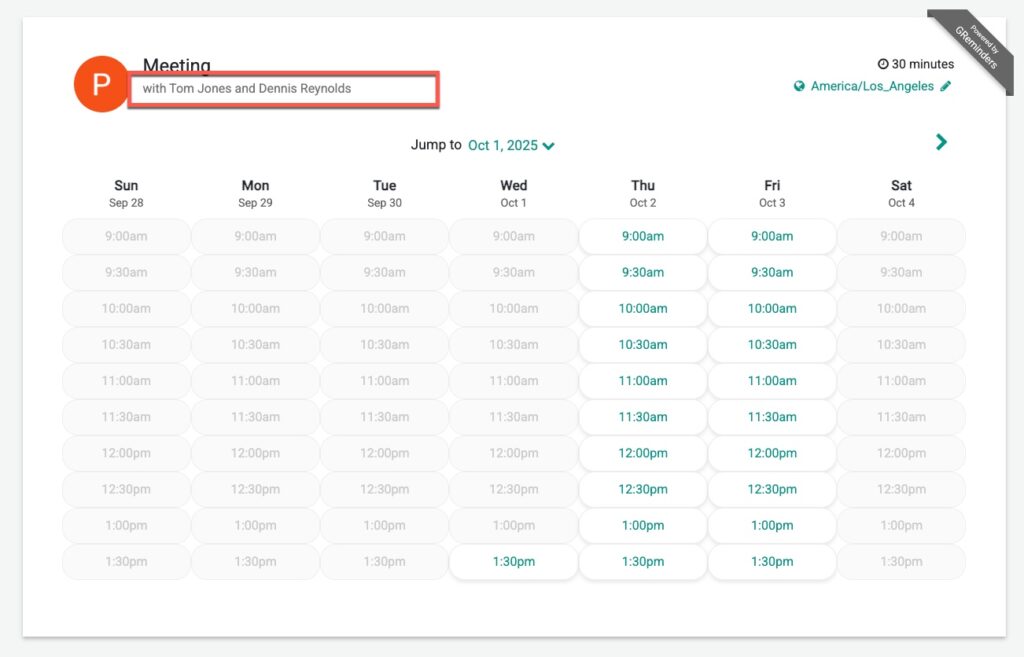
Then:
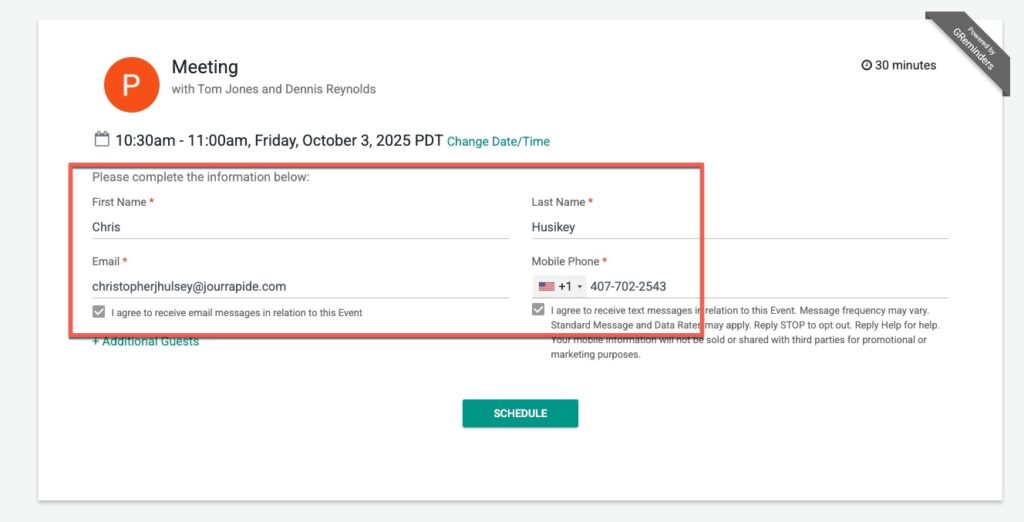
You will see the Customer Data is automatically filled in to make easier for the client AND easier for you if you are booking a meeting on their behalf.
Using this in Bulk Sends
You can also use this configuration in putting Reviews on Auto Pilot, aka Bulk Sends.
To do this in your Bulk Send Configuration when setting up a Request for Appointment you would select Account Team Ownership (per below).
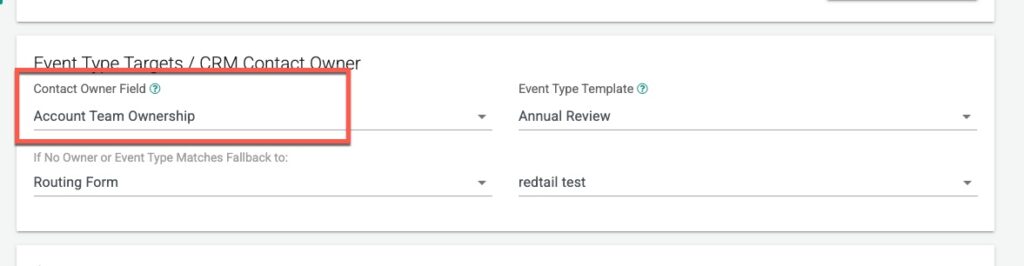
The link that is being generated will be with the appropriate team and not just the single Account Owner.
An active All Together Team Event Type Template is needed and your account ownership must have already been configured in order for this option to become selectable.
There is a lot going on here, the right configuration is paramount! Please talk with your Customer Success Manager or our Support Team for setup assistance.
Any Questions, please contact [email protected]
FAQs
What is a Dynamic Team in GReminders and how does it differ from Fixed Teams?
A Dynamic Team refers to different clients having different combinations of people who service them, unlike Fixed Teams which are predefined and static. GReminders supports Dynamic Teams without needing to create numerous predefined team combinations, allowing for flexible scheduling with multiple Advisors or Owners per Account or Household.
How do I set up Dynamic Teams in GReminders with my CRM?
To set up Dynamic Teams, you need a compatible CRM such as Redtail, Wealthbox, Salesforce Financial Services Cloud, or Dynamics. You must communicate your desired configuration to the GReminders Support team by emailing your Customer Success Manager or [email protected]. They will configure your account to pull the appropriate 'Owners' or Advisors from specified fields like Assigned To Owner and CSA.
How can I schedule meetings with multiple Advisors or Owners using GReminders?
Once Dynamic Teams are configured, you can navigate to the Schedule Tab on a CRM Contact record where the Owners will be automatically populated as Organizer and Participants. You can choose whether all participants are required or just one. By selecting a Managed Team Event Type Template and clicking GENERATE, you get a one-time booking link to send to clients or book on their behalf, with customer information pre-filled for convenience.