Take Control of Your Booking Experience
Your scheduling pages are often the first interaction a client has with your meeting process. Small details—when your week starts, whether weekends appear, how long booking links remain active, and even what information gets added to a client’s calendar—can make a surprisingly big difference.
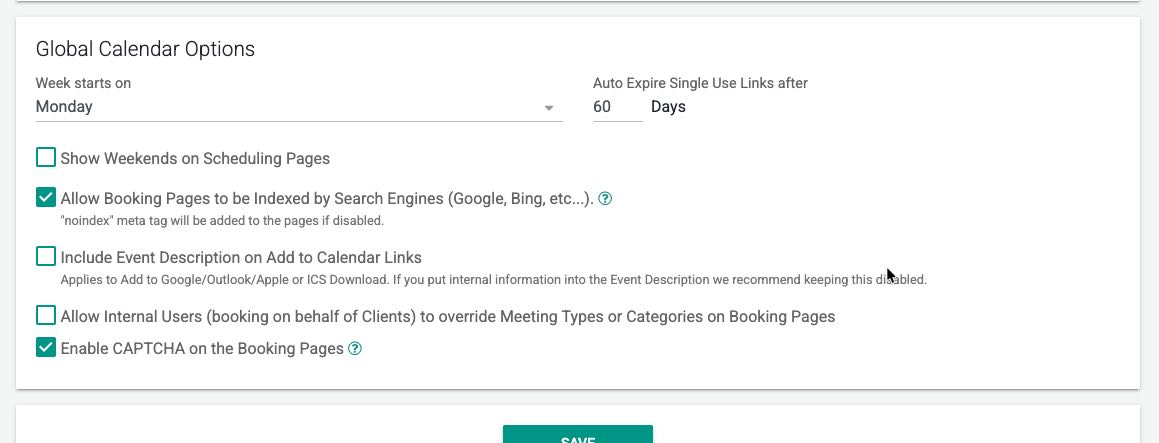
GReminders now gives you more control over these behaviors with a set of Global Calendar Options that let you configure your scheduling experience across your organization.
These Settings can be found under Setup > Settings > Global Calendar Options.
Here’s what each setting does and when you might want to use it.
Week Starts On
Choose whether your scheduling calendars start on Sunday or Monday.
This is a simple preference, but it can make scheduling pages feel much more natural depending on your clients, team, or geographic market.
- Sunday — Traditional U.S. calendar layout.
- Monday — Commonly used by businesses and international organizations.
Choose the option that best matches how your organization and clients think about the work week.
Auto Expire Single-Use Links After
Single-use booking links are designed for situations where you want a client to book one specific meeting and then have the link automatically become invalid.
With this setting, you can determine how many days a single-use link remains active before it expires.
For example, you might send a client a link to schedule a follow-up meeting. Once they book—or once the expiration period passes—the link is no longer useful.
This can help prevent old scheduling links from being reused or sitting around indefinitely.
Tip: Use a shorter expiration period for time-sensitive scheduling requests and a longer period when clients may need more flexibility.
Show Weekends on Scheduling Pages
Not every organization schedules meetings Monday through Friday.
Enable this option if you want Saturday and Sunday to appear on your scheduling pages.
This can be useful for:
- Advisors who offer occasional weekend appointments
- Practices serving clients outside traditional business hours
- Organizations with teams working different schedules
- Client-facing events or meetings that take place on weekends
If your practice operates strictly during the business week, keeping weekends hidden can make the scheduling experience cleaner and easier to understand.
Allow Booking Pages to Be Indexed by Search Engines
This setting controls whether your booking pages can be discovered and indexed by search engines such as Google and Bing.
When disabled, GReminders adds a noindex meta tag to your booking pages, instructing search engines not to include those pages in their search results.
When should you enable this?
If you intentionally want a public scheduling page to be discoverable through search—for example, a general-purpose appointment page—you may want indexing enabled.
When should you disable it?
For most private or client-specific booking pages, disabling indexing is generally preferable. You probably don’t want a scheduling page intended for a specific audience appearing in search results.
Recommendation: If you aren’t intentionally using search engines to drive traffic to a booking page, keeping this disabled is a good default.
Include Event Description on Add to Calendar Links
When a client books a meeting, GReminders can provide options to Add to Google Calendar, Outlook, Apple Calendar, or download an ICS file.
This setting determines whether the event description from the booking is included when the meeting is added to the client’s calendar.
This can be convenient when you want clients to receive additional meeting information directly in their calendar event.
However, there is an important consideration:
If your event description contains internal information, we recommend keeping this setting disabled.
For example, your internal event description might contain notes, workflow instructions, CRM information, or other details that aren’t intended for the client.
Before enabling this setting, make sure anything contained in your event descriptions is appropriate to share with the person receiving the calendar invitation.
Allow Internal Users to Override Meeting Types or Categories
GReminders can also accommodate organizations where an internal user is booking a meeting on behalf of a client.
This setting allows internal users to override the Meeting Type or Category configured on a booking page.
For example, an operations team member may be scheduling a meeting for an advisor and need to change the meeting from one category to another based on the specific client or situation.
This provides additional flexibility without requiring you to create separate booking pages for every possible scenario.
For organizations with tightly controlled scheduling workflows, you may prefer to leave this disabled so that the booking page’s predefined Meeting Type or Category always remains in control.
Enable CAPTCHA on Booking Pages
CAPTCHA can be enabled on your booking pages to help protect them from automated submissions and bots.
This can be particularly useful if your scheduling pages are publicly accessible or you’re experiencing suspicious or automated booking activity.
CAPTCHA adds an additional verification step designed to distinguish real people from automated systems.
When should you enable it?
Consider enabling CAPTCHA if:
- Your booking pages are publicly promoted
- You’re seeing spam or suspicious bookings
- A booking page is receiving unusually high automated traffic
- You want an additional layer of protection on a public-facing scheduling page
For private booking pages with trusted audiences, you may prefer the simplest possible booking experience and leave CAPTCHA disabled.
Configure GReminders Around the Way Your Organization Works
The best scheduling experience isn’t necessarily the one with the most features enabled. It’s the one that matches how your organization actually schedules meetings.
These Global Calendar Options give administrators control over everything from the calendar layout and weekend visibility to link expiration, search-engine visibility, calendar privacy, internal booking workflows, and bot protection.
A few recommended defaults for many organizations:
| Setting | Common Default |
|---|---|
| Week starts on | Sunday |
| Auto-expire single-use links | 60 days |
| Show weekends | Disabled unless needed |
| Search engine indexing | Disabled |
| Include event description | Disabled if descriptions may contain internal information |
| Internal users override Meeting Types/Categories | Enable if operations users need flexibility |
| CAPTCHA | Enable for public/high-traffic pages |
The important thing is that these are global controls. Once configured, they establish the baseline scheduling behavior for your organization—helping ensure that your booking experience is consistent, secure, and aligned with your workflow.
Better scheduling isn’t just about letting someone pick a time. It’s about controlling the entire experience around that meeting.
FAQs
How can I choose the starting day of the week for my scheduling calendars?
You can choose whether your scheduling calendars start on Sunday or Monday under Setup > Settings > Global Calendar Options.
What is the purpose of enabling CAPTCHA on booking pages?
Enabling CAPTCHA helps protect your booking pages from automated submissions and bots, particularly useful if your pages are publicly accessible or experiencing suspicious activity.
How can I control whether my booking pages can be indexed by search engines?
You can control this setting under Global Calendar Options; enabling it allows your booking pages to be discoverable by search engines, while disabling it adds a noindex tag to prevent indexing.