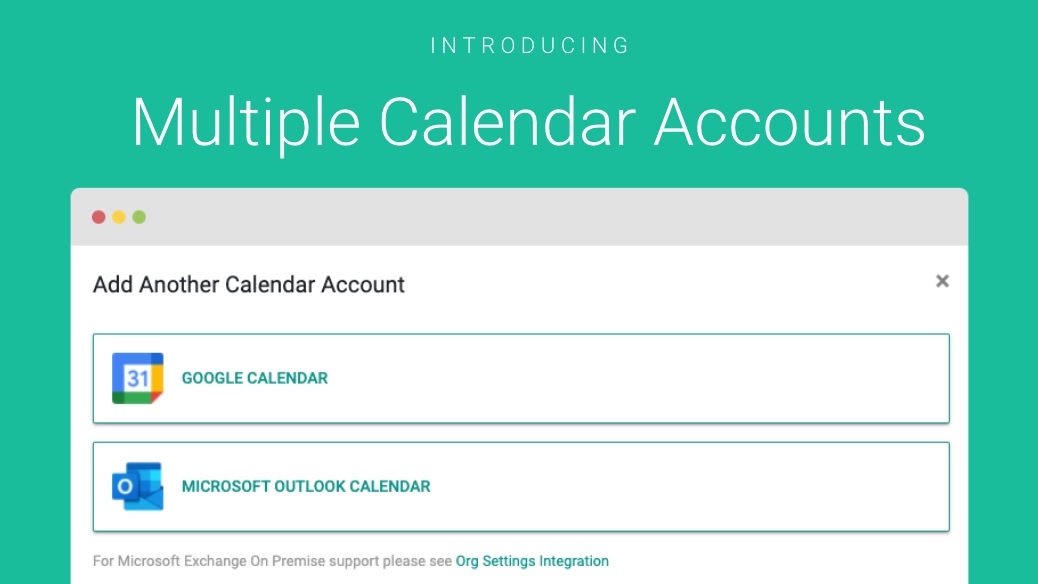
If you have multiple Email Accounts you can connect them all in GReminders
A common situation is having a Work Email and Calendar, a Personal Email and Calendar, and perhaps even a Calendar for your Non Profit. They are on combinations of GMail, Outlook and/or Office 365.
Now you can connect all your accounts to the SAME GReminders User Account.
Simply go to Manage Calendar on the left navigation bar:
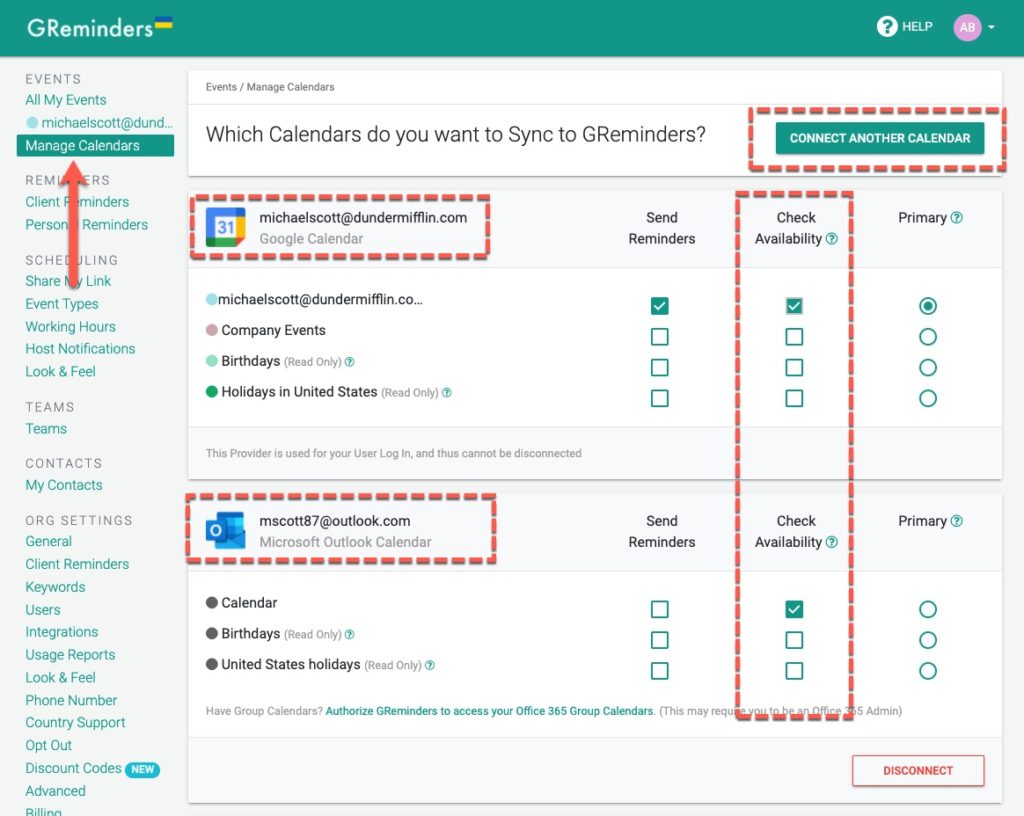
Click on “Connect Another Calendar” and you can choose from a Microsoft Outlook.com OR Microsoft Office 365 OR Google Calendar.
Follow the prompts and confirm permissions, and your additional account will be added here.
If you are using GReminders for Automated Scheduling you should “check” the “Check Availability” box for the calendars you want the system to respect any time that is blocked by your new calendar.
This allows you to have multiple calendars AND multiple Accounts connected and the system will check availability across accounts and calendars.
OR If you want to also send Reminders across your calendars you can do so very simply by checking the “Send Reminders” box.
Make sure you hit UPDATE at the bottom when you are done.
Troubleshooting hint, If you are logged into multiple Microsoft or Google accounts and you are not able to connect to the right one, try doing this entire process in Incognito or Private Browser Mode. Sometimes this is less confusing for the browser and gives a more discrete result.
That’s It. Happy Scheduling.
Any questions? Email to [email protected]
FAQs
Can I connect multiple email accounts to the same GReminders user account?
Yes, you can connect multiple email accounts, including Gmail, Outlook, and Office 365, to the same GReminders user account by going to Manage Calendar and selecting 'Connect Another Calendar'.
How do I ensure GReminders respects my availability across multiple calendars?
When using Automated Scheduling, check the 'Check Availability' box for the calendars you want the system to consider. This allows GReminders to check availability across all connected accounts and calendars.
What should I do if I have trouble connecting the correct account when logged into multiple Microsoft or Google accounts?
Try completing the connection process in Incognito or Private Browser Mode, as this can reduce browser confusion and help you connect to the correct account.