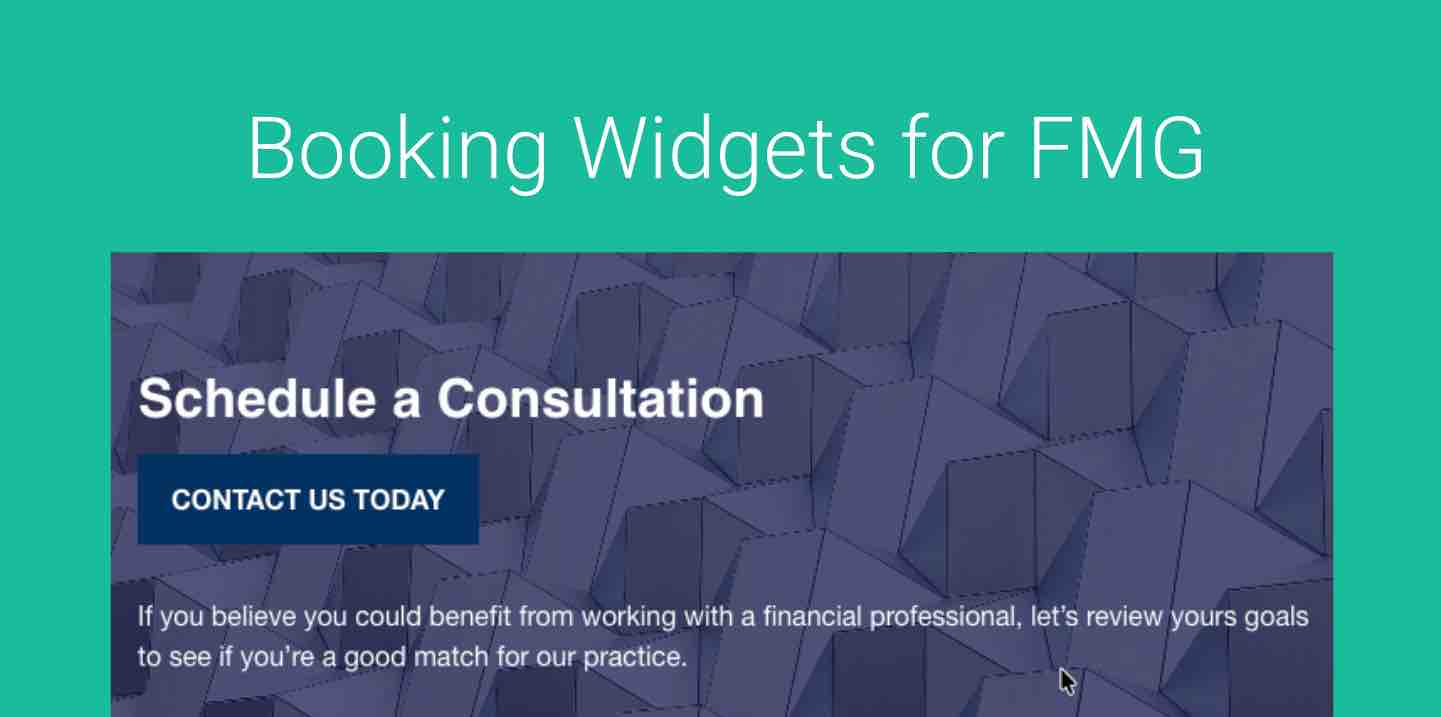
Embedding an interactive GReminders scheduling widget directly onto an FMG website dramatically outperforms traditional “Contact Us” forms by capturing high-intent prospects at the peak of their interest. Standard forms create an operational bottleneck, whereas direct online scheduling streamlines client acquisition and boosts conversion rates:
- Modernized First Impression: Delivers a seamless, professional digital experience that signals efficiency and respect for the client’s time before the first meeting even begins.
- Eliminates Response Delays: Rather than forcing prospects to submit their info into a queue and wait hours or days for a reply, visitors secure an advisor’s calendar instantly on the spot.
- Removes Scheduling Friction: Bypasses tedious back-and-forth email exchanges to coordinate times, keeping the booking experience fast and completely self-service.
- Prevents Lead Drop-Off: Capturing visitors in the exact moment they decide to take action prevents drop-offs, maximizing website conversion rates.
Sample Website Preview
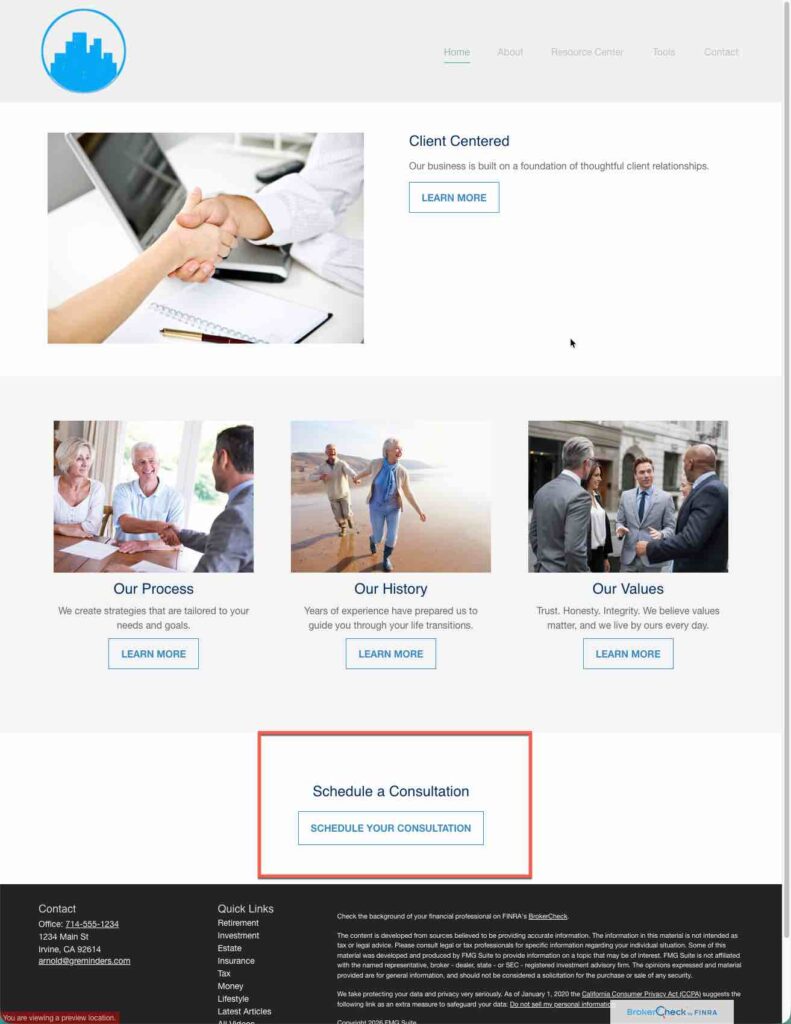
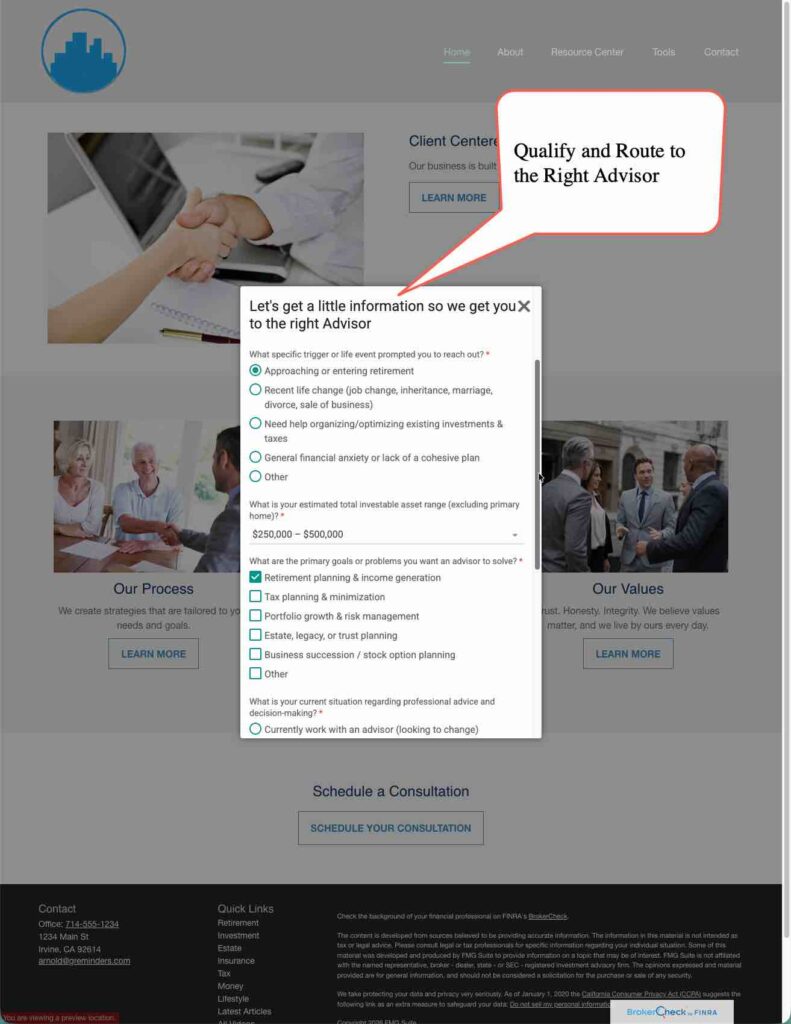
Once you click you can ask some questions or go directly to the booking pages. Here are examples:
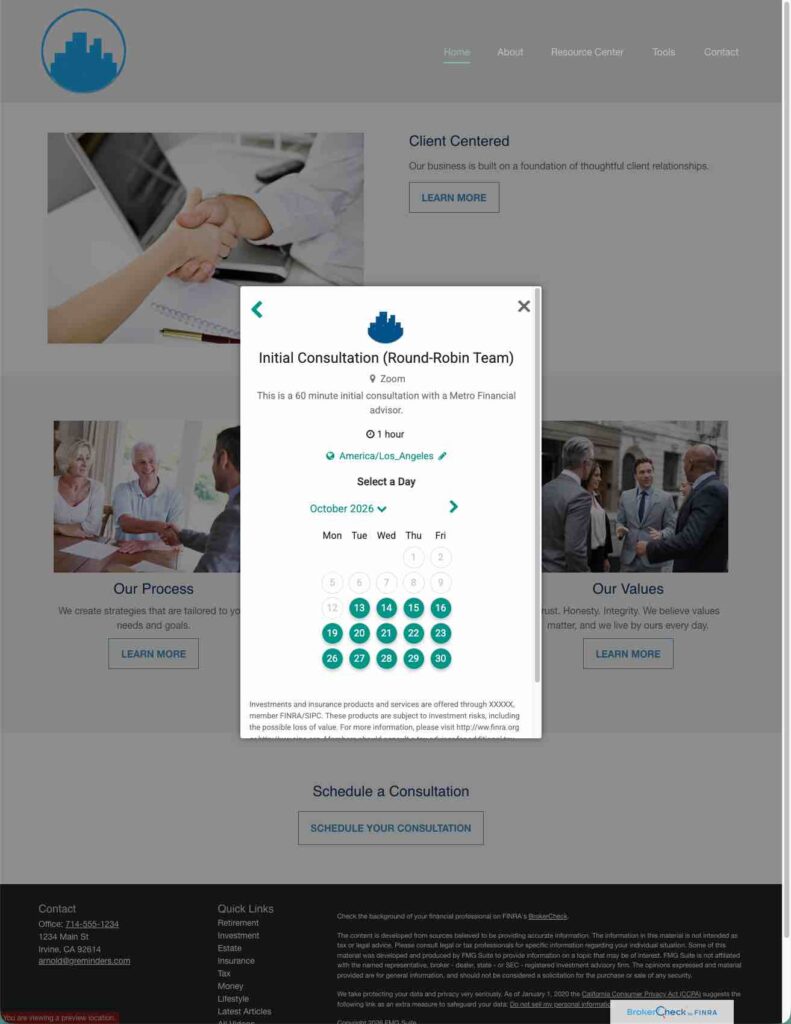
Then go to a Booking Page
Setup
Adding a scheduling widget to your FMG Website is easy. Here is how.
Go to your Home Page or one of your Pages within the FMG Website Tool.
Find a section of page you want to add, click the PLUS and select the HTML Widget:
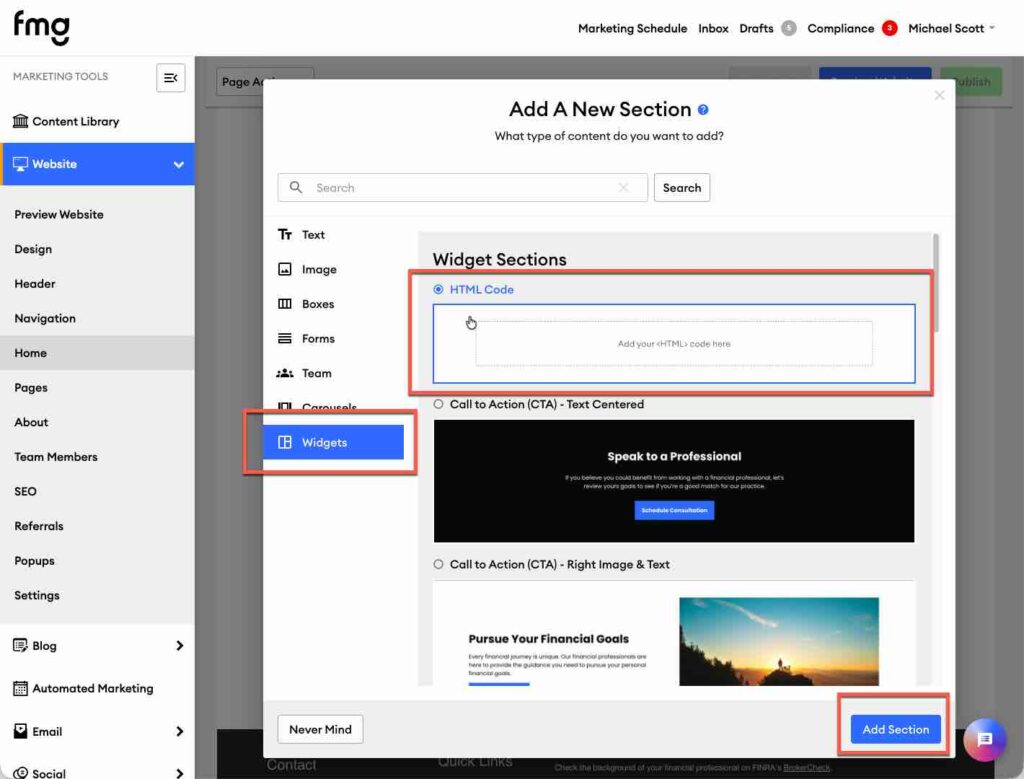
Click Add Section
Next Click on the Section
Here you will want to paste in some HTML code.
<script src="https://app.greminders.com/widgets/booking.js"></script>
<script type="text/javascript">
window.onload = function() {
    GReminders.BookingWidget.initialize(
        'https://app.greminders.com/XXXXXX',
    );
};
</script>

<div style="text-align: center;">
<h2>Schedule a Consultation</h2><p><a href="#" class="c-btn"  onclick="GReminders.BookingWidget.open();">Schedule your Consultation</a></p>
</div>
Make sure you REPLACE https://app.greminders.com/XXXXXX part with your specific LINK. This could be a link to your Event Type, or a Routing Form.
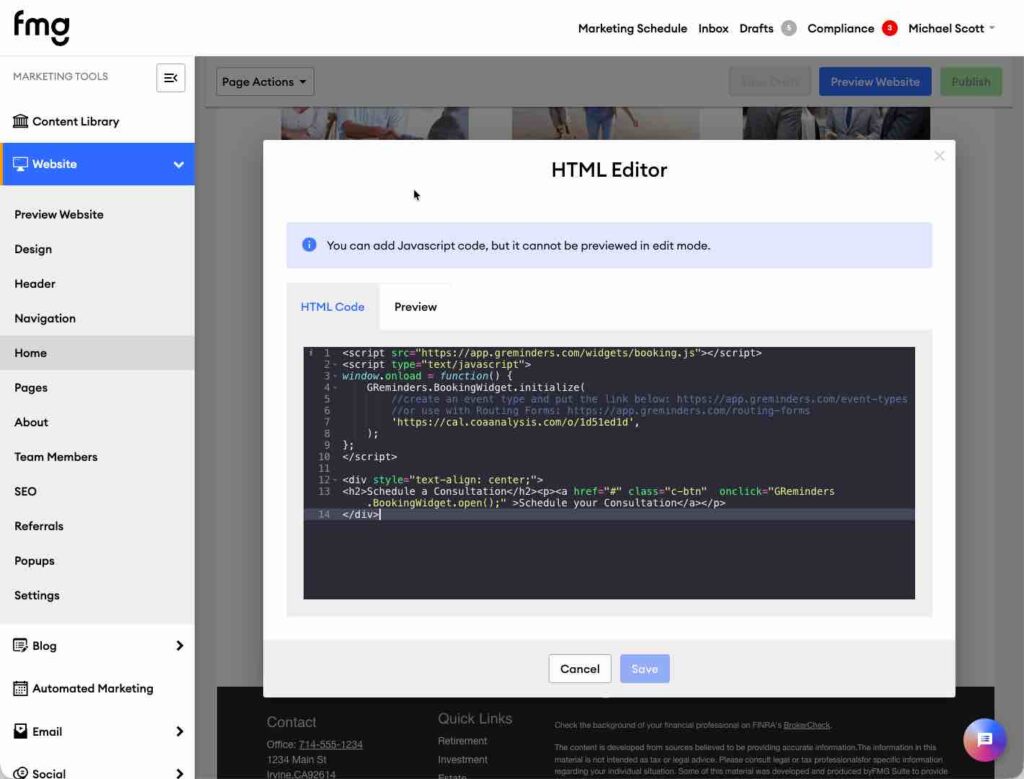
Next Click SAVE.
Preview your Changes and you should have a scheduling widget similar to the one above on your Website.
For more advanced Widget Setttings please see our API Documentation.
That’s It.
Need Help? Contact [email protected]
FAQs
What are the benefits of embedding a GReminders scheduling widget on an FMG website?
Embedding a GReminders scheduling widget improves client acquisition by capturing high-intent prospects, eliminates response delays, removes scheduling friction, and prevents lead drop-off.
How do I add a scheduling widget to my FMG website?
To add a scheduling widget, go to your FMG website, click the PLUS to select the HTML Widget, paste the provided HTML code, replace the placeholder link with your specific link, and click SAVE.
Where can I find help if I encounter issues while setting up the scheduling widget?
For assistance, you can contact support at [email protected].