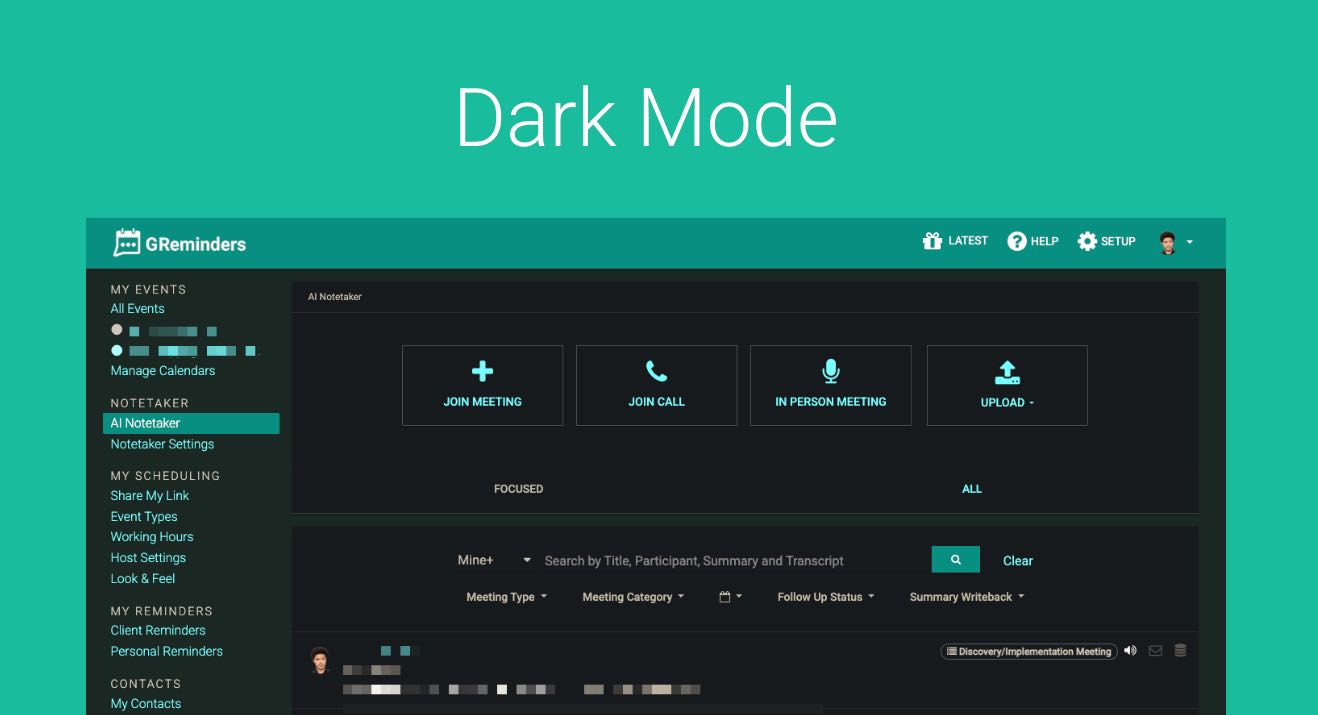
Some folks really like “Dark Mode” which is a black background instead of white. This sometimes helps with screen fatigue.
Since GReminders doesn’t currently have a native “Dark Mode” toggle, we highly recommend using the Dark Reader Chrome extension. Here’s why it’s our top choice and how you can set it up to make your scheduling workflow easier on the eyes.
Note, If you are using GReminders within Redtail, GReminders DOES support the Dark Theme if you have this enabled in your Redtail Environment.
Why We Recommend Dark Reader for GReminders
There are dozens of dark mode extensions, but Dark Reader is the “gold standard” for professional tools like GReminders for three main reasons:
1. Intelligent “Dynamic” Rendering
Unlike basic extensions that just “invert” colors (making everything look like a neon X-ray), Dark Reader analyzes the site’s design. It keeps the GReminders action buttons (like “Copy Link” or “Add to Calendar”) clear and high-contrast, ensuring you don’t click the wrong thing.
2. Customization per Site
You might want GReminders in dark mode but need your CRM (like Salesforce or Redtail) to stay in its original theme. Dark Reader allows you to toggle dark mode site-by-site, giving you total control.
How to Set Up Dark Reader with GReminders
Setting this up takes less than 60 seconds. Follow these steps:
Step 1: Install the Extension
Go to the Chrome Web Store and click Add to Chrome. Dark Reader also works on Microsoft Edge and Firefox.
Step 2: Pin the Extension
Click the Puzzle Piece icon in your browser toolbar and click the Pin icon next to Dark Reader. This keeps the toggle within reach for quick adjustments.
Step 3: Optimize for GReminders
Open your GReminders dashboard or scheduling page. Click the Dark Reader icon and ensure the following settings are applied:
- Mode: Filter+ or Dynamic (Dynamic is best for modern web apps).
- Brightness/Contrast: We recommend Brightness at 0 and Contrast at +10 for the best readability of calendar text.
- Site List: If you only want it on for GReminders, go to the “Site List” tab and select “Invert listed only.”
Pro Tip: The Keyboard Shortcut
When you’re switching between a video call (where you want more light on your face) and your GReminders calendar, use the shortcut:
Alt + Shift + D (Windows) or Option + Shift + D (Mac)
This instantly toggles dark mode on or off for the current site.
Summary: Better Eyes, Better Scheduling
By pairing GReminders with Dark Reader, you reduce blue light exposure and visual clutter. This allows you to focus on what matters: managing your clients and growing your business without the late-afternoon headache.
FAQs
Does GReminders have a native Dark Mode feature?
No, GReminders does not currently have a native Dark Mode toggle. However, if you use GReminders within Redtail, it supports the Dark Theme if enabled in your Redtail Environment.
Why is the Dark Reader Chrome extension recommended for using Dark Mode with GReminders?
Dark Reader is recommended because it offers intelligent dynamic rendering that keeps action buttons clear and high-contrast, allows customization per site so you can enable dark mode only on GReminders, and provides better readability without just inverting colors.
How do I set up Dark Reader for GReminders?
To set up Dark Reader, install the extension from the Chrome Web Store, pin it to your browser toolbar, then open your GReminders dashboard and enable Dark Reader with Mode set to Filter+ or Dynamic, Brightness at 0, Contrast at +10, and configure the Site List to invert only listed sites if desired.